How to Check when Windows Update was Last Checked in Windows 11

Windows 11 automatically looks for updates to keep your computer safe and running well. Sometimes, you may want to know exactly when your computer last looked for these updates to ensure everything is up to date.
Why do this? Checking this date helps you verify that your automatic updates are working correctly. It also lets you know if you should manually search for new security patches.
What happens when done? You will see a specific date and time stamp indicating the last successful check performed by the Windows Update service.
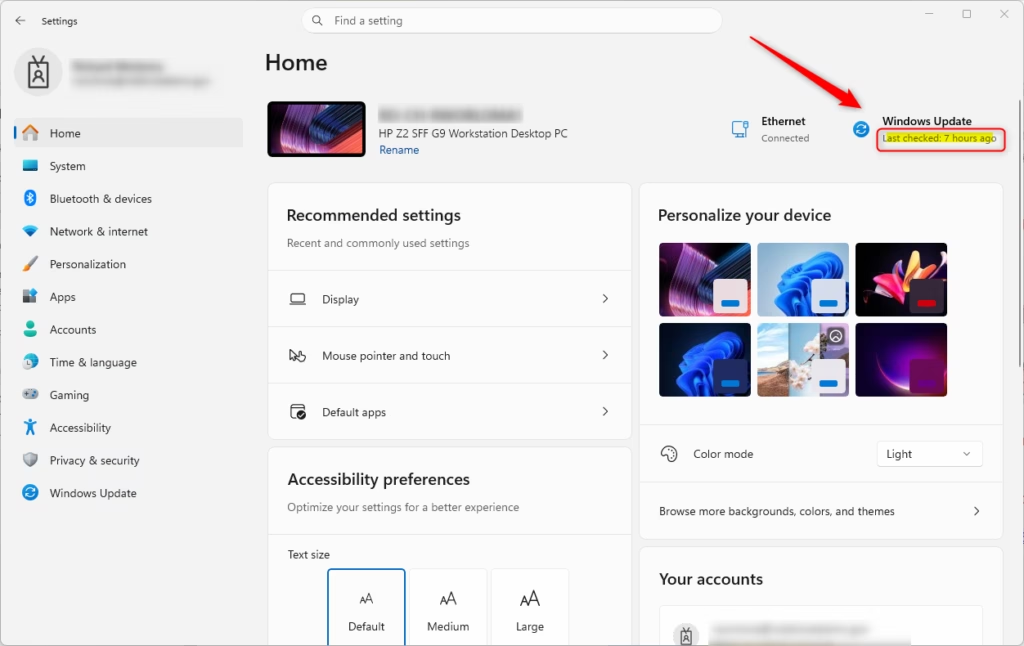
Option One : Check the Settings Home Page
- Open your Settings menu by pressing Win+I on your keyboard.
- Click on Home located on the left-hand menu.
- Look at the top of the window. You will see a label that says Last checked followed by the time. Open Settings Home page
Option Two : Check the System Page
- Open Settings (Win+I).
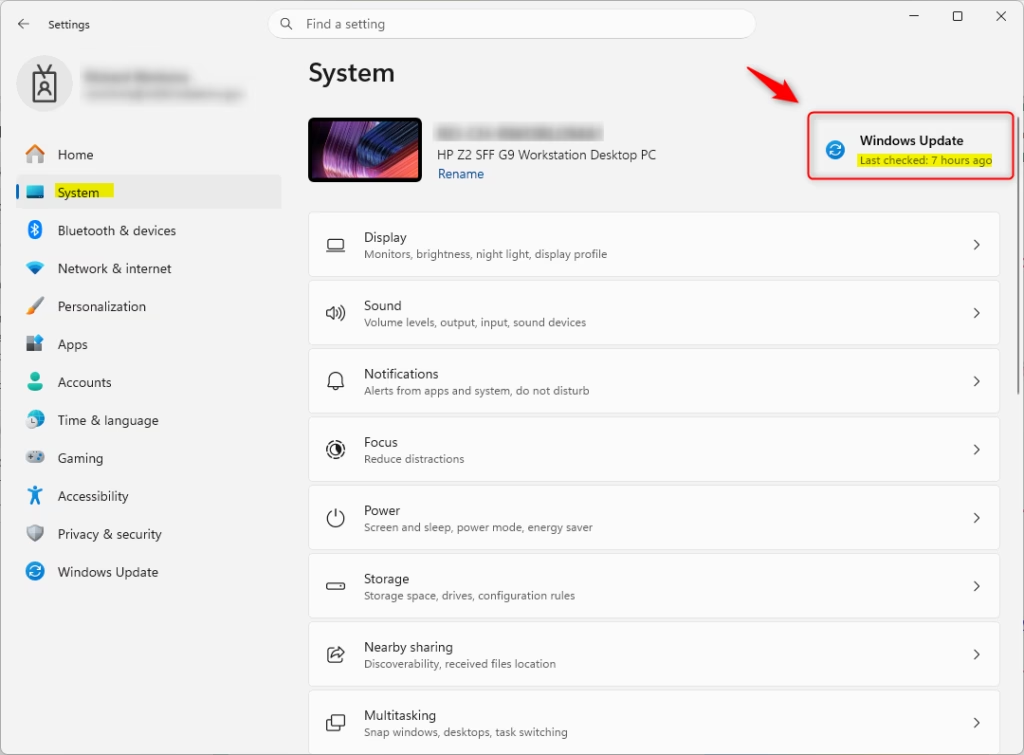
- Click on System on the left side of the screen.
- Check the top of the page to see the Last checked information. Open Settings System page
Option Three : Check the Windows Update Page
- Open Settings (Win+I).
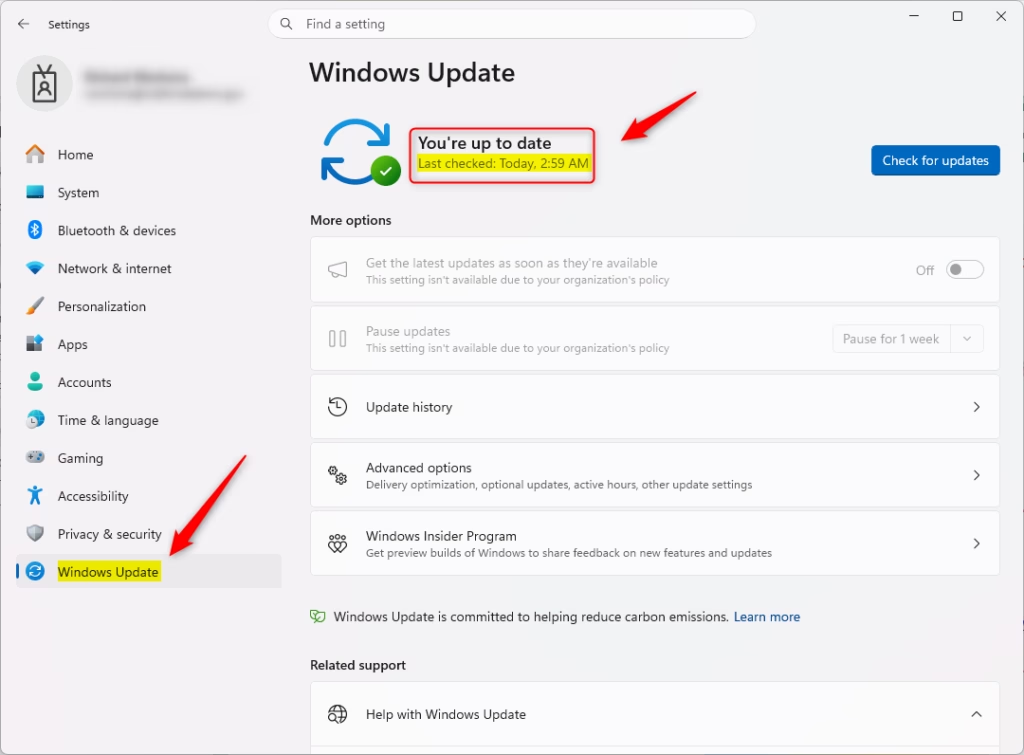
- Click on Windows Update in the sidebar on the left.
- The Last checked status will be displayed clearly at the top of this page. Open Settings Windows Update page
Option Four : Check Using a Command
Note: This method does not require admin privileges.
- Right-click the Start button and select Terminal, or search for Command Prompt in the search bar.
- Copy and paste the following command into the window and press Enter:
powershell "(New-Object -Com 'Microsoft.Update.AutoUpdate').Results.LastSearchSuccessDate.ToLocalTime()"- The terminal will display the exact date and time of the last update check.
Summary
Keeping your computer updated is essential for security and performance. You can quickly view when Windows last checked for updates by visiting the Home, System, or Windows Update sections within the Settings app, or by running a simple command in the Terminal. This ensures your machine is always running the latest software improvements.
Was this guide helpful?




Leave a Reply