How to Read Windows Update Logs in Windows 11

Do you ever wonder why your computer is acting up after an update? Sometimes you need to check the Windows Update logs to see exactly what happened behind the scenes. This guide will show you how to read those logs in Windows 11.
Windows uses Event Tracing for Windows (ETW) to create diagnostic files. These files are saved in the %windir%\Logs\WindowsUpdate folder. This helps your computer run faster and saves space. However, these files are hard to read on their own. We will convert them into a simple format you can understand.
References:
- Windows Update log files
- Get-WindowsUpdateLog (WindowsUpdate)
- Troubleshoot problems updating Windows – Microsoft Support
Option One: Read logs using PowerShell
This method creates a clear text file on your desktop that you can open with any text editor.
- Open the Start menu, type “Windows Terminal,” and select Windows PowerShell. (Note: You may need Admin privileges for some system tasks.)
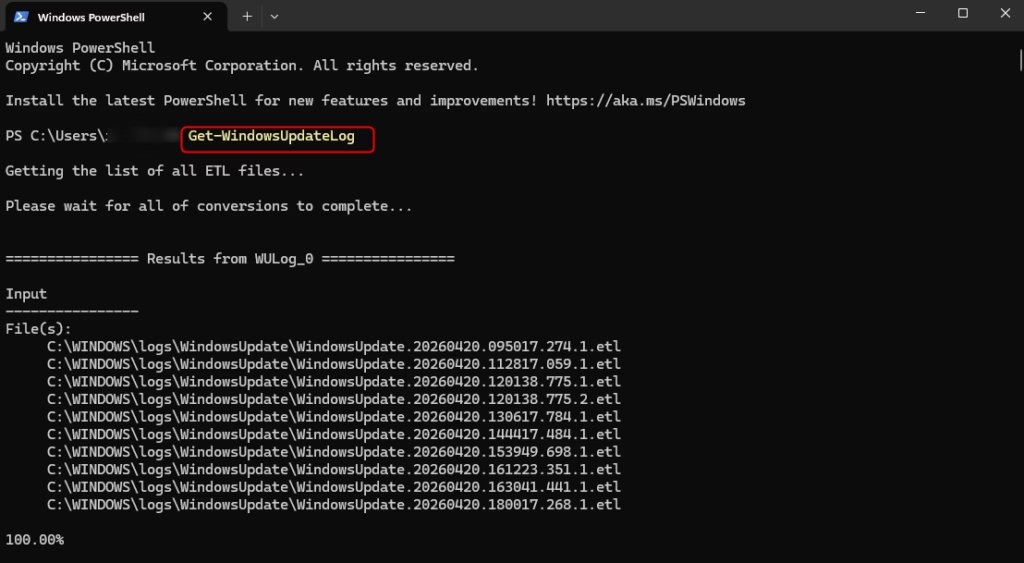
- Copy and paste the command below into the terminal and press Enter:
Get-WindowsUpdateLog- Once the process finishes, look for the WindowsUpdate.log file on your desktop. Open it to see the update history.
Option Two: Read logs using Event Viewer
If you prefer a visual interface, you can use the built-in Event Viewer.
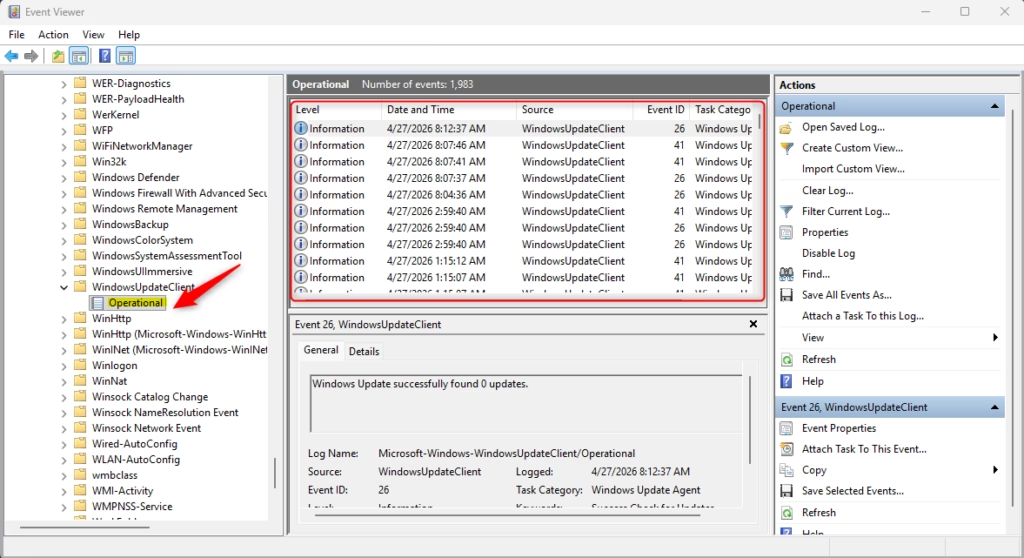
- Press the Windows key, type eventvwr.msc, and press Enter to open Event Viewer.
- In the left pane, follow these steps:
- Expand Applications and Service Logs.
- Expand Microsoft.
- Expand Windows.
- Expand WindowsUpdateClient.
- Click on Operational.
- You can now click on any entry in the middle pane to read the details of that specific update event.
Summary
Why do this? Reading update logs helps you troubleshoot installation errors or see why a specific update might be failing.
What happens when done? You will have a readable text file on your desktop or a list of events in the Event Viewer that clearly show the history and status of your Windows updates.
Was this guide helpful?



Leave a Reply