How to Enable or Disable Copilot Actions in Microsoft Edge on Windows 11


This guide explains how to turn the Copilot Actions feature on or off in Microsoft Edge. This feature allows the AI to perform tasks for you while you browse the web.
Why use Copilot Actions?
Copilot Actions can help you save time by handling repetitive tasks, such as navigating to specific websites or summarizing information. It is designed to make your browsing experience more efficient by acting as a personal assistant.
What happens when done?
Once you change these settings, Microsoft Edge will either permit or restrict the AI from interacting with websites on your behalf based on your chosen security level.
Note: You do not need administrative privileges to change these browser settings.
How to change Copilot Actions settings
- Open Microsoft Edge.
- Click the Settings and more (three dots) menu icon in the top right corner and select Settings.
- Click on AI innovations in the left sidebar.
- Select Actions in Edge Preview in the right pane.

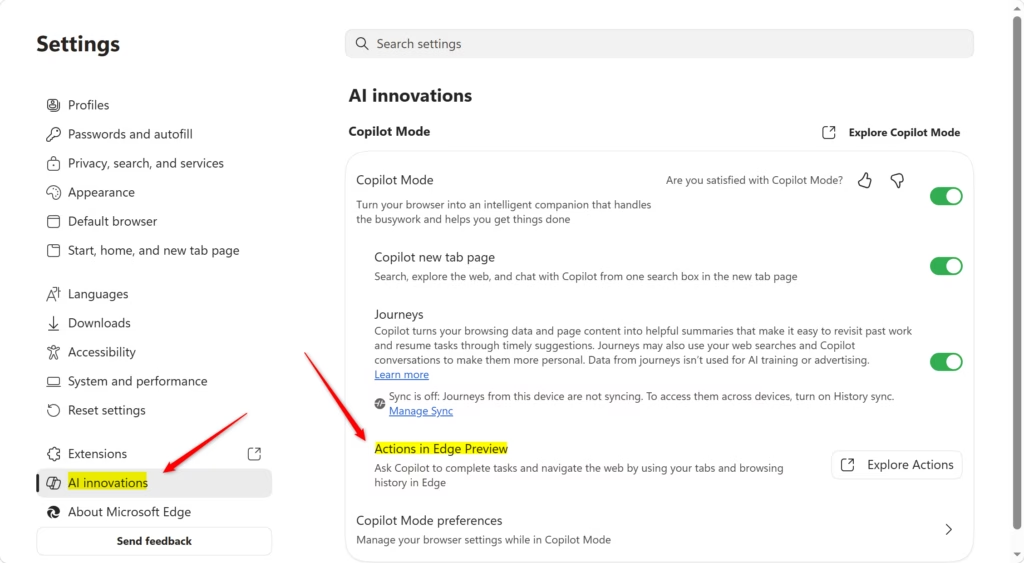
Turn On Copilot Actions
- Switch Actions in Edge Preview to the On position.
- Choose your preferred permission level:
- Light (least secure): Allows the AI to act on most sites without asking you first.
- Balanced (recommended): The AI works on trusted sites automatically but asks for permission on unfamiliar sites.
- Strict (most secure): The AI asks for your permission before working on any website.
- Click Manage what URLs can or cannot be accessed by Actions in Edge to create your own custom lists of allowed or blocked websites.
Turn Off Copilot Actions
- Switch Actions in Edge Preview to the Off position. This is the default setting for most users.
Once you have finished, you can simply close the Settings tab.
Summary
Copilot Actions provides an automated way to browse the web, but it requires caution. By adjusting the security levels (Light, Balanced, or Strict) and managing your own blocklists, you can decide how much control the AI has over your browsing sessions. To learn more about browser privacy, see View how you can manage your cookies.. For details on safety policies, visit Terms of Use and Content Policy..
References:
Copilot Actions in Edge – Microsoft Support
Was this guide helpful?



Leave a Reply