How to Enable or Disable Tips and Suggestions Notifications in Windows 11


This guide will help you turn the “Get tips and suggestions when using Windows” settings-app-on-windows-11/" class="sal-link" rel="noopener" target="_blank" data-sal-id="32723">notifications on or off in Windows 11. You can do this for just your account or for everyone on the computer.
By default, Windows 11 may show you notifications with tips and suggestions.
Option One
Turn Tips and Suggestions On or Off for Your Account Using Settings
- Open Settings by pressing ⊞ Win+I on your keyboard.
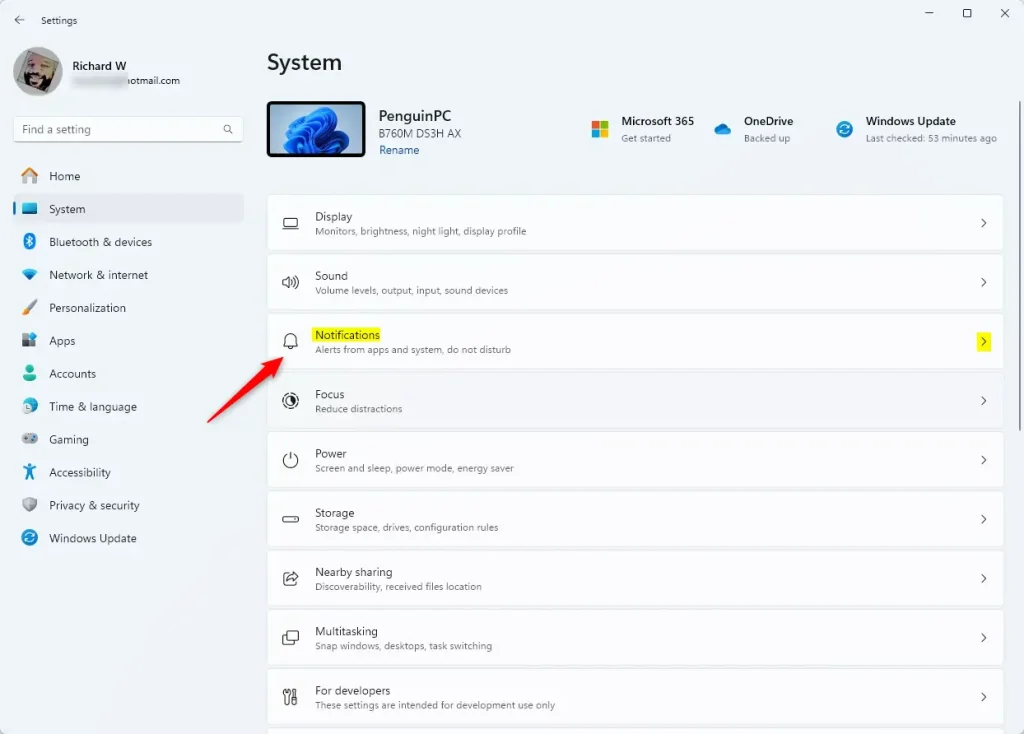
- Click System on the left side. Then click Notifications on the right side.
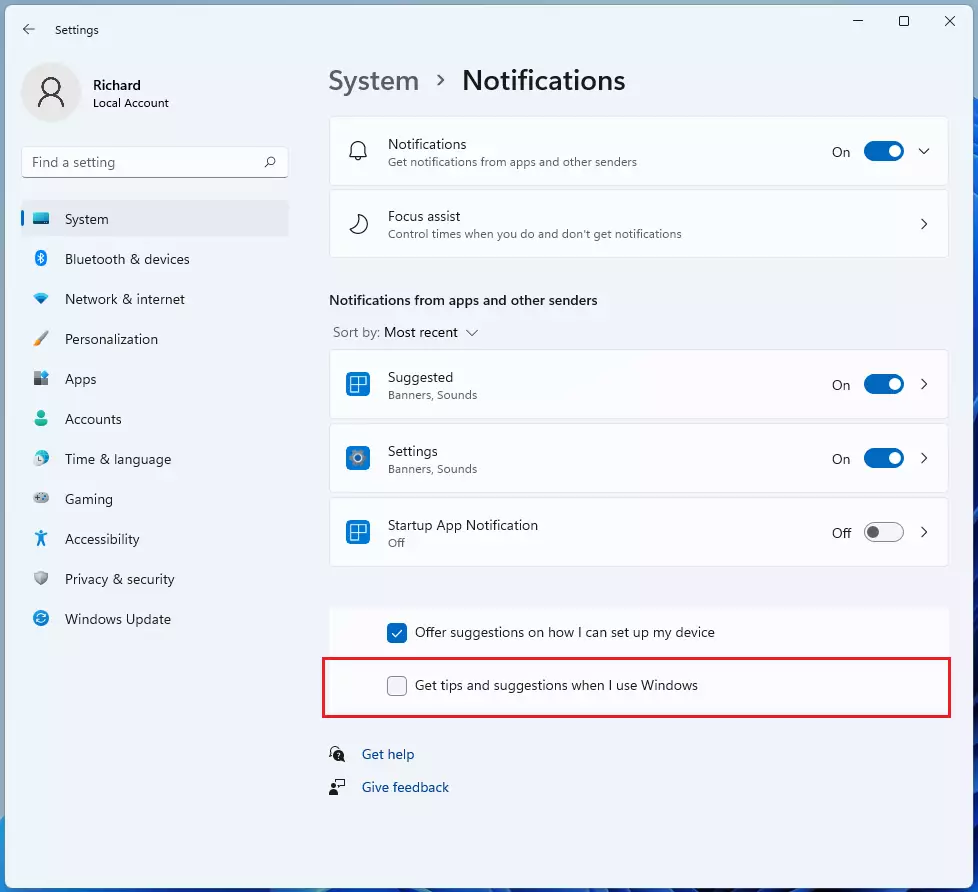
- Do one of the following (depending on which version you see):
- Click Additional settings to expand it. Then check (on – this is the default) or uncheck (off) Get tips and suggestions when using Windows.
- Or check (on – this is the default) or uncheck (off) Get tips and suggestions when I use Windows.
- Close Settings when you’re done.
Option Two
Turn Tips and Suggestions On or Off for Your Account Using Registry
Turn On Tips and Suggestions
This is the default setting.
reg add "HKEY_CURRENT_USER\SOFTWARE\Microsoft\Windows\CurrentVersion\ContentDeliveryManager" /v "SubscribedContent-338389Enabled" /t REG_DWORD /d 1 /f
Turn Off Tips and Suggestions
reg add "HKEY_CURRENT_USER\SOFTWARE\Microsoft\Windows\CurrentVersion\ContentDeliveryManager" /v "SubscribedContent-338389Enabled" /t REG_DWORD /d 0 /f
Option Three
Turn Tips and Suggestions On or Off for Everyone Using Group Policy
⚠️ Admin Required: You must be signed in as an administrator to use this option. This option only works in Windows 11 Enterprise and Education editions.
- Open the Local Group Policy Editor by typing
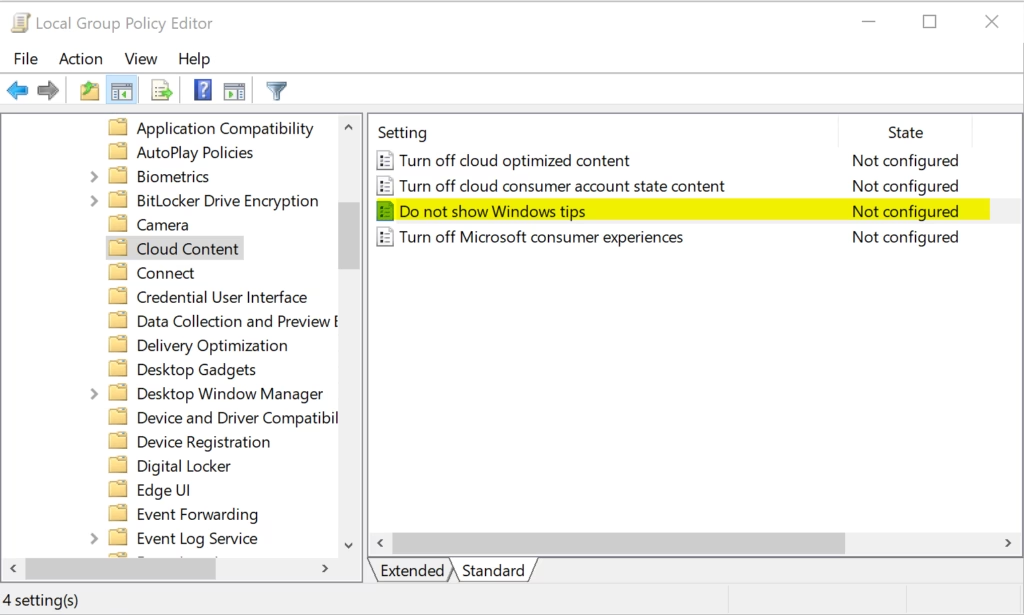
gpedit.mscin your search bar and pressing Enter. - In the left pane, navigate to: Computer Configuration > Administrative Templates > Windows Components > Cloud Content
- In the right pane, double-click Do not show Windows tips to edit it.
Turn On Tips and Suggestions for Everyone
This is the default setting.
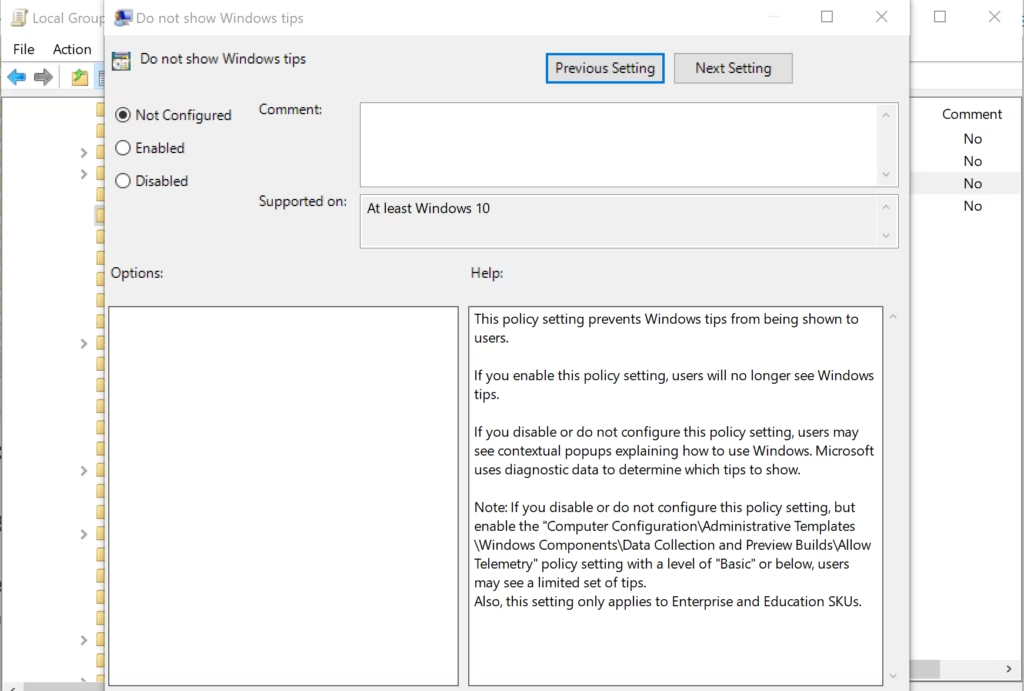
- Select the dot next to Not Configured.
- Click OK.
Turn Off Tips and Suggestions for Everyone
- Select the dot next to Enabled.
- Click OK.
Close the Local Group Policy Editor when you’re done.
Option Four
Turn Tips and Suggestions On or Off for Everyone Using Registry
⚠️ Admin Required: You must be signed in as an administrator to use this option. This option only works in Windows 11 Enterprise and Education editions.
Turn On Tips and Suggestions for Everyone
This is the default setting.
reg delete "HKEY_LOCAL_MACHINE\SOFTWARE\Policies\Microsoft\Windows\CloudContent" /v "DisableSoftLanding" /f
Turn Off Tips and Suggestions for Everyone
reg add "HKEY_LOCAL_MACHINE\SOFTWARE\Policies\Microsoft\Windows\CloudContent" /v "DisableSoftLanding" /t REG_DWORD /d 1 /f
Summary
You now know four different ways to control tips and suggestions in Windows 11. The easiest way is using Settings (Option One). If you prefer using the command line or registry, Options Two, Three, and Four are also available. Options Three and Four require admin access and work only on Enterprise and Education editions. Choose the option that works best for you.
Was this guide helpful?
No comments yet — be the first to share your thoughts!