How to Change Font Size in Windows 11

You can easily change the font size in Windows 11 to make text easier to read.
This process involves adjusting system-wide scaling settings, which affect the size of text, apps, and other items on your display.
For instance, you can increase the text size by up to 225% from the default 100% setting.
Adjusting the font size helps reduce eye strain and improves readability, especially on high-resolution displays or if you have visual impairments.
Simply navigate to Settings > Accessibility > Text size to begin your customization.
Navigate to Settings, then Accessibility, and select Text size. Use the slider to adjust the font size and click Apply to confirm your changes.
How to Change Font Size in 🪟 Windows 11
Follow these simple steps to make the text on your screen bigger or smaller:
- Open Settings. Press the Windows key and the letter
Iat the same time on your keyboard. Or, click the Start button (the Windows icon) in the bottom-left corner and then click Settings. - In the Settings window, click on Accessibility from the list on the left side.
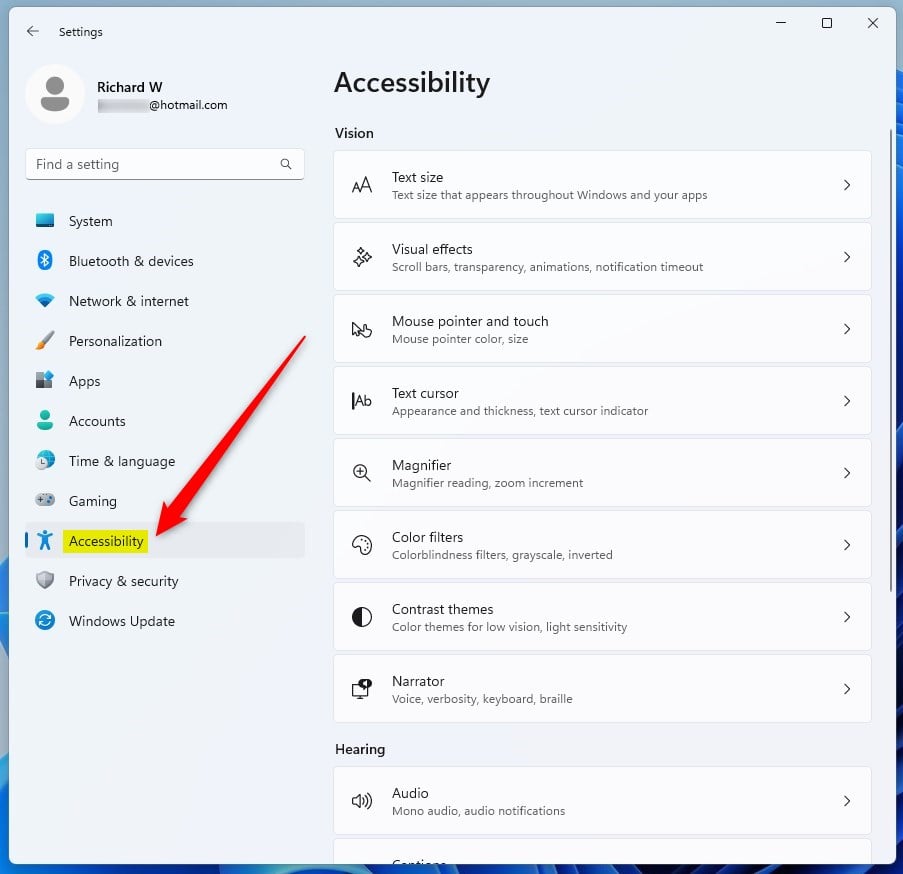
windows 11 accessibility tile - On the right side, find and click on the Text size option.
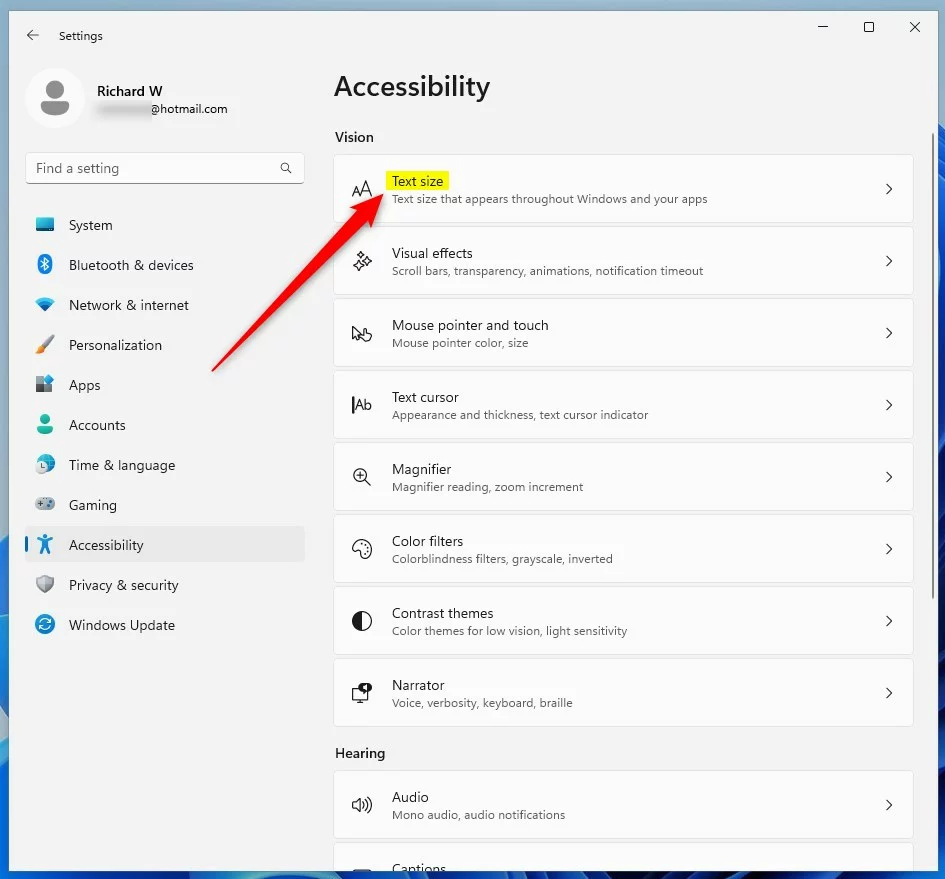
windows 11 accessibility text size tile - You will see a slider labeled Text size. Drag the circle on the slider to the right to make the text bigger or to the left to make it smaller.
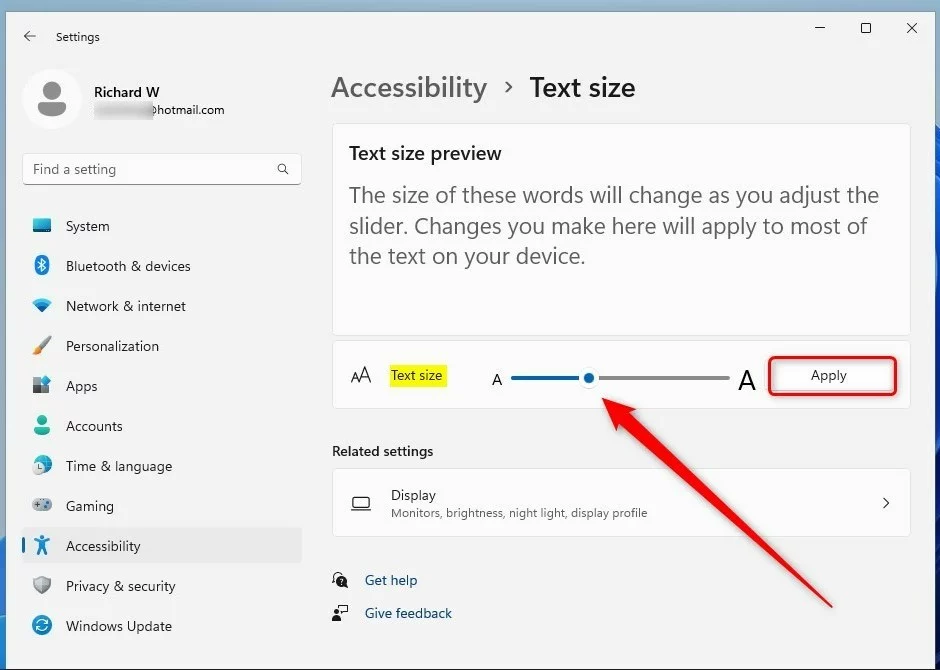
windows 11 increase or decrease font size slider updated - As you move the slider, you will see a preview showing how the text will look. When you find a size you like, click the Apply button below the slider.
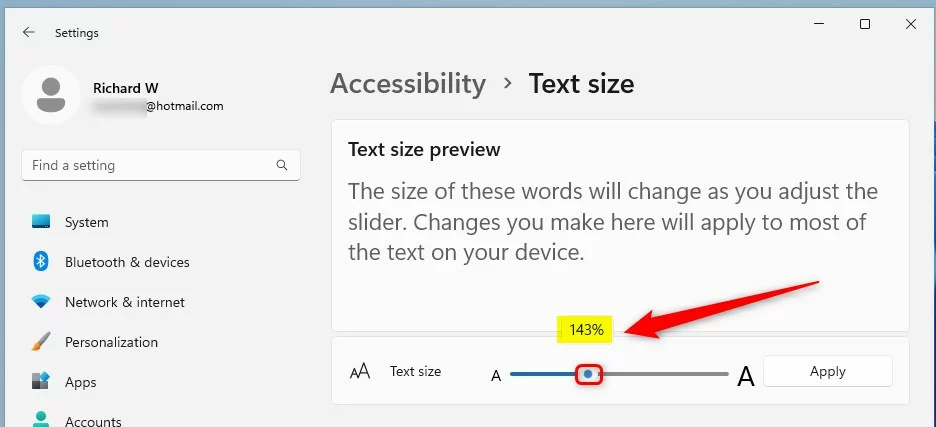
windows 11 increase or decrease font size slider
That’s it! Your font size should now be updated.
What Happens When You Change Font Size?
Text across your Windows 11 screen becomes bigger or smaller based on your choice. This affects menus, windows, and most text you see. The preview shows you exactly how it will look before you apply the change.
For more information about Windows 11 accessibility features, visit the official Microsoft page here: Make your PC easier to see – Microsoft Support.
Summary
Adjusting font size in Windows 11 is quick and easy. Open Settings, go to Accessibility, select Text size, and use the slider to find the right size for you. Apply your changes and enjoy more comfortable reading.
Why is 🪟 Windows 11 text so small?
Here's how to change the size of text, images, and apps in Windows. To change your display in Windows, select Start > Settings > Accessibility > Text size. To make only the text on your screen larger, adjust the slider next to Text size.
Was this guide helpful?

About the Author
Richard
Tech Writer, IT Professional
Richard, a writer for Geek Rewind, is a tech enthusiast who loves breaking down complex IT topics into simple, easy-to-understand ideas. With years of hands-on experience in system administration and enterprise IT operations, he’s developed a knack for offering practical tips and solutions. Richard aims to make technology more accessible and actionable. He's deeply committed to the Geek Rewind community, always ready to answer questions and engage in discussions.


No comments yet — be the first to share your thoughts!