How to Change Real-Time Update Speed in Windows 11 Task Manager


Task Manager is a built-in Windows tool. It shows you what programs are running on your computer. It also displays how fast your computer is working.
Windows 11 added a new feature called “Real-time update speed”. This feature lets you control how often Task Manager refreshes the information on your screen.
Update Speed Options
You can choose from four options:
- High – updates every 0.5 seconds
- Normal – updates every 1 second
- Low – updates every 4 seconds
- Pause – stops live updates
Why Change the Update Speed?
A faster update speed shows you real-time changes instantly. A slower speed uses less computer power. Pausing updates gives you time to read information without it changing.
How to Change Real-Time Update Speed in Task Manager
Follow these simple steps:
- Open Task Manager using one of these methods:
- Right-click the Start button and select Task Manager, or
- Press
Ctrl + Shift + Escon your keyboard - Look at the bottom left corner of the Task Manager window. Click on Settings.
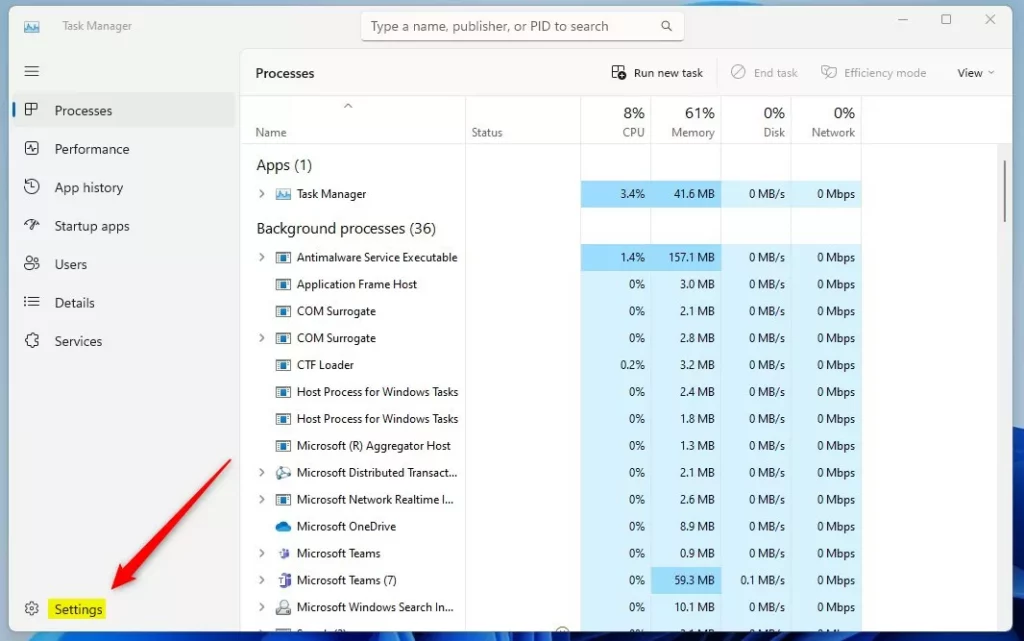
Click the Settings button in Task Manager
- Find the section labeled Real-time update speed in the Settings panel.
- Select the update speed you want:
- High
- Normal
- Low
- Pause
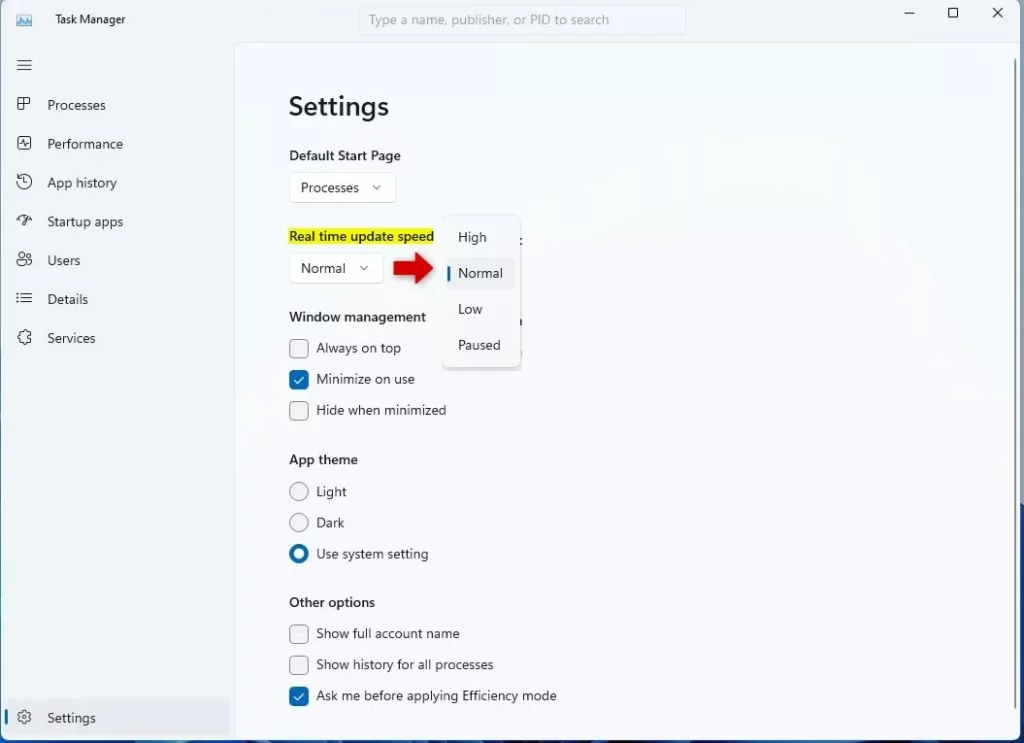
Select your preferred real-time update speed here
Quick Keyboard Shortcut
You can press Alt + U on your keyboard to open the Real-time update speed menu quickly.
What Happens When You Change This Setting?
Task Manager will immediately update information at the speed you selected. You will see the change right away.
Summary
Windows 11 Task Manager includes a “Real-time update speed” feature. This lets you control how often the display refreshes. You can set it to update very fast (every 0.5 seconds), normal (every 1 second), slow (every 4 seconds), or pause completely. Changing this setting takes just a few clicks. It helps you view data at a comfortable pace for your needs. For more information about using Task Manager, check out this simple guide to Task Manager in Windows 11.
Was this guide helpful?

About the Author
Richard
Tech Writer, IT Professional
Richard, a writer for Geek Rewind, is a tech enthusiast who loves breaking down complex IT topics into simple, easy-to-understand ideas. With years of hands-on experience in system administration and enterprise IT operations, he’s developed a knack for offering practical tips and solutions. Richard aims to make technology more accessible and actionable. He's deeply committed to the Geek Rewind community, always ready to answer questions and engage in discussions.



No comments yet — be the first to share your thoughts!