How to Check Disk Drive Partition Style in Windows 11

Want to know how your computer’s hard drive is organized? In Windows 11, your computer’s hard drive uses one of two main ways to organize its storage space. These are called partition styles: MBR (Master Boot Record) or GPT (GUID Partition Table).
Why should you care about your disk’s partition style? Knowing it is helpful for several things, like installing a new operating system, creating or changing sections (partitions) on your hard drive, or using backup software that requires a specific style.
- Install a new operating system.
- Create or change partitions (sections) on your hard drive.
- Use backup or recovery software that needs a specific style.
Let’s learn 3 ways to check your disk’s partition style on Windows 11.
You can check your disk drive partition style in Windows 11 through Settings > System > Storage > Advanced storage settings > Disks & volumes. Alternatively, use Disk Management or the command line (PowerShell or Command Prompt) with specific commands to view the partition style for each disk.
1Check Partition Style Using Windows Settings
You can easily check your disk drive partition style in Windows 11 using the built-in Settings app, which is a straightforward way to find out if your drive uses MBR or GPT.
- Open Settings. Click the Start menu and select Settings. Or press Windows key + I on your keyboard.
- In Settings, click System on the left side.
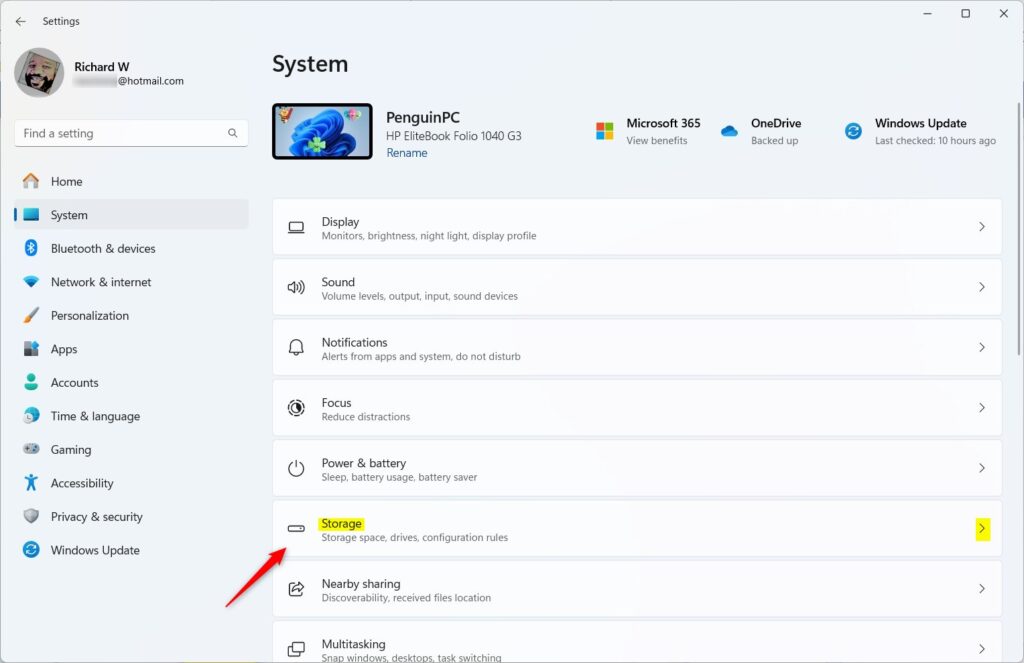
- Click Storage on the right side.
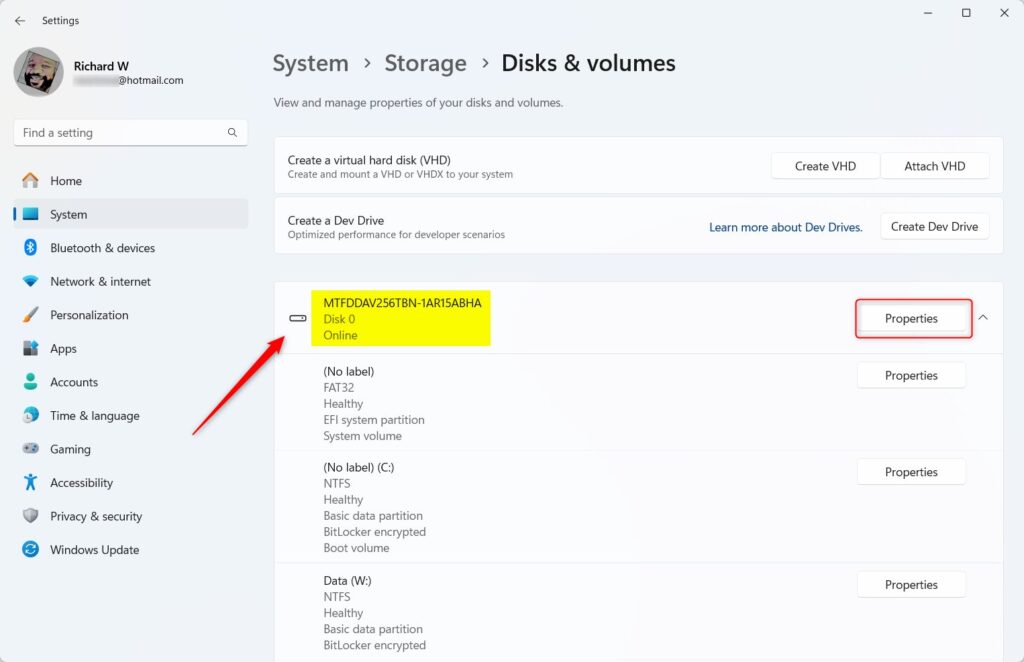
- Scroll down and click Advanced storage settings. Then select Disks & volumes.
- Find the disk you want to check. Click the arrow to expand it.
- Click the Properties button.
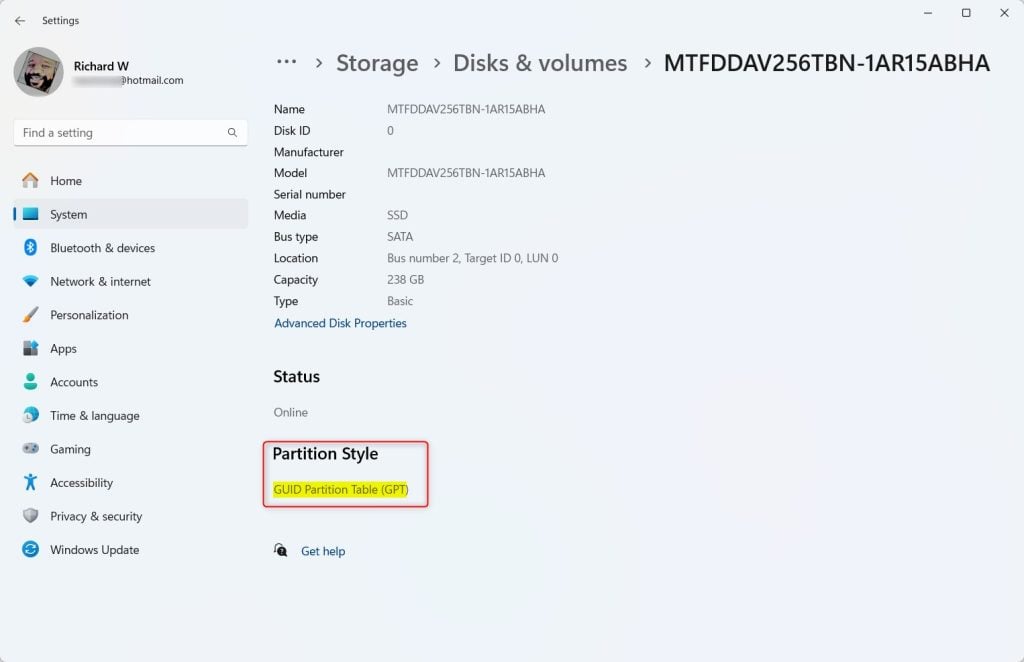
- Look near the bottom of the properties window. You will see Partition style. It will say either GPT or MBR.

2Check Partition Style Using Disk Management
If you prefer using a dedicated tool, checking your disk drive partition style in Windows 11 is simple with Disk Management, showing you whether your drive is MBR or GPT.
- Press Windows key + R. Type
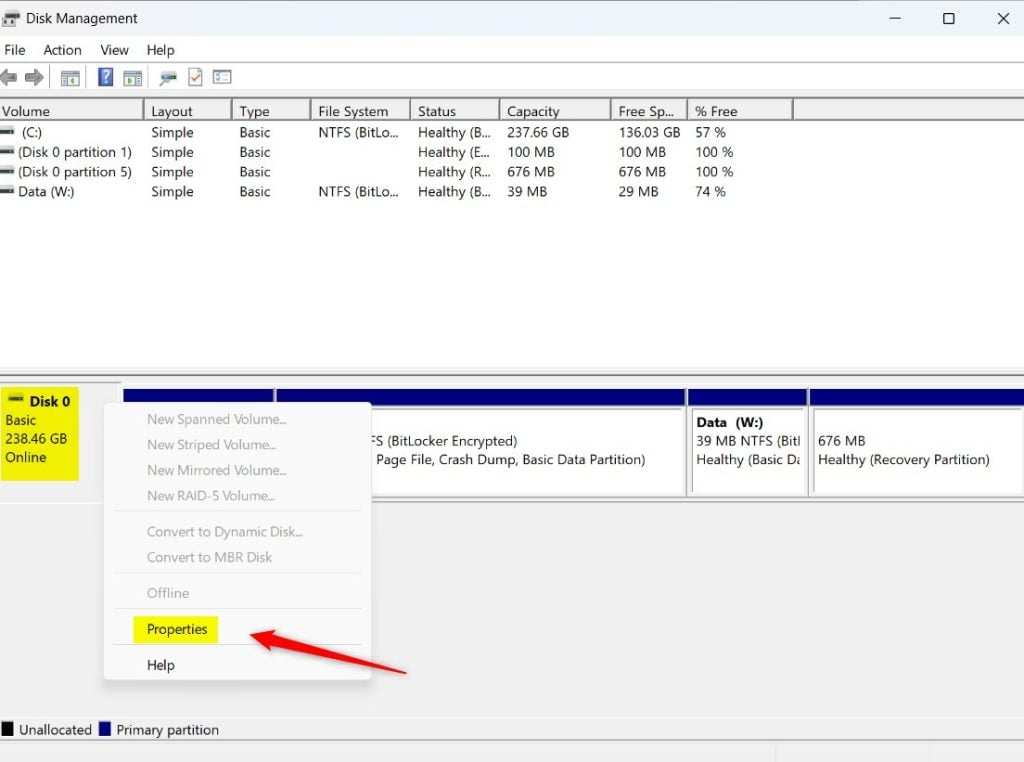
diskmgmt.mscand press Enter. This opens Disk Management. - Right-click on the disk you want to check. It might say Disk 0 or Disk 1. Choose Properties.
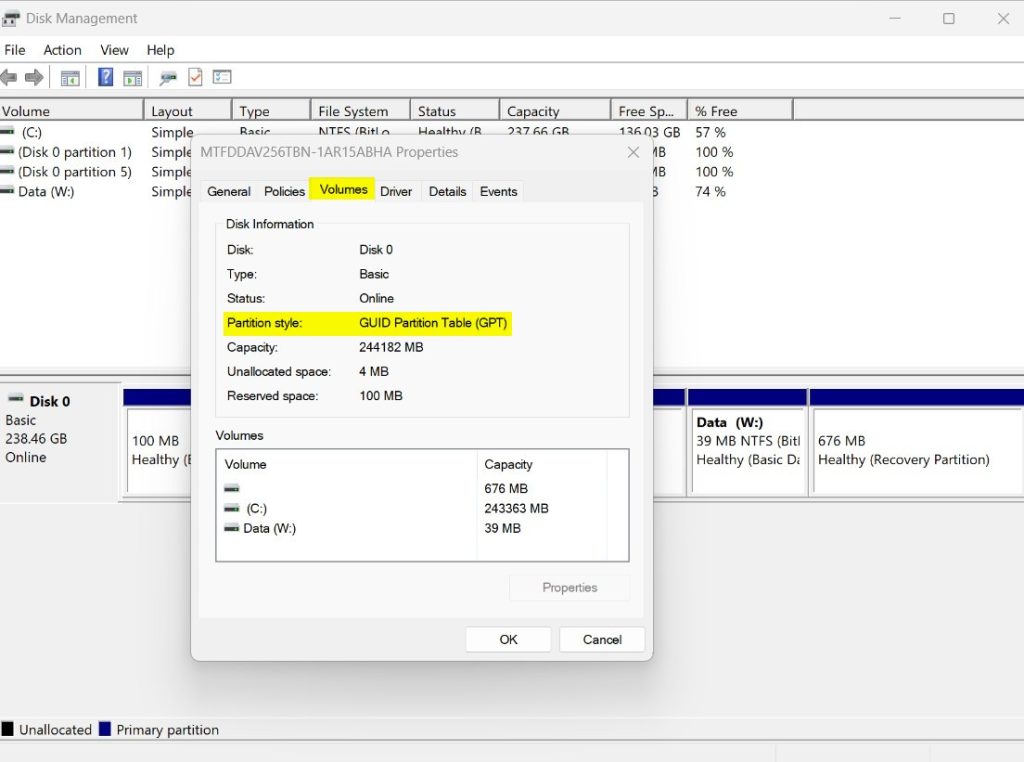
- Click the Volumes tab.
- Look for the Partition style information. It will say GUID Partition Table (GPT) or Master Boot Record (MBR).
3Check Partition Style Using Command Line (PowerShell or Command Prompt)
If you prefer using commands, follow these steps:
Using PowerShell (in Windows Terminal)
- Open Windows Terminal.
- Click the PowerShell tab.
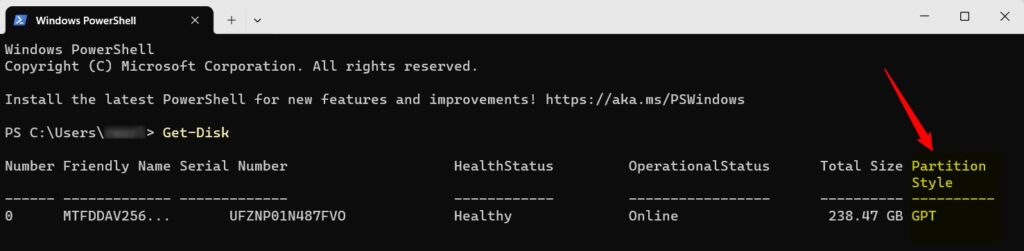
- Type the command below and press Enter:
Get-DiskLook at the list under the column Partition Style. It will show GPT or MBR for each disk.
Using Command Prompt
- ⚠️ Admin Required: Run Windows Terminal as an administrator. Open the Command Prompt tab.
- Type
diskpartand press Enter. - Then type
list diskand press Enter. - Look at the right side of the list. If a disk has an asterisk (*) under the GPT column, it means the disk uses GPT. If it’s empty, the disk uses MBR.
For those comfortable with commands, you can check your disk drive partition style in Windows 11 using the Command Prompt by typing a few simple commands to see if your drive is MBR or GPT.Summary
- Your hard drive uses either the MBR or GPT style to organize data.
- You can check which one your disk uses from Windows Settings, Disk Management, or the command line.
- Knowing this helps you make sure your computer is ready for software installations and changes.
- These simple steps let you find your disk's partition style quickly and safely.
Understanding your Windows 11 disk drive partition style, whether it's MBR or GPT, is important for system compatibility, and you can quickly check this using Settings, Disk Management, or the Command Prompt.
How to check disk partition style in 🪟 Windows 11?
Once Disk Management opens, right-click on the disk you want to check (on the left side where it says “Disk 0” or similar). Select “Properties.” Click on the “Volumes” tab. Look for “Partition style” – it will clearly show either “Master Boot Record (MBR)” or “GUID Partition Table (GPT).”
Do I use MBR or GPT partition style?
MBR is best for legacy systems with small disks and limited partition needs; GPT offers more partitions, supports larger drives, and provides better data protection.
How to check the type of partition?
Disk Management method: open disk properties > Volumes tab > read Partition style (MBR or GPT). Command-line checks: DiskPart uses Gpt asterisk; PowerShell Get-Disk exposes PartitionStyle for automation. Common risks: wrong partition style blocks OS installs, Windows 11 UEFI boot, Secure Boot, or full disk capacity.
Was this guide helpful?

About the Author
Richard
Tech Writer, IT Professional
Richard, a writer for Geek Rewind, is a tech enthusiast who loves breaking down complex IT topics into simple, easy-to-understand ideas. With years of hands-on experience in system administration and enterprise IT operations, he’s developed a knack for offering practical tips and solutions. Richard aims to make technology more accessible and actionable. He's deeply committed to the Geek Rewind community, always ready to answer questions and engage in discussions.



No comments yet — be the first to share your thoughts!