How to Enable or Disable Microsoft Store Notifications in Windows 11

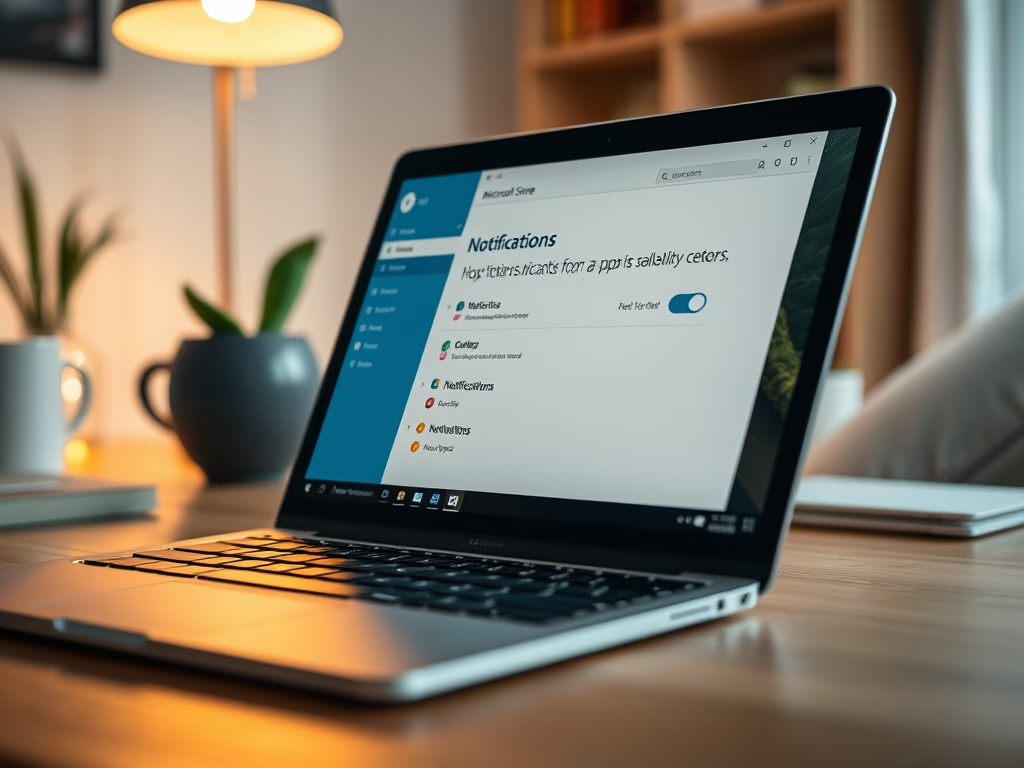
Windows 11 comes with the Microsoft Store app already installed. This app lets you browse and download other apps and games easily.
Starting with version 22312.1401.4.0, Microsoft Store added a new feature to show notifications when an app finishes installing and is ready to use.
By default, you’ll see a notification after an app installs. But if you want, you can turn these notifications off or on to match your preference.
Why Change Notifications?
- Keep them on: To know when new apps are installed on your PC.
- Turn them off: If you find the pop-ups distracting or don’t want interruptions.
How to Turn Microsoft Store App Installation Notifications On or Off
Follow these simple steps:
- Open the Microsoft Store app on your Windows 11 PC. You can find it by clicking the Start button and typing Microsoft Store.
- Look for your profile picture near the top-right corner, next to the search box, and click it.

- In the menu that opens, click on the Notifications for app installations option.
- You’ll see a switch to turn notifications On or Off. Click it to choose your preference.

That’s it! Your choice will save automatically.
Summary
You can control whether Microsoft Store tells you when an app finishes installing. This helps you stay informed or avoid interruptions, depending on what you like. Changing this setting is quick and easy, with just a few clicks inside the Microsoft Store app.
Was this guide helpful?

About the Author
Richard
Tech Writer, IT Professional
Richard, a writer for Geek Rewind, is a tech enthusiast who loves breaking down complex IT topics into simple, easy-to-understand ideas. With years of hands-on experience in system administration and enterprise IT operations, he’s developed a knack for offering practical tips and solutions. Richard aims to make technology more accessible and actionable. He's deeply committed to the Geek Rewind community, always ready to answer questions and engage in discussions.



No comments yet — be the first to share your thoughts!