
Do you use the touch keyboard on Windows 11? You can set it to add a period (.) automatically when you double-tap the Spacebar. This guide shows you how to turn that feature on or off.
Why use this feature? The touch keyboard is helpful if your PC has a touchscreen but no physical keyboard. Or maybe you just prefer typing by tapping on the screen. Adding a period with a double-tap spacebar saves you time.
What happens when you turn it on? Every time you tap the Spacebar twice quickly, a period appears automatically.
Option 1: Use Settings to Turn the Feature On or Off
- Open Settings by pressing
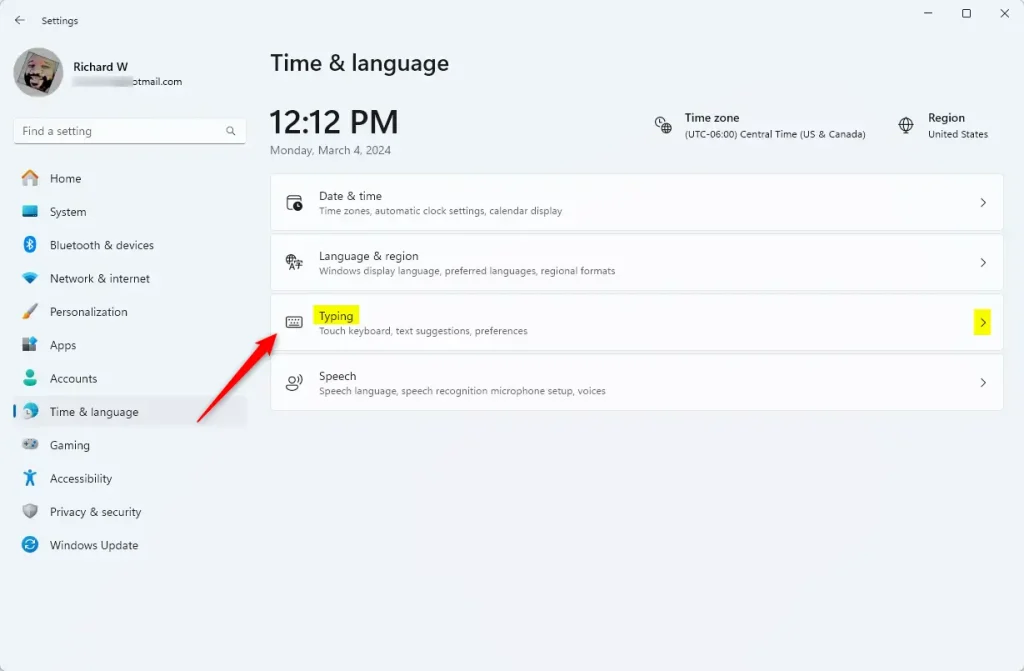
Win + Ion your keyboard. - In Settings, click Time & language on the left side. Then click Typing on the right side.
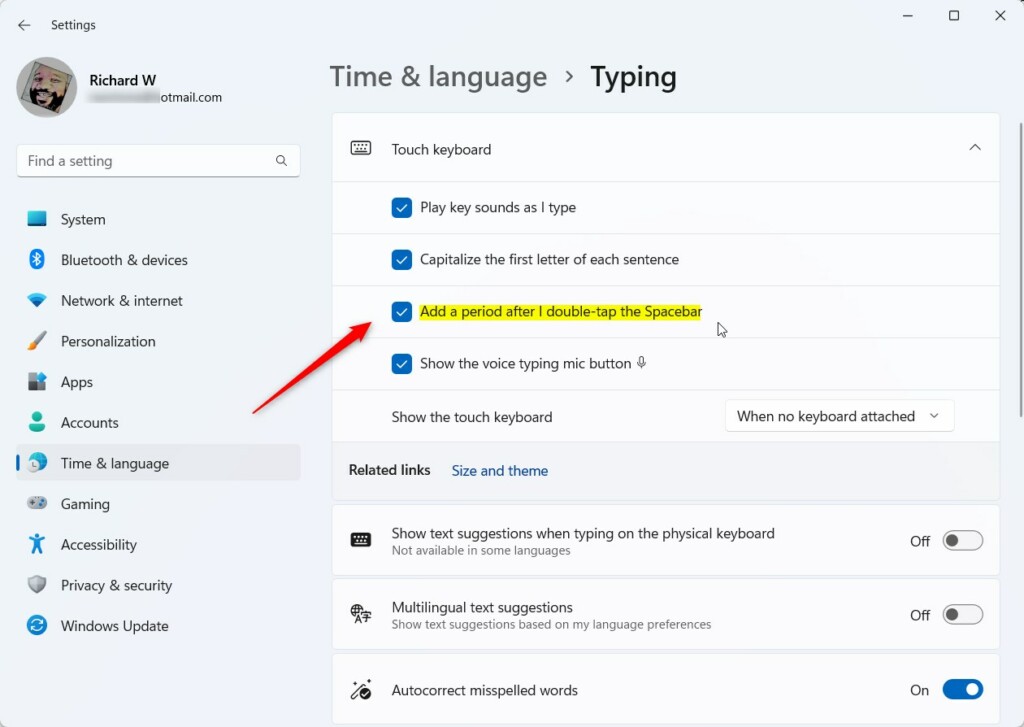
- Scroll down and click on Touch keyboard to open more options.
- Look for the option called Add a period after I double-tap the Spacebar. Check the box to turn it on (this is already on by default). Uncheck the box to turn it off.
- You can now close the Settings window. You’re done!
Option 2: Use Registry Editor to Turn the Feature On or Off
If you feel comfortable editing the Windows Registry, you can change this setting there instead. ⚠️ Admin privileges required.
Turn On the Add Period Feature
reg add "HKCU\Software\Microsoft\TabletTip\1.7" /v EnableDoubleTapSpace /t REG_DWORD /d 1 /fTurn Off the Add Period Feature
Copy this command and save it as a file named EnableDoubleTapSpaceOff.reg. Then double-click the file to run it:
reg add "HKCU\Software\Microsoft\TabletTip\1.7" /v EnableDoubleTapSpace /t REG_DWORD /d 0 /fWarning: Be careful when editing the registry. Your computer needs the registry to work properly. It’s a good idea to back it up first. Learn how to back up the registry here.
Summary
You now know two ways to control the double-tap spacebar period feature on Windows 11. The easiest way is through Settings. If you prefer using the Registry Editor, that works too. Either way, you can turn this handy feature on or off whenever you want.



Leave a Reply