Turn On/Off Search Improvement in Edge Browser

This article explains how to enable or disable the “Search and service improvement” feature in Microsoft Edge.
Microsoft Edge is the default browser in Windows 11. However, users can switch to their preferred or favorite browser anytime. Edge is based on Chromium, similar to Google Chrome and other Chromium-based browsers today.
To improve Edge and other Microsoft services, it collects and uses data from your web searches in Microsoft Edge. Your search results activity improves the web and search experience, making it more relevant and useful.
The data Microsoft collects might include the search query, the search results displayed to you, and your interaction with those search results, such as the links you click.
You can manage the collection and use of your search result activity for product improvement by following the steps below.
Enable or disable Search and service improvement in Edge
As mentioned, you can enable or disable the Microsoft Edge search and service improvement feature.
Here’s how to do it.
First, open the Microsoft Edge browser.
Then click on Setting and more (Alt+F) 3 horizontal dots button on the top right corner and select Settings.
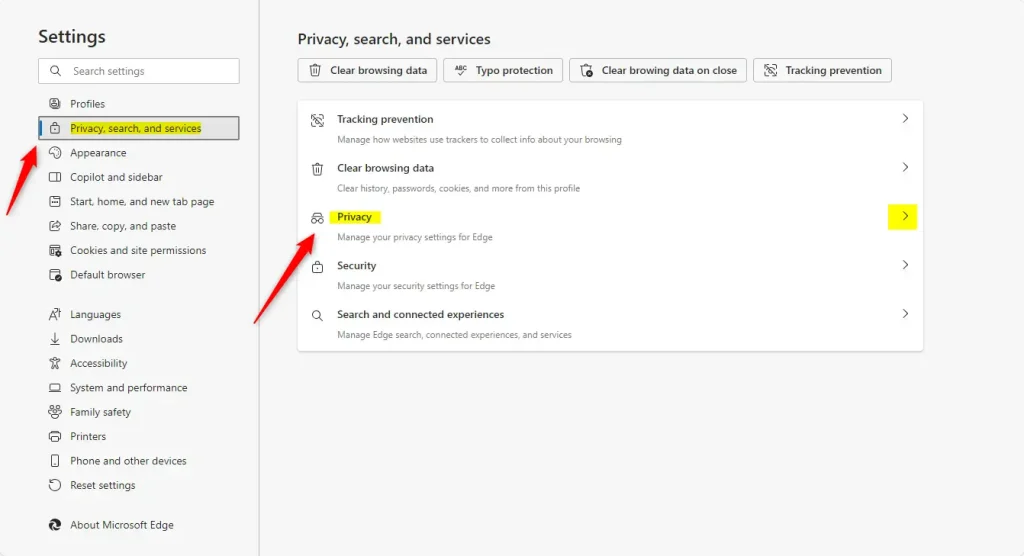
Select “Privacy, search, and services” on the Settings page on the left and click the “Privacy” tile on the right to expand it.
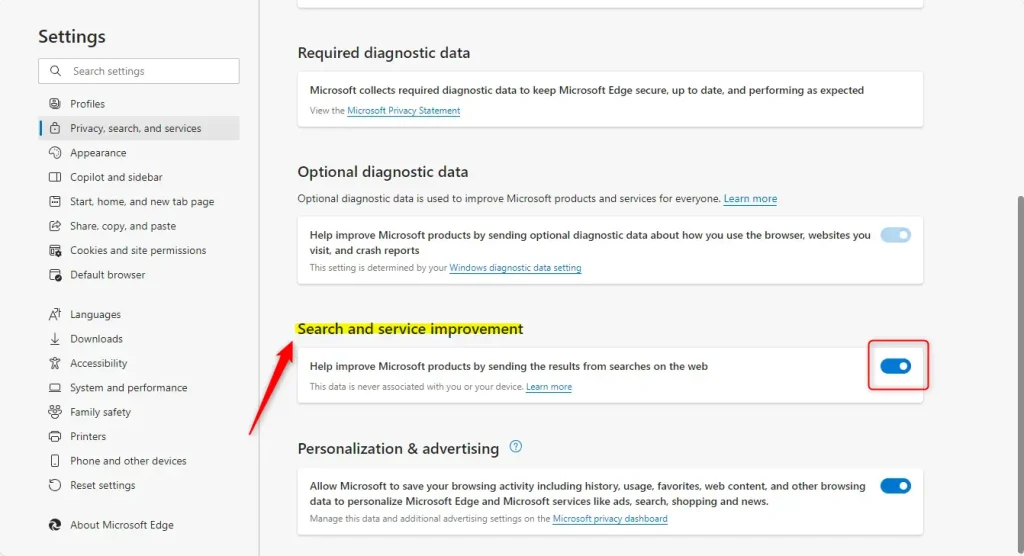
Under Search and service improvement, turn on or off the setting for Help improve Microsoft products by sending the results from searches on the web.
You can close the Edge settings page when finished.
Reference:
Conclusion:
In summary, managing the “Search and service improvement” feature in Microsoft Edge is straightforward and offers several benefits:
- Personalized Experience: Enabling the feature enhances your browsing experience by tailoring search results to your preferences.
- Control Over Privacy: Users can disable data collection, providing greater control over their privacy.
- User-Friendly Process: The steps to enable or disable the feature are simple and can be completed in just a few minutes.
- Constant Improvement: Participating in data sharing helps improve Microsoft services and Edge, benefiting all users in the long run.
You can optimize your Microsoft Edge experience according to your privacy preferences by taking a few moments to adjust these settings.
Frequently Asked Questions
How do I turn on search improvement in Microsoft Edge?
Can I disable search improvement in Edge for privacy reasons?
What data does Microsoft Edge collect for search improvement?
Is enabling search improvement beneficial for Edge users?
How long does it take to enable or disable search improvement in Edge?
Was this guide helpful?

About the Author
Richard
Tech Writer, IT Professional
Richard, a writer for Geek Rewind, is a tech enthusiast who loves breaking down complex IT topics into simple, easy-to-understand ideas. With years of hands-on experience in system administration and enterprise IT operations, he’s developed a knack for offering practical tips and solutions. Richard aims to make technology more accessible and actionable. He's deeply committed to the Geek Rewind community, always ready to answer questions and engage in discussions.




[…] Edge is the default browser in Windows 11. However, users can switch to their preferred or favorite browser anytime. Edge is […]