Secure SSH Access on Ubuntu with Google Authenticator


Google Authenticator on Ubuntu 20.04 and 18.04 adds two-factor authentication (2FA) to your remote logins. This security feature requires a temporary six-digit code from your phone in addition to your regular password, which stops hackers from getting into your system with a stolen password alone.
Secure SSH on Ubuntu by enabling two-factor authentication with Google Authenticator. After installing the app, edit /etc/ssh/sshd_config to enable ChallengeResponseAuthentication and UsePAM. Then, edit /etc/pam.d/sshd to add auth required pam_google_authenticator.so, and restart the SSH service.
Install Google Authenticator
Installing Google Authenticator on Ubuntu gives you the core tool needed for SSH two-factor authentication. You run a simple apt command in your terminal to download the Pluggable Authentication Module package, which links your mobile app codes directly to your server login process.
We’ve already covered installing Google Authenticator on Ubuntu and setting it up on your mobile device. Please refer to the guide linked below to avoid repetition.
How to install Google Authenticator on Ubuntu Linux
After setting up the steps above, continue below.
Configure Two-factor SSH
Configuring SSH two-factor authentication requires editing the sshd_config file on your Ubuntu server to force remote connections to ask for your mobile app codes. You open this configuration file in a text editor to update your authentication settings and enable challenge-response prompts.
Open the SSH daemon configuration file (the main settings file for remote connections) by running `sudo nano /etc/ssh/sshd_config` in your terminal.
sudo nano /etc/ssh/sshd_config
Apply the required configuration changes, then save and close the file.
# Authentication:
#LoginGraceTime 2m
PermitRootLogin yes
#StrictModes yes
MaxAuthTries 3

#MaxSessions 10

# Change to yes to enable challenge-response passwords (beware issues with
# some PAM modules and threads)
ChallengeResponseAuthentication yes


# PAM authentication, then enable this but set PasswordAuthentication
# and ChallengeResponseAuthentication to 'no'.
UsePAM yes
Save and exit.
Next, run the commands below to open Ubuntu's PAM SSH configuration file.
sudo nano /etc/pam.d/sshd
Then append the highlighted changes below and save the file.
# PAM configuration for the Secure Shell service

# Standard Un*x authentication.
@include common-auth
# Disallow non-root logins when /etc/nologin exists.
account    required     pam_nologin.so

auth   required   pam_google_authenticator.so
Save the file and exit.
Restart the SSH service to apply the changes, then test the new login flow.
sudo systemctl restart sshd
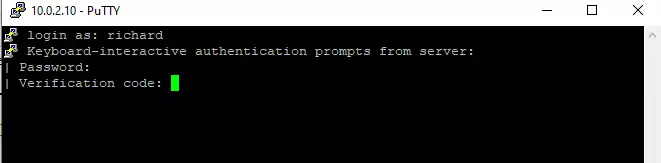
You should be prompted for a one-time code every time you attempt to sign in.
AuthenticationMethods publickey,keyboard-interactive
auth required pam_google_authenticator.so
Exit both files and save your changes, then restart SSH.
sudo systemctl restart sshd
That should do it!
Test the new login flow. You should see a prompt for your verification code immediately after entering your password.
Was this guide helpful?

About the Author
Richard
Tech Writer, IT Professional
Richard, a writer for Geek Rewind, is a tech enthusiast who loves breaking down complex IT topics into simple, easy-to-understand ideas. With years of hands-on experience in system administration and enterprise IT operations, he’s developed a knack for offering practical tips and solutions. Richard aims to make technology more accessible and actionable. He's deeply committed to the Geek Rewind community, always ready to answer questions and engage in discussions.




No comments yet — be the first to share your thoughts!