

This article explains how to show or hide updates using the “wushowhide.diagcab” file on Windows 11.
The “wushowhide.diagcab” is a tool provided by Microsoft that allows users to show or hide Windows updates. It is designed to troubleshoot problems with Windows updates and prevent specific updates from being installed on a computer.
This tool is handy for users who have experienced issues with specific updates, such as compatibility problems or system instability. By using wushowhide.diagcab, users can prevent these updates from being installed until they are confident that the issues have been resolved.
The steps below show you how to use the tool to show or hide updates in Windows 11 easily.
Using the Troubleshooter Tool
To use the “wushowhide.diagcab” on Windows, you must first download it.
First, download the wushowhide.diagcab file from the Microsoft Download Center’s “Show or hide updates troubleshooter” tool.
Save the “wushowhide.diagcab” file on your computer.
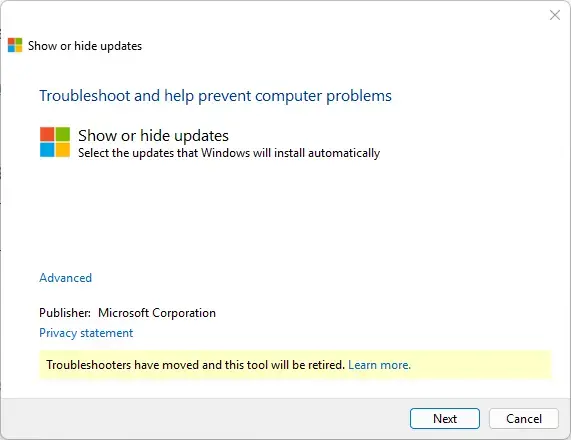
Double-click the wushowhide.diagcab file to launch the tool.
Click Next.
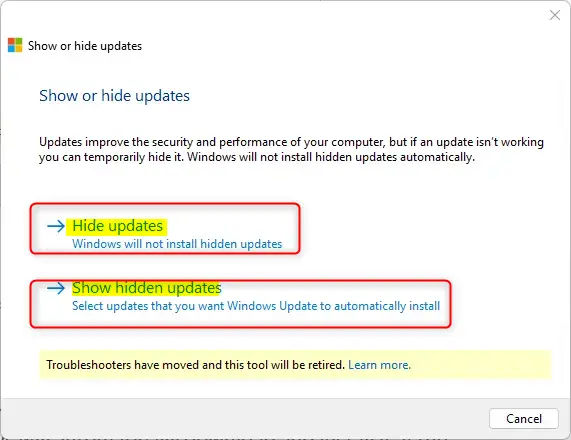
Choose “Hide updates” to hide specific updates from automatically installing on Windows.
Select “Show hidden updates” if you want to unhide updates so that they are automatically installed on Windows.
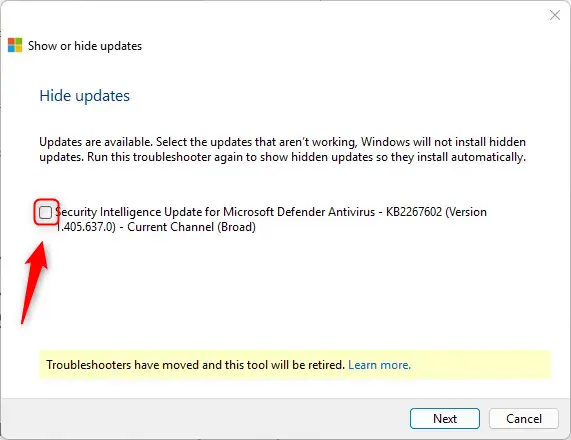
Select the specific Windows 11 update you want to hide from the system.
Click Next and then Close.
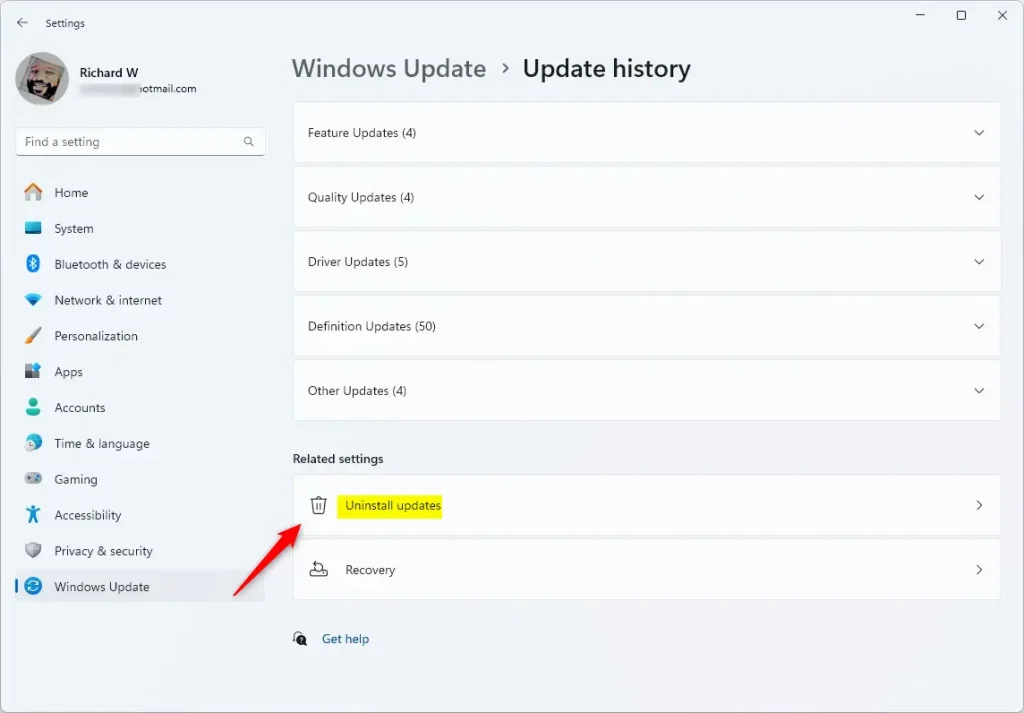
The update will disappear from Windows Update. However, when a newer version becomes available, Windows will automatically download and install it. If the update is already installed, you must remove it and block it.
The option to uninstall updates is available in Settings > Windows Update > Update history > Uninstall updates.
While keeping your system up-to-date for security reasons is essential, compatibility issues or bugs may arise with certain updates. These methods allow you to effectively manage which updates are installed on your Windows 11 system.
That should do it!
Conclusion:
- The Windows wushowhide.diagcab tool is a valuable resource for managing Windows 11 updates effectively.
- Users can utilize this tool to prevent specific updates from being installed, allowing them to troubleshoot and resolve compatibility or stability issues.
- Following the simple steps outlined in this article, users can take control of the update process and ensure a stable and secure Windows 11 system.
- We appreciate your feedback. Please feel free to leave comments below if you have any insights or suggestions to share.

Leave a Reply