

This article explains disabling or deleting custom command shortcuts using Voice access in Windows 11.
Voice access is a new experience that enables anyone to control their PC and author messages using their voice. With Voice access, users can navigate the Windows interface, open applications, and execute commands, all through spoken commands.
Users can turn on or off Voice access, automatically start it up before signing on, stop it from starting automatically, install additional languages, list and create custom commands, and more.
When you create custom Voice access commands, they are enabled and ready to use. However, these commands can be turned off or disabled when no longer needed.
There could be several reasons why someone might want to turn off or delete custom Voice access commands, such as if a command is no longer needed or is causing confusion or errors when used.
Additionally, turning off or deleting custom commands can help simplify the Voice access interface and make it easier to use. Finally, if Voice access is used by multiple people, turning off or deleting custom commands can help ensure that only the necessary commands are available.
Turn on or off Voice access command shortcuts
As mentioned, users can turn on or off Voice access custom command shortcuts in Windows 11.
Here’s how to do it.
- First, turn on Voice access.
- Then, open the Voice access commands page.
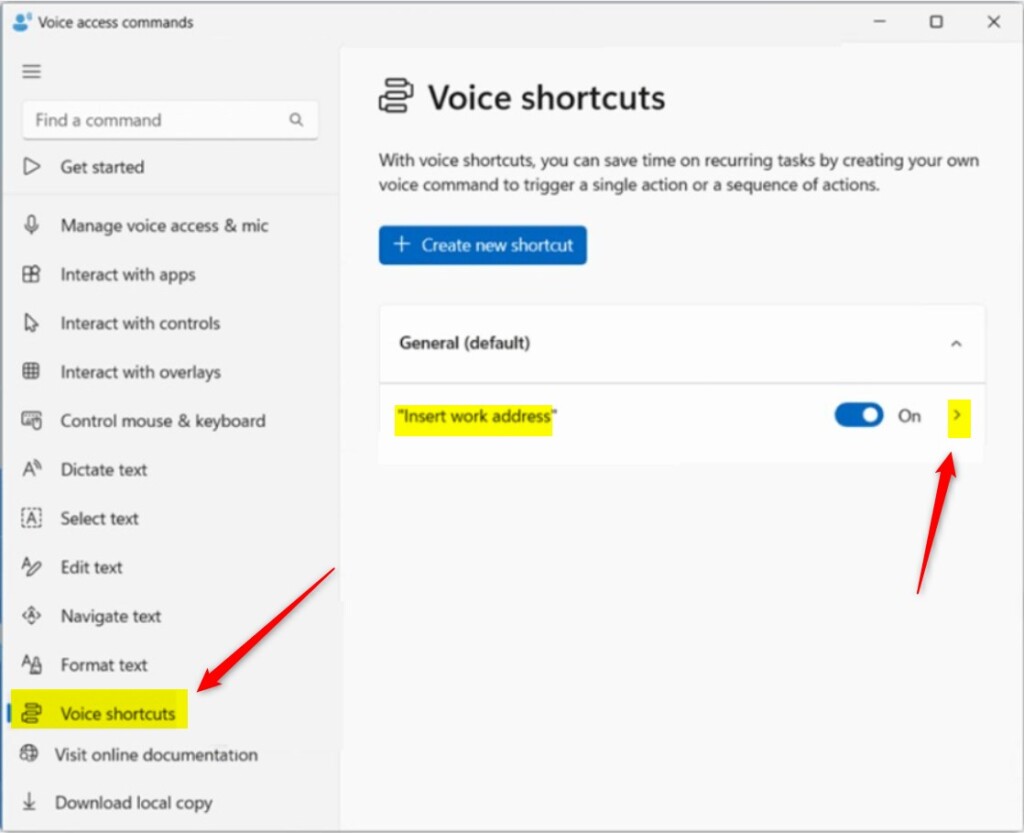
- Select Voice shortcuts on the left pane to show all shortcuts.

Select the custom command shortcuts on the list. Then, toggle the button to the On position to enable the command.
To disable it, toggle the button to the Off position.
Delete custom Voice access command shortcuts
If you want to delete your Voice access custom command shortcuts, use the steps below.
- First, turn on Voice access.
- Then, open the Voice access commands page.
- Select Voice shortcuts on the left pane to show all shortcuts.
Then, select the custom command shortcut you want to delete to expand it.
On the command shortcut detailed page, click the ‘Delete‘ button to delete the custom command you don’t need.

That should do it!~
Conclusion:
- Disabling or deleting custom Voice access command shortcuts can help streamline the interface and improve usability
- By following the provided steps, users can easily manage their custom command shortcuts
- Share your feedback or any additional tips in the comments section below!



Leave a Reply