How to Use Voice Typing in Windows 11

Do you want to type without using your keyboard? Windows 11 has a built-in tool called voice typing. This tool lets you speak into your microphone to turn your voice into text on your screen. It uses advanced speech-to-text settings to make writing faster and easier.
Why use voice typing?
Voice typing is a great way to save time. It is helpful if you find typing difficult, if you want to give your hands a rest, or if you simply prefer to talk instead of using a keyboard. It leverages Windows 11 accessibility features to ensure everyone can interact with their computer comfortably.
What happens when you use it?
When you turn on voice typing, your computer uses online speech recognition powered by Azure Speech services. Your voice data is sent to Microsoft to convert your speech into text. This process happens in real-time, placing words directly into your active document or web browser.
How to Use Voice Typing
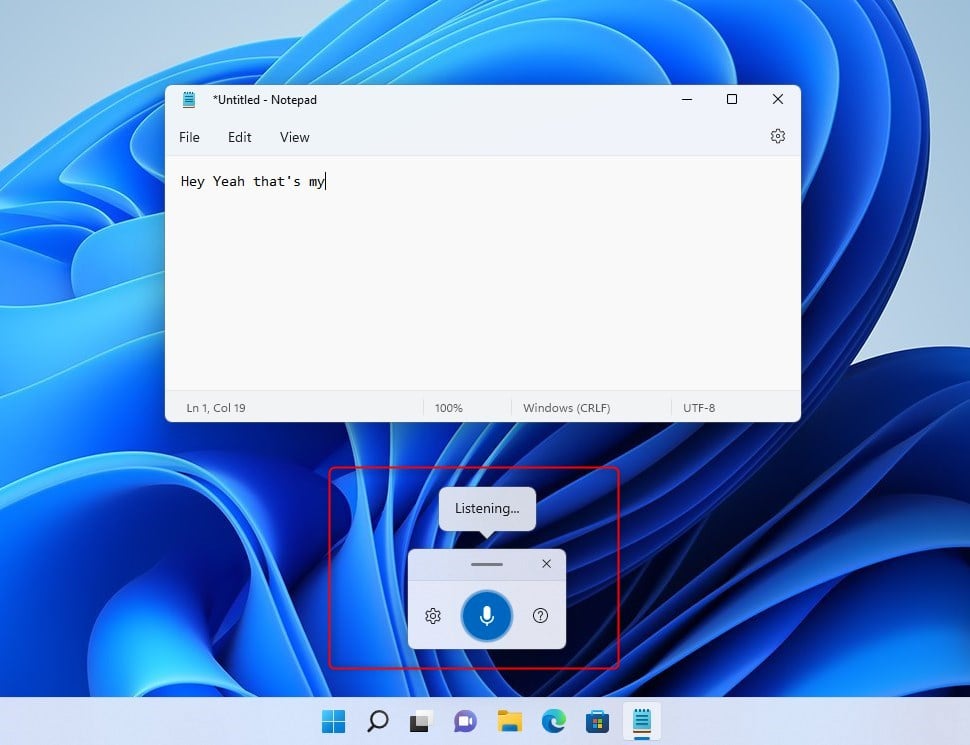
First, open notepad or click into any text box where you want to type. Once your cursor is blinking in that box, use these steps:
- Turn on voice typing: Press the Windows logo key + H on your keyboard.
- Using a touch keyboard: Tap the microphone icon next to the Spacebar on your touch keyboard.
- Stop listening: Say “Stop listening” or click the microphone icon on the voice typing menu.
Note: If you need to navigate the menu using only your keyboard, press Windows logo key + Alt + H.
Advanced Voice Commands
You can control your text using specific dictation commands. Common commands include:
- “New line” to start a new paragraph.
- “Delete that” to remove the last phrase spoken.
- “Insert period” or “Insert comma” for punctuation.
- “Stop listening” to end the session.
Troubleshooting: Win+H Not Working
If the shortcut does not work, check these items:
- Microphone Input: Go to Settings > System > Sound and ensure the correct microphone is selected.
- Privacy Settings: Navigate to Settings > Privacy & security > Speech. Ensure “Online speech recognition” is toggled to On.
- App Compatibility: Some apps block background inputs. Try clicking into a different text field or restarting the application.
Privacy and Data Collection
Windows 11 collects voice data to improve speech recognition. You can manage this in Settings > Time & language > Speech. You can also clear your voice data in your Microsoft account privacy dashboard. For advanced language settings, visit the official Microsoft support page.
Summary
Voice typing is a powerful tool for hands-free text entry. By using Windows + H, you can dictate text into any application. Remember to check your microphone settings and privacy permissions if you encounter issues. With support for multiple languages and punctuation commands, it is a versatile feature for all Windows 11 users.
Why does Windows+H not work in some applications?
Windows+H may fail if the application lacks focus or if the microphone is being used by another program. Ensure your cursor is active in a text field and check that no other software is hogging the microphone input. Sometimes, running an app as administrator can also restrict background keyboard shortcuts.
Does voice typing work offline in Windows 11?
Voice typing in Windows 11 primarily relies on Azure Speech services, which requires an active internet connection. While some basic device-based speech recognition exists for specific accessibility features, the standard voice typing tool is designed to function best with a stable online connection to ensure high accuracy and speed.
How do I change the microphone input for voice typing?
To change your microphone, go to Settings > System > Sound. Under the Input section, select your preferred device from the dropdown menu. Ensure the volume is turned up and the device is not muted. Windows will use this default device for all voice typing and speech recognition tasks.
Was this guide helpful?




[…] voice to interact with Microsoft products and services. For example, when you use your voice to talk to your PC, Windows speech recognition technology automatically generates the audio of what you say into […]
[…] Voice typing allows users to enter text on their PC by speaking into a microphone. For example, use voice typing commands to quickly edit text by saying things like “delete that” or “select that. “ […]
[…] article explains how to enable or disable a Touch keyboard feature that shows the voice typing mic button in Windows […]
[…] Voice typing allows you to enter text on your PC by speaking. It utilizes online speech recognition powered by Azure Speech Services. […]
[…] Learn more about voice typing here: How to Use Voice Typing on Windows 11 […]