
If you want to open a program or file as another user or as an administrator on your Windows 11 PC, you can use the Run as command. This is helpful if you’re logged in as a regular user but need to run something with higher permissions.
What is Run as?
The Run as command lets you start apps or files using a different user account. For example, you can run a program as an administrator even if you’re logged in as a regular user. This helps with tasks that need special permissions.
You can use Run as with files like .exe (programs), .bat or .cmd (scripts), .msc (management consoles), and .msi (installers).
How to Use Run as in File Explorer
- Open File Explorer by pressing Win + E.
- Find the program or file you want to run (like a .exe or .bat file).
- Hold down the SHIFT key on your keyboard.
- Right-click the file, then click Show more options.
- Choose Run as different user or Run as administrator from the menu.
- Enter the username and password of the account you want to use, then click OK.
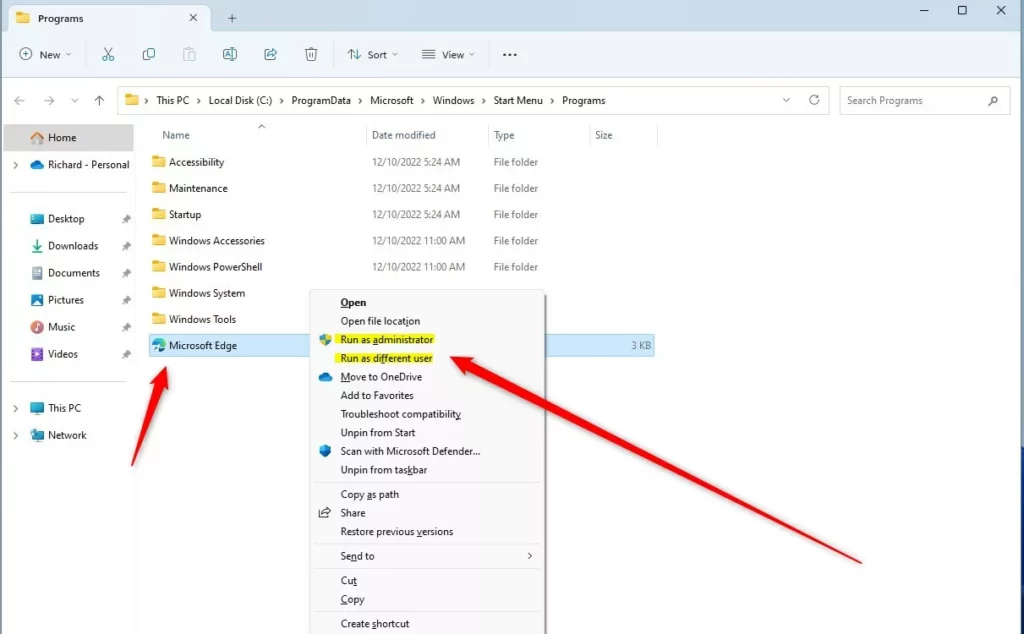
Right-click menu to run as different user or administrator
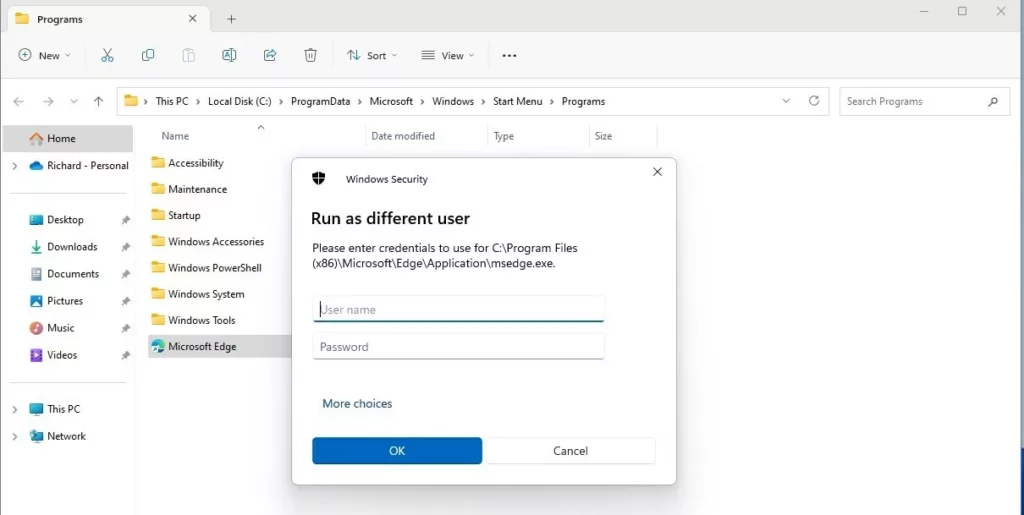
Enter username and password to run as different user
How to Use Run as from the Taskbar
You can also run programs from the Taskbar as another user or administrator.
- Hold the SHIFT key.
- Right-click the app’s icon on the Taskbar.
- Click Run as different user or Run as administrator.
- Type the username and password, then click OK.
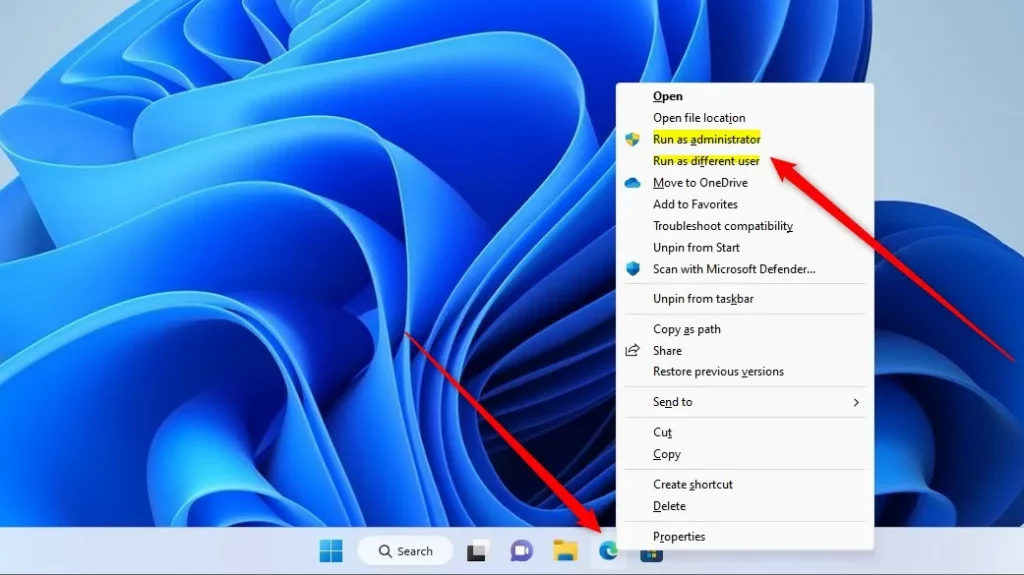
Run as different user or administrator from the Taskbar
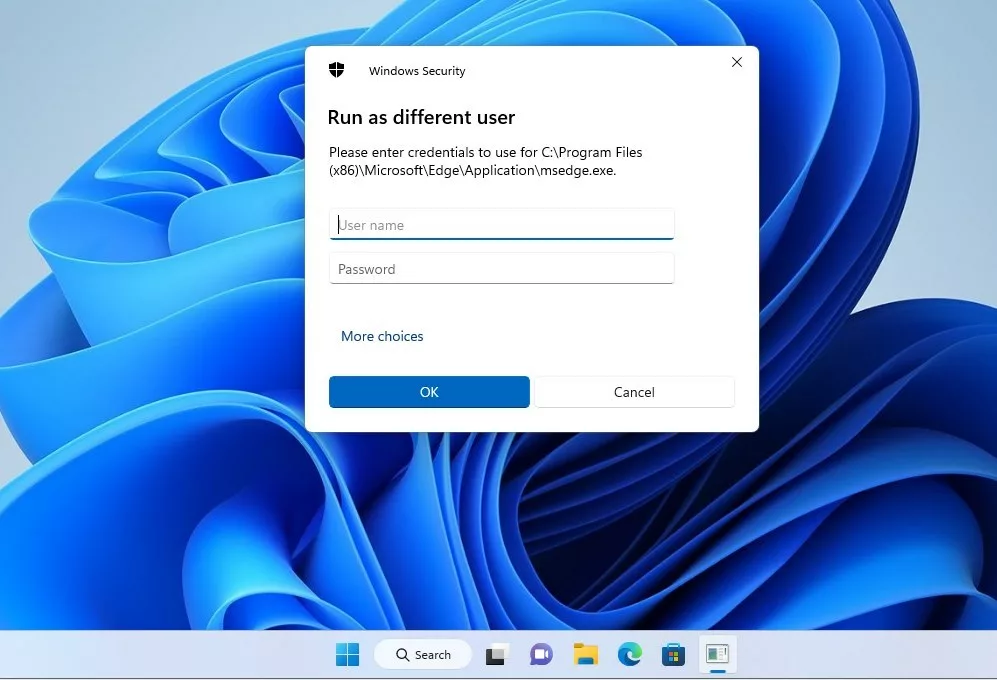
Enter credentials to run program as different user
How to Use Run as from the Command Prompt or PowerShell
You can also start programs as another user using the Command Prompt or PowerShell.
- Open Command Prompt or PowerShell.
- Type the following command:
runas /user:"<username>" "Full path to the program or file"
Example:
runas /user:"richard" "C:UsersRichardDocumentsfile.txt"
If you are on a work or school network (domain), use:
runas /user:"domainrichard" "C:UsersRichardDocumentsfile.txt"
Other Notes
You can also try this from the Start menu by right-clicking apps in the All Apps list, but some apps (like the Windows Store) won’t let you run as a different user.
Summary
- The Run as command lets you open programs or files as another user or administrator.
- You can use it in File Explorer, Taskbar, Command Prompt, or PowerShell.
- This is useful when you need admin rights but are logged in as a regular user.
- Note: The Windows Store app doesn’t support running as a different user.
Learn More
For more details, check out the official Microsoft guide: Microsoft.com – Use Run as to start an app as admin



Leave a Reply