How to Uninstall and Reinstall Outlook on Windows 11

You’ll uninstall and reinstall Outlook on Windows 11 by first removing the application through Windows Settings, then downloading and installing the latest version from the Microsoft Store.
Outlook for Windows 11 is Microsoft’s desktop email client. It offers integrated access to your email, calendar, and contacts.
Reinstalling Outlook can help if you’re facing ongoing problems or want to move from the classic version to the newer Outlook app, which was first shown as a preview in 2023.
Remove Outlook via Windows Settings, then reinstall it from the Microsoft Store. Open Settings, navigate to Apps > Installed apps, find Outlook, click the three dots, and select Uninstall. Then, open the Microsoft Store, search for Outlook, and click Install.
How to Uninstall the New Outlook App
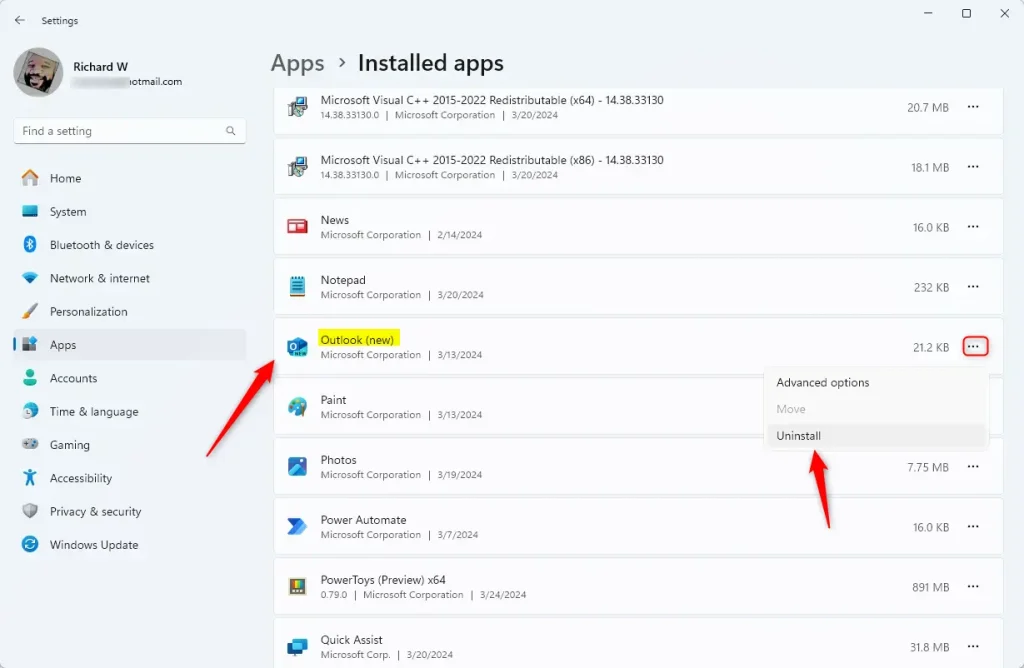
Uninstalling Outlook on Windows 11 is straightforward using the Settings app. First, make sure Outlook isn’t running, then open your computer’s Settings by pressing Windows key + I or searching for it. Navigate to Apps, then Installed apps, and find ‘Outlook (New)’ to begin the uninstall process.
- Close Outlook if it is open.
- Open Settings on your computer. Click the Start button and type
Settings, or pressWindows key + Ion your keyboard. - In Settings, click on Apps from the left menu.
- Then click Installed apps to see all the apps on your computer.
- Scroll down or search for
Outlook (New). - Click the three dots next to Outlook and choose Uninstall.
- Confirm that you want to uninstall it.
Uninstall Outlook Using PowerShell (Advanced)
If you like using commands, you can uninstall Outlook with PowerShell:
For Your User Account Only
- Open the Windows Terminal app.
- Copy and paste this command, then press
Enterto uninstall Outlook for your user account:
Get-AppxPackage | Where-Object {$_.Name -Like '*OutlookForWindows*'} | Remove-AppxPackage -ErrorAction ContinueFor All Users on the PC ⚙️ Admin Required
To uninstall Outlook for all users on the PC, do this:
- Open Windows Terminal as an administrator. Right-click it and select Run as administrator.
- Paste this command and press
Enter:
Get-AppxPackage -AllUsers | Where-Object {$_.Name -Like '*OutlookForWindows*'} | Remove-AppxPackage -AllUsers -ErrorAction ContinueHow to Reinstall the New Outlook App
If you want to put Outlook back on your PC, follow these steps:
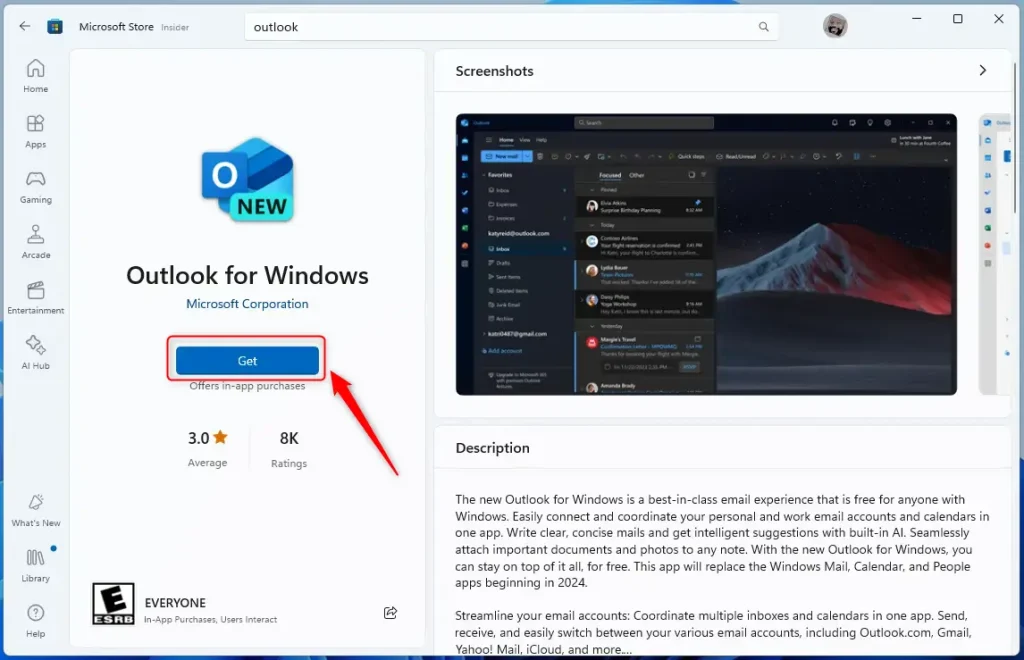
- Open the Outlook app page in the Microsoft Store.
- Click the Install button to download and install Outlook again.
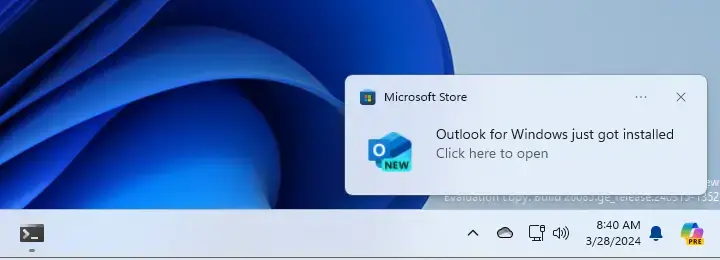
Once done, you will see a notification that Outlook was installed successfully.
Summary
- You can easily remove and reinstall the new Outlook app on Windows 11 through Settings or PowerShell commands.
- Some people uninstall Outlook because they want to use a different email program.
- The Microsoft Store makes it simple to reinstall Outlook whenever you want it back.
- If you need more help, feel free to ask!
Reinstalling Outlook on Windows 11 is simple, especially if you removed it to try another email program. You can easily get it back from the Microsoft Store anytime you need it. If you’re having trouble or need more help, just ask!
Is it safe to Uninstall Outlook in 🪟 Windows 11?
Microsoft started including the new Outlook app, also known as Outlook for Windows, in Windows 11 23H2. There’s currently no way to block its installation. You can uninstall it, but there’s no guarantee it won’t get reinstalled in a future update.
Was this guide helpful?

About the Author
Richard
Tech Writer, IT Professional
Richard, a writer for Geek Rewind, is a tech enthusiast who loves breaking down complex IT topics into simple, easy-to-understand ideas. With years of hands-on experience in system administration and enterprise IT operations, he’s developed a knack for offering practical tips and solutions. Richard aims to make technology more accessible and actionable. He's deeply committed to the Geek Rewind community, always ready to answer questions and engage in discussions.



No comments yet — be the first to share your thoughts!