
Sometimes you need to type symbols like © (copyright), ™ (trademark), currency signs like $, €, £, or math symbols like +, −, ÷, =. Windows 11 makes this easy when you’re writing emails, documents, or messages.
In this guide, we’ll show you simple ways to type special characters using built-in Windows 11 tools. You’ll learn about the Emoji Panel, Touch Keyboard, and Character Map.
How to Access Special Characters and Symbols in Windows 11
You have three easy options to choose from:
- Emoji Panel – for quick access to emojis and symbols
- Touch Keyboard – helpful if you’re using a touchscreen or want extra keys
- Character Map – lets you pick any symbol and copy it to paste wherever you want
1. Use the Emoji Panel to Type Special Characters
Why use this? The Emoji Panel is the fastest way to add symbols to your work.
What happens when you do this? The symbol appears right where your cursor is.
- Click where you want to type the symbol (in a document, message, etc.).
- Press
Windows key + . (period)on your keyboard. - The Emoji Panel will open. At the top, click the symbols icon (Ω) to see categories like punctuation, currency, math, and more.
- Scroll through and click the symbol you want. It will be added where your cursor is.
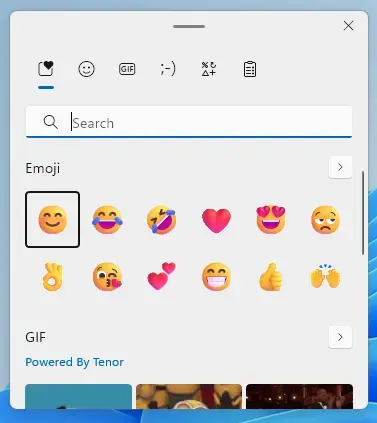
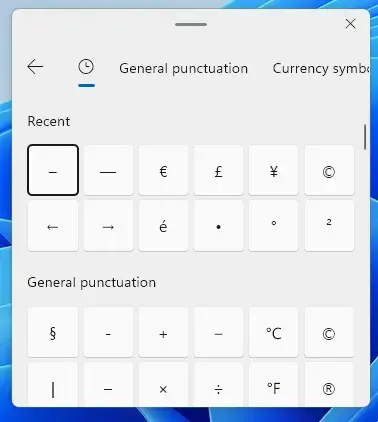
Learn more about the Emoji Panel and how to use it here: How to Use Emoji and GIF in Windows 11
2. Use the Touch Keyboard to Type Symbols
Why use this? If you have a touchscreen or want an on-screen keyboard, the Touch Keyboard is helpful.
What happens when you do this? You get an easy way to access symbols without typing them.
- Open the Touch Keyboard by clicking the keyboard icon on the taskbar. If it’s not there, right-click the taskbar and choose Show touch keyboard button.
- Once open, click the emoji icon in the top left corner to open the Emoji Panel.
- To type accents or special versions of letters, press and hold (or click and hold) a key. A small menu will appear showing related symbols. Slide or move your pointer to pick one.
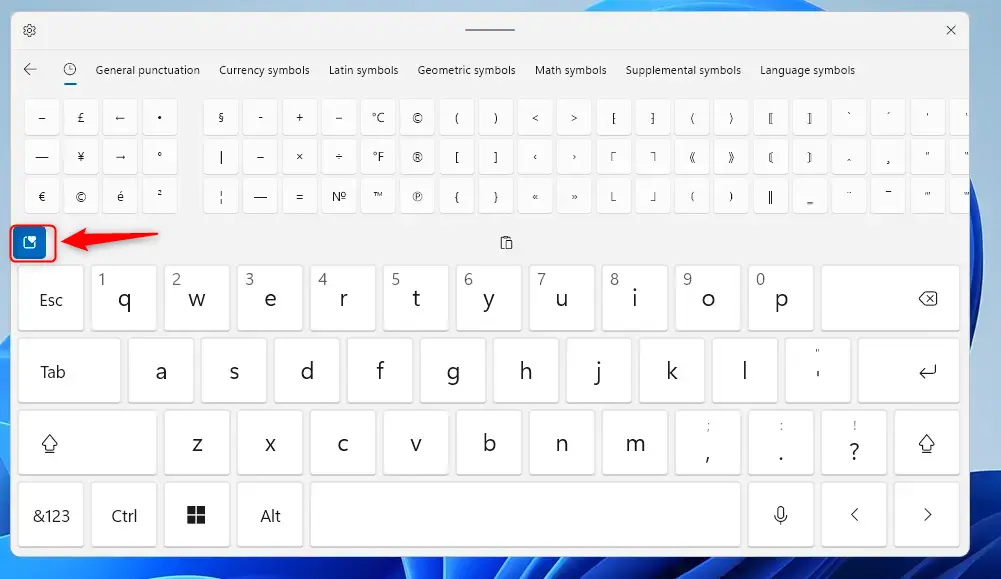
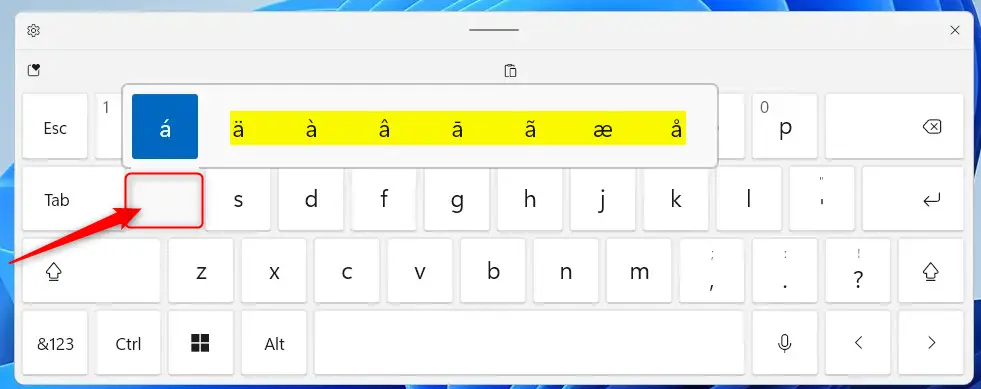
For more details, check: How to Open and Use Touch Keyboard in Windows 11
3. Use the Character Map to Find and Copy Symbols
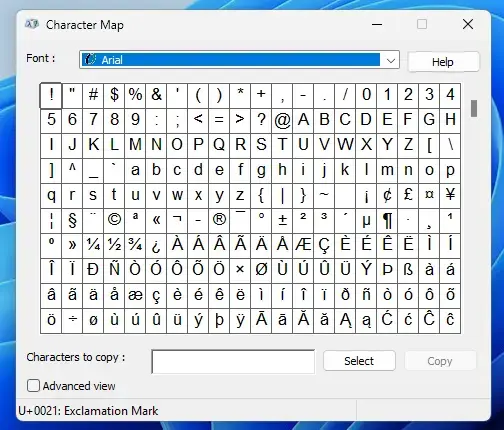
Why use this? The Character Map is a tool that shows all special characters available in Windows.
What happens when you do this? You can find and copy any symbol to use anywhere.
- Click the Start button or press
Windows keyand typeCharacter Map, then open the app. - Browse through the list or select a font to see different characters.
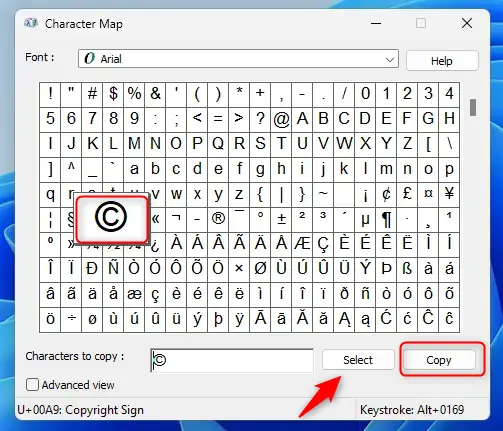
- Click the character you want, then click
Select, and then clickCopy. - Go to your document or message and press
Ctrl + Vto paste the symbol.
Summary
Windows 11 has easy ways to type special characters and symbols.
- The Emoji Panel is quick and handy for emojis and symbols.
- The Touch Keyboard is great if you have a touchscreen or want extra access to symbols.
- The Character Map helps when you need a specific symbol that’s hard to find.
Try these tools to make your typing more expressive and professional! If you found this helpful, feel free to share your thoughts or questions below.



Leave a Reply