How to Use Windows Hello in Google Chrome

You can use Windows Hello to log into websites in Google Chrome by using your face, fingerprint, or PIN for password autofill.
Windows Hello in Chrome acts as a biometric or PIN-based authentication layer, ensuring only you can access your saved website credentials.
This feature significantly enhances your online security. It prompts you for verification each time Chrome needs to use a stored password.
For example, if you’ve set up Windows Hello on your Windows 11 PC, you can enable this in Chrome to protect your login details on any site.
Enable Windows Hello in Chrome by going to Settings, then Autofill and passwords, followed by Google Password Manager, and finally Settings again. Toggle on “Use Windows Hello when filling passwords” to require your PIN, face, or fingerprint for autofill.
How to turn it on or off
You don’t need any special permissions for these steps; they’re all managed within your personal browser settings.
- Open Google Chrome browser.
- Click the Customize and Control icon (the three vertical dots in the top right corner).
- Select Settings from the menu.
- Open your Google Chrome browser.
- Look for the Customize and Control icon (those three vertical dots in the top right corner) and click it.
- From the menu that appears, choose Settings.
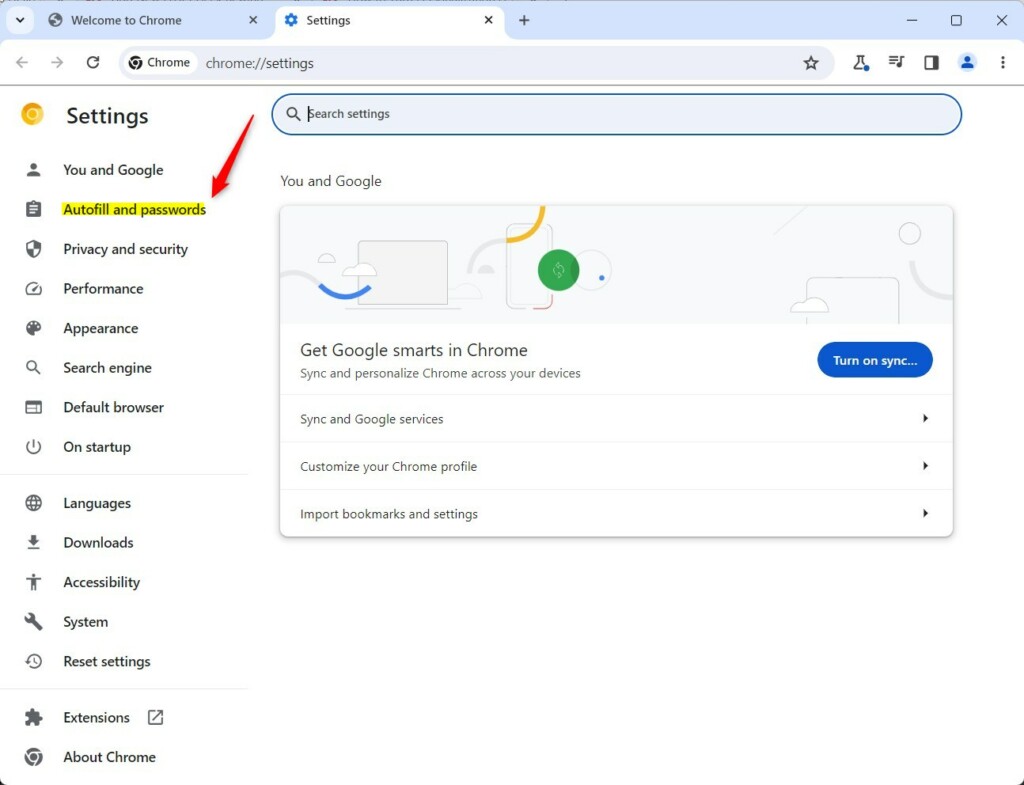
- On the left side of the Settings page, click on Autofill and passwords.
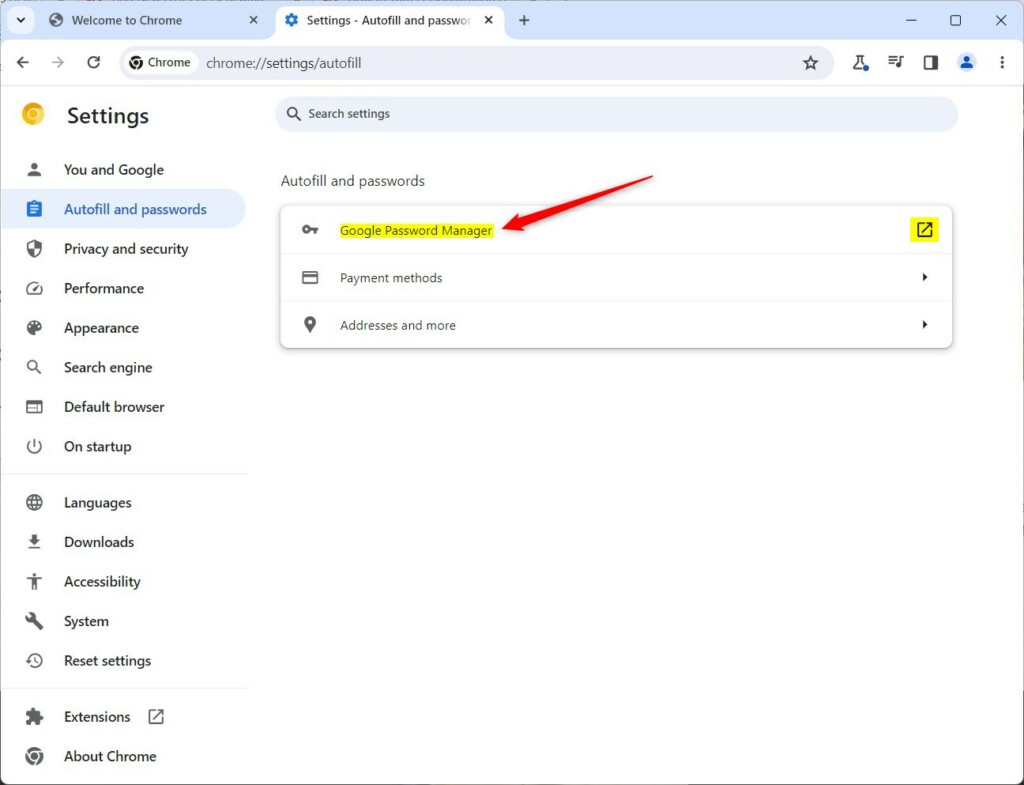
- Find and click the Google Password Manager tile on the right side.
- On the Password Manager page, click Settings again on the left side.
- You’ll see a toggle switch for ‘Use Windows Hello when filling passwords’. Click it to turn the feature on or off.
4. On the left side of the screen, click on Autofill and passwords.
5. Click the Google Password Manager tile on the right side.
6. Click Settings on the left side of the Password Manager page.
7. Click the toggle switch to turn Use Windows Hello when filling passwords on or off.
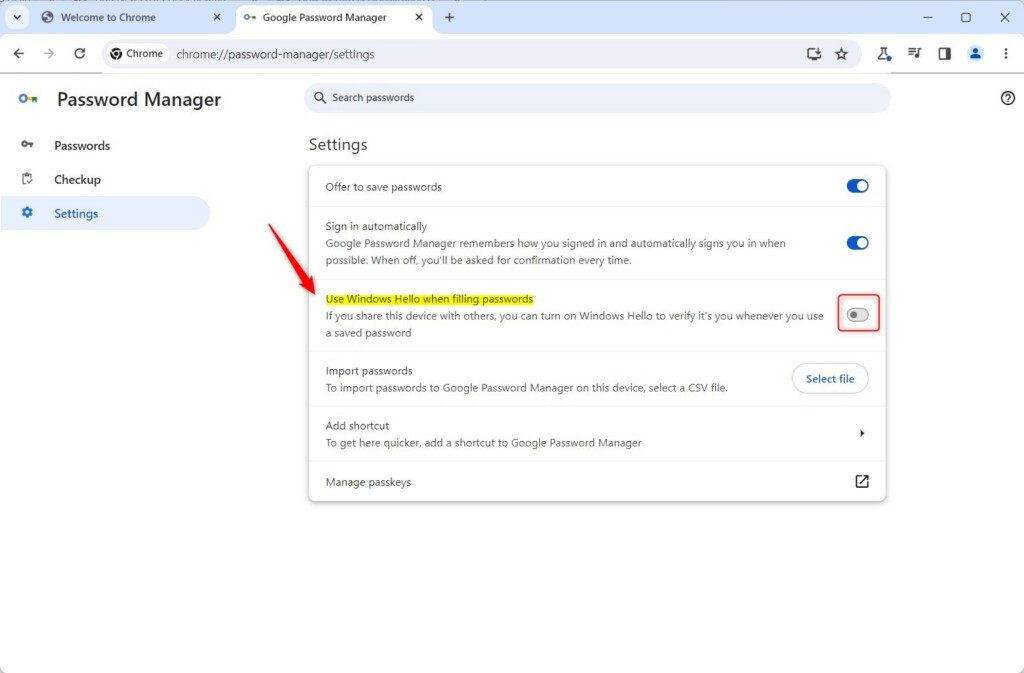
If you turn it on, Chrome will prompt you to authenticate via PIN or your saved PIN whenever you need to use a stored password. If you turn it off, Chrome will fill in your passwords automatically without asking for this extra verification.
Summary
You can improve your security by requiring Windows Hello to access your stored passwords in Chrome. To turn this feature on or off, head to Settings > Autofill and passwords > Google Password Manager > Settings. This is a great way to keep your accounts safe on shared computers.
Was this guide helpful?

About the Author
Richard
Tech Writer, IT Professional
Richard, a writer for Geek Rewind, is a tech enthusiast who loves breaking down complex IT topics into simple, easy-to-understand ideas. With years of hands-on experience in system administration and enterprise IT operations, he’s developed a knack for offering practical tips and solutions. Richard aims to make technology more accessible and actionable. He's deeply committed to the Geek Rewind community, always ready to answer questions and engage in discussions.



No comments yet — be the first to share your thoughts!