How to Enable or Disable Preload Pages in Chrome

You enable or disable Chrome’s “Preload pages” feature to control how quickly new web pages open.
Chrome’s Preload Pages, sometimes referred to as speculative prefetching, loads pages it predicts you’ll visit in the background. This makes your browsing feel faster by reducing the time it takes for links to open.
This feature is part of Chrome’s “Performance” settings. By default, Chrome uses “Standard preloading,” which loads pages it’s confident you’ll click on.
By 2026, Chrome will leverage “speculation rules” for more intelligent page prediction, going beyond just cookies to analyze website structures.
To enable or disable page preloading in Chrome, navigate to Settings, then Performance, and select your desired preloading level from the Preloading section. You can choose from No preloading, Standard preloading, or Extended preloading.
Enable or disable “Preload pages” in Chrome
Turning the “Preload pages” setting on or off in Chrome helps you decide if websites should load faster or if you want to save data.
First, open the Google Chrome browser.
Click the Customize and Control (three vertical dots) button in the top right corner. Select Settings.
On the Settings page, look at the left panel and click on Performance.
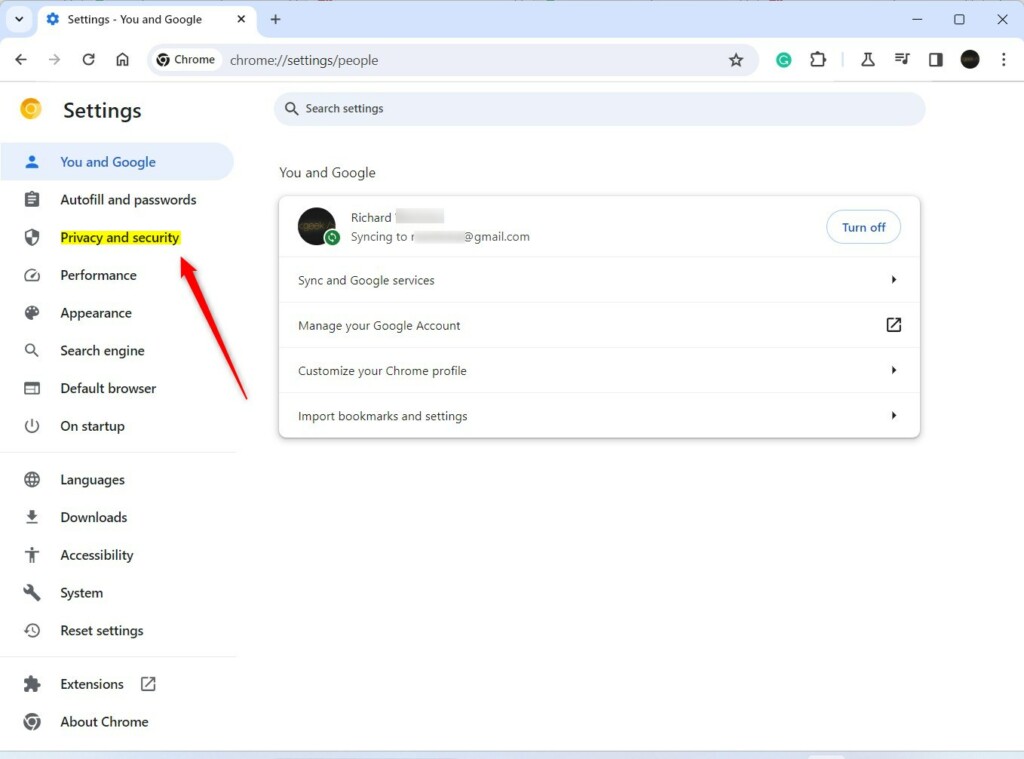
On the right side of the screen, you will see the Preloading section.
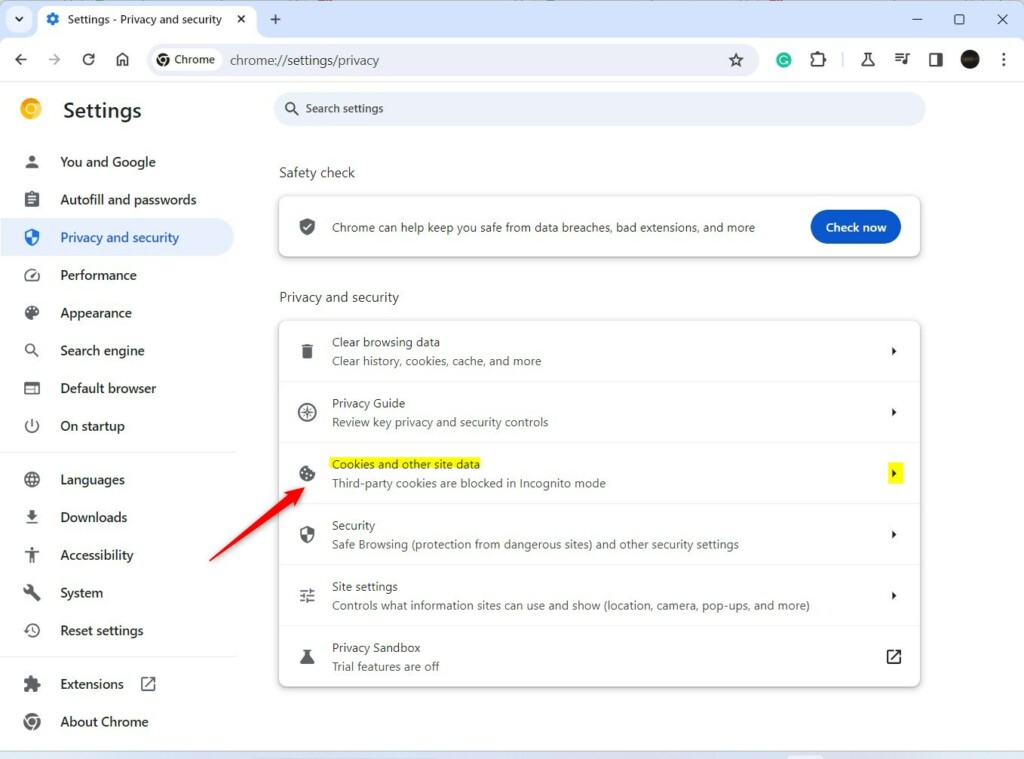
Click on Preloading to see your options. You can also type this address into your browser bar to go there directly:
chrome://settings/preloading
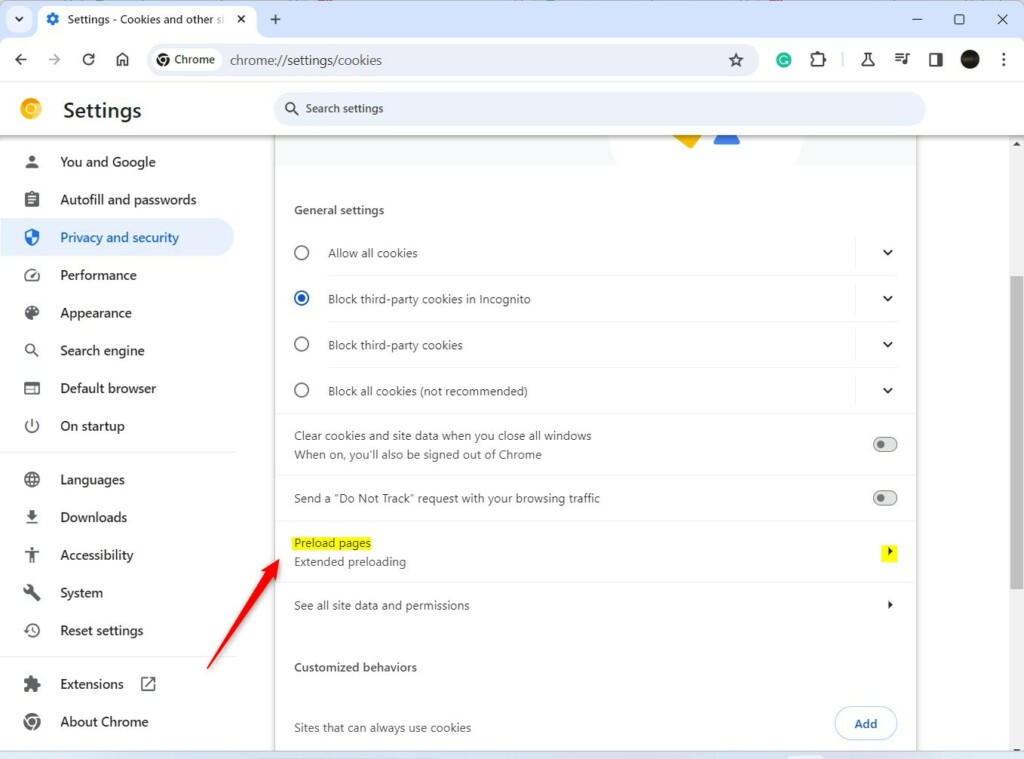
Select the level of preloading that works best for you:
- No preloading
- Standard preloading
- Extended preloading
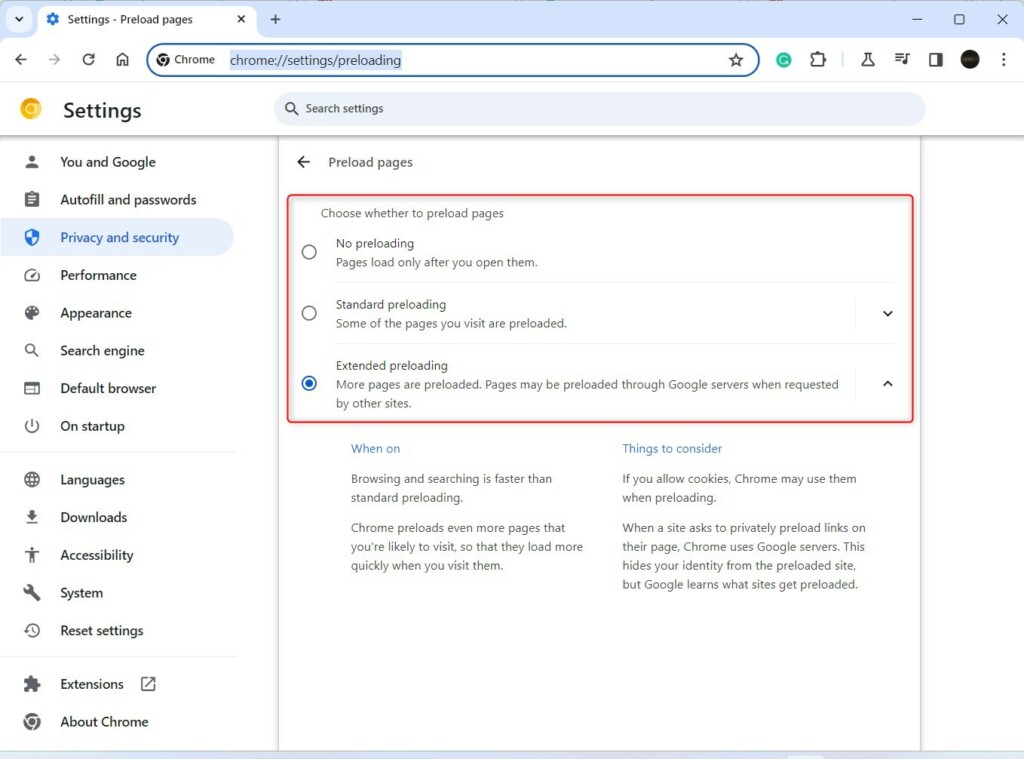
Once you select your choice, Chrome saves the setting automatically. You can then close the tab.
And that’s it! You’ve successfully managed how Chrome loads your pages.
Source: Google
Should I let Chrome preload pages?
Together right up here. If you toggle this off it toggles off preload pages.
Was this guide helpful?

About the Author
Richard
Tech Writer, IT Professional
Richard, a writer for Geek Rewind, is a tech enthusiast who loves breaking down complex IT topics into simple, easy-to-understand ideas. With years of hands-on experience in system administration and enterprise IT operations, he’s developed a knack for offering practical tips and solutions. Richard aims to make technology more accessible and actionable. He's deeply committed to the Geek Rewind community, always ready to answer questions and engage in discussions.




No comments yet — be the first to share your thoughts!