
Is your computer running out of storage space? Windows 11 has a feature called Storage Sense that can help. It automatically deletes temporary files you don’t need. In this guide, we’ll show you how to turn this feature on or off.
What is Storage Sense?
Storage Sense is a built-in tool in Windows 11 (and Windows 10) that keeps your computer clean. Here’s what it does:
- Deletes temporary files you don’t need
- Empties the Recycle Bin after a certain time
- Cleans files in your Downloads folder after a while
Why use Storage Sense? It frees up space on your hard drive without you having to do it manually.
What happens when you turn it on? Storage Sense runs automatically when your disk space gets low and removes temporary files.
By default, Storage Sense is turned off. You can turn it on anytime you want.
Method 1: Using Group Policy Editor
The easiest way to control this feature is through the Local Group Policy Editor. Follow these steps:
- Click the Start button and type
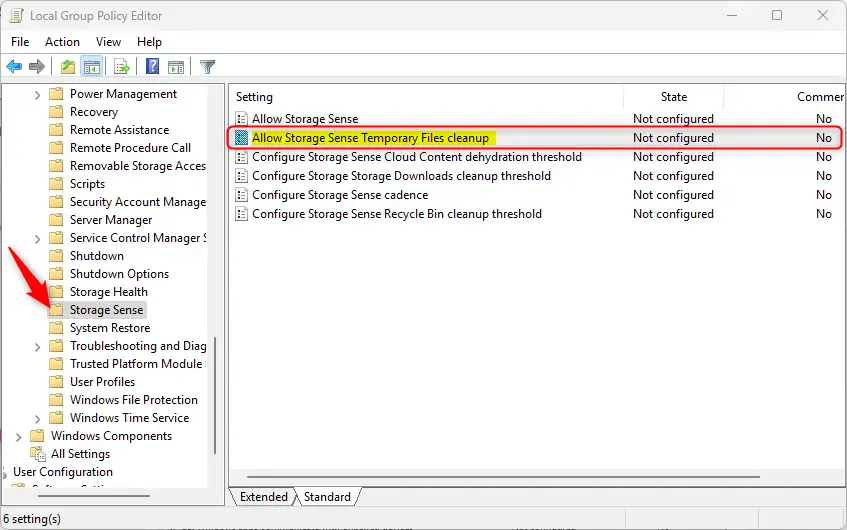
Edit group policy, then press Enter. - In the window that opens, follow this path on the left side:
Computer Configuration > Administrative Templates > System > Storage Sense - On the right side, find
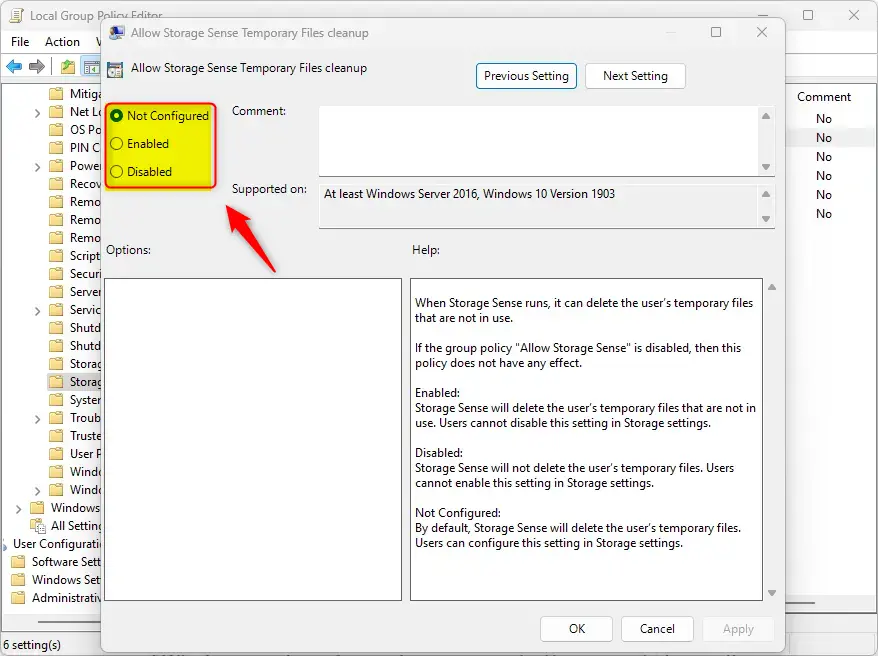
Allow Storage Sense Temporary Files cleanupand double-click it. - Choose one of these options:
Not Configured– Leaves it as default (Storage Sense can be turned on or off by users)Enabled– Storage Sense will delete temporary files automatically and users won’t be able to turn this offDisabled– Storage Sense won’t delete temporary files and users can’t turn it on
- Click
OKto save your changes. - [REQUIRES ADMIN PRIVILEGES] Restart your computer to make sure the changes take effect.
Method 2: Using Registry Editor
If you prefer or need to use the Windows Registry, here’s how to do it:
- [REQUIRES ADMIN PRIVILEGES] Open the Registry Editor by typing
regeditin the Start menu search and running it as administrator. - Navigate to this folder:
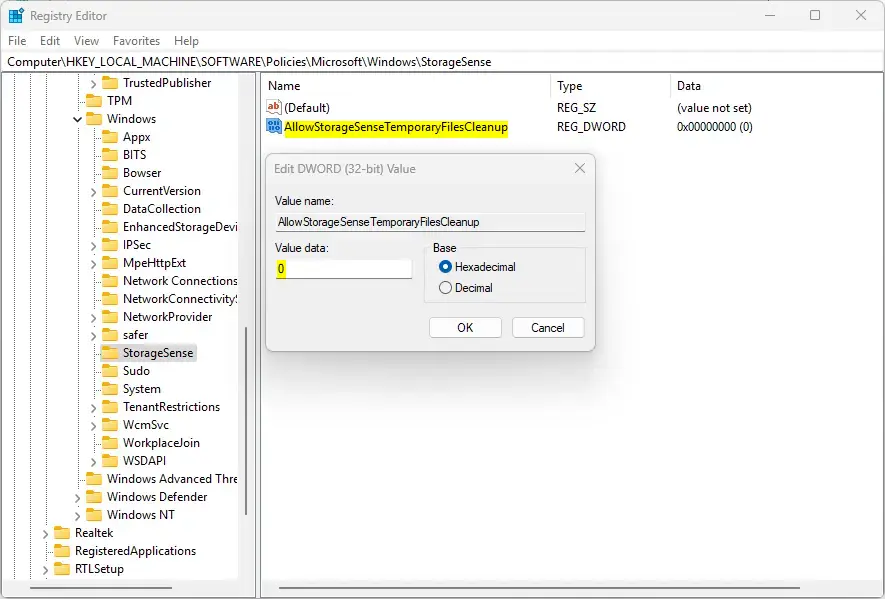
HKEY_LOCAL_MACHINE\SOFTWARE\Policies\Microsoft\Windows\StorageSense - Look for a value called
AllowStorageSenseTemporaryFilesCleanupin the right pane. - If it exists, double-click it and set the number to:
0to turn off temporary file cleanup1to turn on the cleanup
- If it doesn’t exist:
- Right-click in the right pane and select
New > DWORD (32-bit) Value - Name it
AllowStorageSenseTemporaryFilesCleanup - Double-click it and set the value to
0to disable, or1to enable
- Right-click in the right pane and select
- Close Registry Editor and restart your PC.
Summary
Storage Sense is a helpful tool that removes temporary files automatically. You can turn on or off its temporary file cleanup feature using either the Group Policy Editor or the Registry Editor. Both methods work well. Always be careful when changing computer settings. If you want to learn more about Storage Sense or how to open these tools, you can visit this detailed guide on Storage Sense.



Leave a Reply