How to Enable Optimizations for Windowed Games in Windows 11

Windows 11 includes a powerful feature called Optimizations for windowed games. This setting is designed to make your games run smoother when they are not in full-screen mode. By using modern display technology, it helps your computer handle windowed and borderless games with less effort.
Why use this feature?
Games often run slower or have more lag when they are in a window. This setting updates how your computer displays these games. It lowers frame latency, which makes your controls feel more responsive. It also unlocks advanced features like Auto HDR and Variable Refresh Rate (VRR). These features make colors pop and keep your screen smooth.
What happens when you are done?
Once you turn this on, your windowed games will use a modern flip-model presentation instead of the older blt-model presentation. This makes them act more like full-screen games. You get a better experience without needing to change your game settings manually.
Technical Mechanism: How It Works
In the past, Windows used a method called Blt-model to draw windows. This method often caused lag. Windows 11 now uses the Flip-model. This is the same technology used for full-screen games. It allows the game to talk directly to your graphics card. This reduces the time it takes for a frame to show on your screen. It is compatible with DirectX 10, 11, and 12 games.
Compatibility and Requirements
To use this, you need a graphics card that supports the Windows Display Driver Model (WDDM) 2.7 or higher. Most modern cards from NVIDIA, AMD, and Intel support this. If you do not see the option, check your driver updates. You may need to visit your manufacturer’s website to get the latest software.
How to enable or disable optimizations
Follow these steps to change your settings. Note: This requires admin privileges.
- Open the Settings app by pressing Windows key + I.
- Click on the System tab, then click Display.
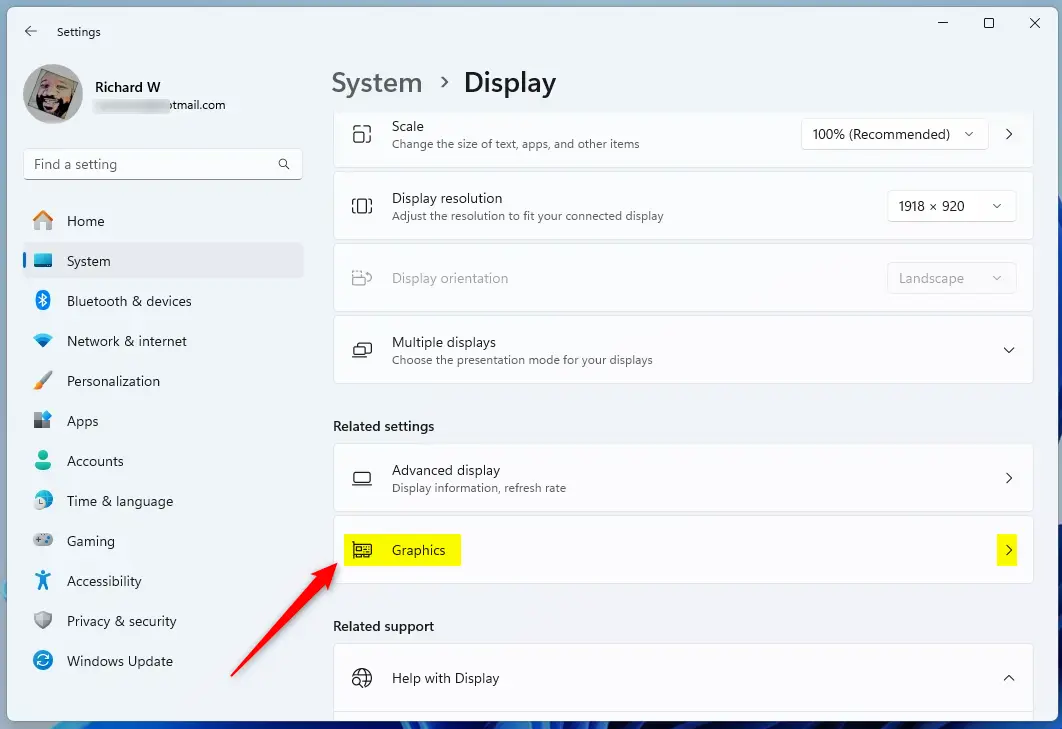
- Scroll down to Related settings and click Graphics.

- Click Change default graphics settings.
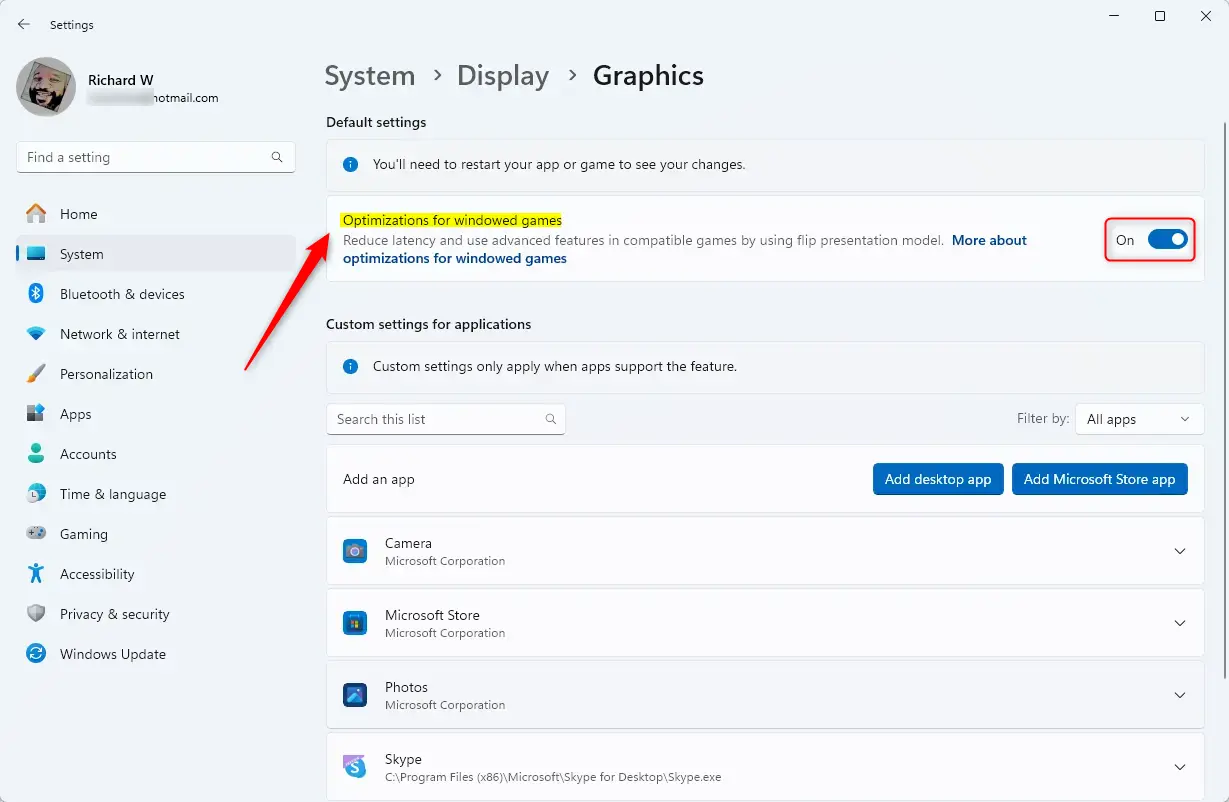
- Use the toggle switch for Optimizations for windowed games to turn it On or Off.
How to disable for specific games
If a game acts strangely, you can turn this off for just that game. Go to Settings > System > Display > Graphics. Find your game in the list. Click Options. Select Don’t use optimizations and click Save.
Troubleshooting
If you do not see the option, ensure your Windows 11 is fully updated. Check your graphics drivers in C:\Windows\System32 or via your GPU control panel. If a game crashes, try disabling the feature for that specific app using the steps above.
Summary
Optimizations for windowed games is a simple toggle that improves how games run in windows. By switching to a modern display model, you get lower latency and better support for features like Auto HDR. You can enable it globally or disable it for specific games if you run into issues.
Does this feature work for DirectX 12 games?
Yes, this feature works for DirectX 10, 11, and 12 games. It is designed to improve the presentation model for all windowed applications, ensuring that even older titles benefit from the reduced latency and improved frame pacing provided by the modern flip-model display architecture in Windows 11.
Will this optimization affect my GPU power consumption?
Generally, no. While the feature improves efficiency by reducing the overhead of the legacy blt-model, it does not significantly increase GPU power draw. In some cases, it may even help your GPU run more efficiently by streamlining how frames are delivered to your display, potentially reducing unnecessary processing cycles.
Was this guide helpful?

About the Author
Richard
Tech Writer, IT Professional
Richard, a writer for Geek Rewind, is a tech enthusiast who loves breaking down complex IT topics into simple, easy-to-understand ideas. With years of hands-on experience in system administration and enterprise IT operations, he’s developed a knack for offering practical tips and solutions. Richard aims to make technology more accessible and actionable. He's deeply committed to the Geek Rewind community, always ready to answer questions and engage in discussions.



No comments yet — be the first to share your thoughts!