How to Enable or Disable Dynamic Refresh Rate in Windows 11

You enable or disable Dynamic Refresh Rate (DRR) in Windows 11 within the Display settings to manage your monitor’s refresh rate for better power efficiency or smoother visuals.
Dynamic Refresh Rate automatically adjusts your screen’s refresh rate, often switching between 60Hz and a higher setting like 120Hz, based on what you are doing on your PC.
This feature is particularly useful on laptops, as it lowers the refresh rate when displaying less demanding content to conserve battery life. For example, it might drop to 60Hz during web browsing but increase to 120Hz for gaming.
Go to Settings > System > Display > Advanced display, then select “Dynamic” from the Refresh rate dropdown to enable it. Choose a fixed rate like 60 Hz to disable it. This feature adjusts your screen’s refresh rate automatically.
What is Dynamic Refresh Rate?
Dynamic Refresh Rate in Windows 11 is a clever setting that automatically adjusts your screen’s refresh rate to match what you’re doing, saving battery when you’re not doing much and making things smoother when you are.
Why use Dynamic Refresh Rate? This feature helps your laptop run better and use less power. But it only works if your laptop screen supports something called Variable Refresh Rate (VRR) and can run at 120Hz or higher.
How to Turn On Dynamic Refresh Rate
- Click on the Start Menu (the Windows icon at the bottom left of your screen), then click Settings.
windows 11 settings button - In the Settings window, click on System, then select Display on the left menu.
- Scroll down and click on Advanced display.
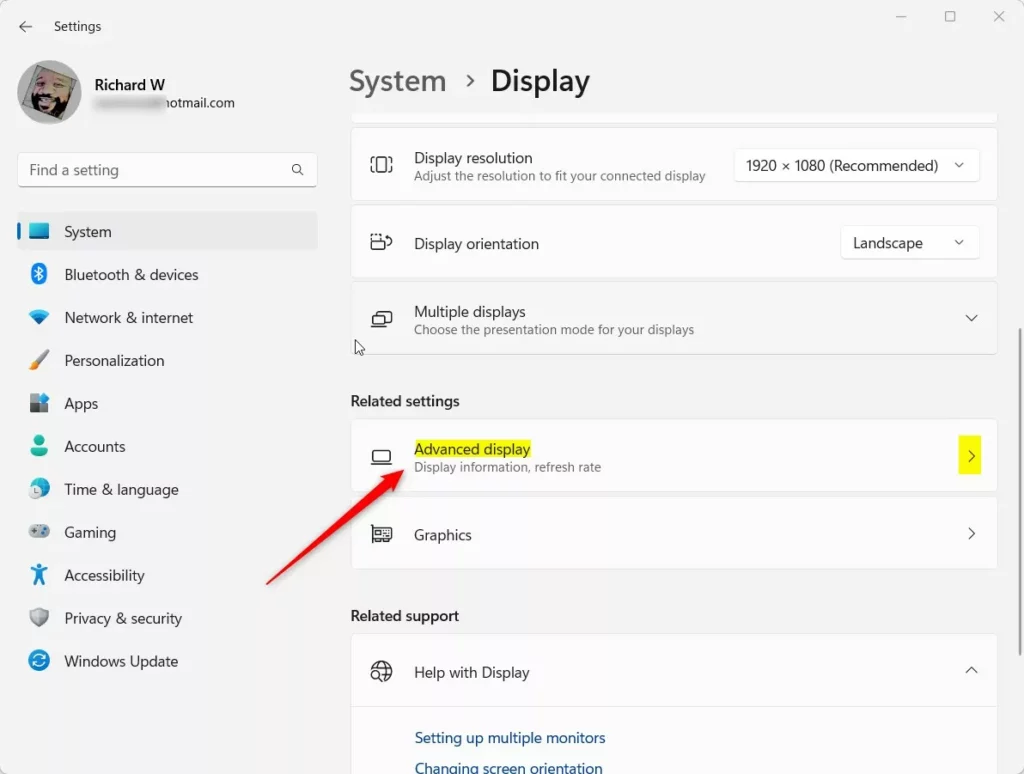
Windows Advanced display tile in Settings - Look for the Refresh rate dropdown menu. Click it and choose Dynamic (60 Hz or 120 Hz) if you see this option.

Dynamic refresh rate setting in Windows 11
To turn on Dynamic Refresh Rate in Windows 11, first open Settings from the Start Menu, then go to System, and select Display.
How to Turn Off Dynamic Refresh Rate
If you want to turn off Dynamic Refresh Rate, follow the same steps above but select a fixed refresh rate, like 60 Hz, from the dropdown menu instead.
Summary
- Dynamic Refresh Rate helps your computer save power and work smoothly by changing how fast your screen updates.
- It works only on laptops with screens that support Variable Refresh Rate and have 120Hz or higher refresh rates.
- You can turn it on or off easily in the Display settings under Advanced display.
- If you don’t see the option, your computer screen might not support this feature.
Dynamic Refresh Rate in Windows 11 helps save battery and makes your screen look smoother by changing its update speed automatically, but it only works on certain laptops with high refresh rate screens.
Should I turn off dynamic refresh rate in 🪟 Windows 11?
DRR should not affect games designed for VRR, but it can limit the maximum refresh rate of other games. If you enable DRR and find that a favorite game appears to be running at a lower refresh rate, the best mitigation is to disable DRR.
Should I enable dynamic refresh rate 🪟 Windows 11 reddit?
With Dynamic Refresh Rate on, your GPU has to keep boosting the core clock to ensure stability as Windows switches between 60Hz and 240Hz constantly. This causes your GPU to waste more power.
How do I force dynamic refresh rate in 🪟 Windows 11?
You can’t strictly ‘force’ the dynamic refresh rate, but you can set it to automatically switch by going to Advanced display settings and choosing the ‘Dynamic’ option for your refresh rate.
Should I keep VRR on or off?
So, Should You Turn Variable Refresh Rate On or Off? Here's the short answer: for most gamers, turn VRR on. It gives you a smoother experience, gets rid of tearing, and makes games look cleaner without sacrificing performance.
Was this guide helpful?

About the Author
Richard
Tech Writer, IT Professional
Richard, a writer for Geek Rewind, is a tech enthusiast who loves breaking down complex IT topics into simple, easy-to-understand ideas. With years of hands-on experience in system administration and enterprise IT operations, he’s developed a knack for offering practical tips and solutions. Richard aims to make technology more accessible and actionable. He's deeply committed to the Geek Rewind community, always ready to answer questions and engage in discussions.



No comments yet — be the first to share your thoughts!