Enable Night Light in Ubuntu Linux: A Quick Guide


Night Light in Ubuntu Linux automatically warms your screen colors as the sun goes down to filter out harsh blue light and reduce eye strain. Ubuntu 22.04 LTS and newer versions include this color-shifting tool directly inside the standard display menu.
You can turn on the feature manually or set a custom schedule so your display adjusts itself every evening to help protect your sleep during late-night work.
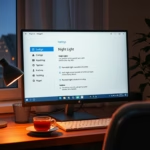
Open Settings , select Displays, and toggle the Night Light switch to On. You can schedule it for Sunset to Sunrise or set a Manual Schedule. The top bar indicates when Night Light is active.
How to enable or disable night light in Ubuntu Linux
Night Light Ubuntu helps reduce eye strain after dark by warming up the colors on your display. You can turn this feature on or off by opening Settings, selecting Display, and switching the Night Light toggle to the on or off position. This built-in setting automatically adjusts your screen warmth based on local sunset and sunrise times.
From the System Settings panel, preferences stay organized in a single location for quick access.

Alternatively, click on the System menu at the top-right corner of your desktop’s top bar.
On the System menu, select Settings, as shown below.

Click on the Displays tile in the Settings app to open that panel.
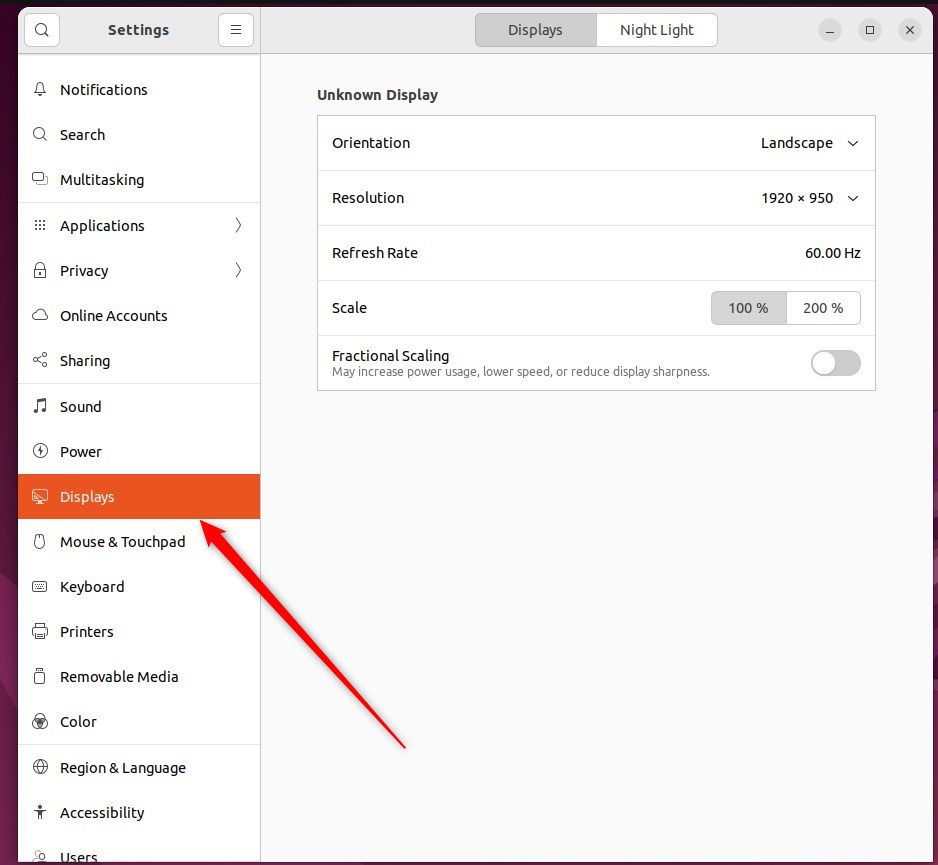
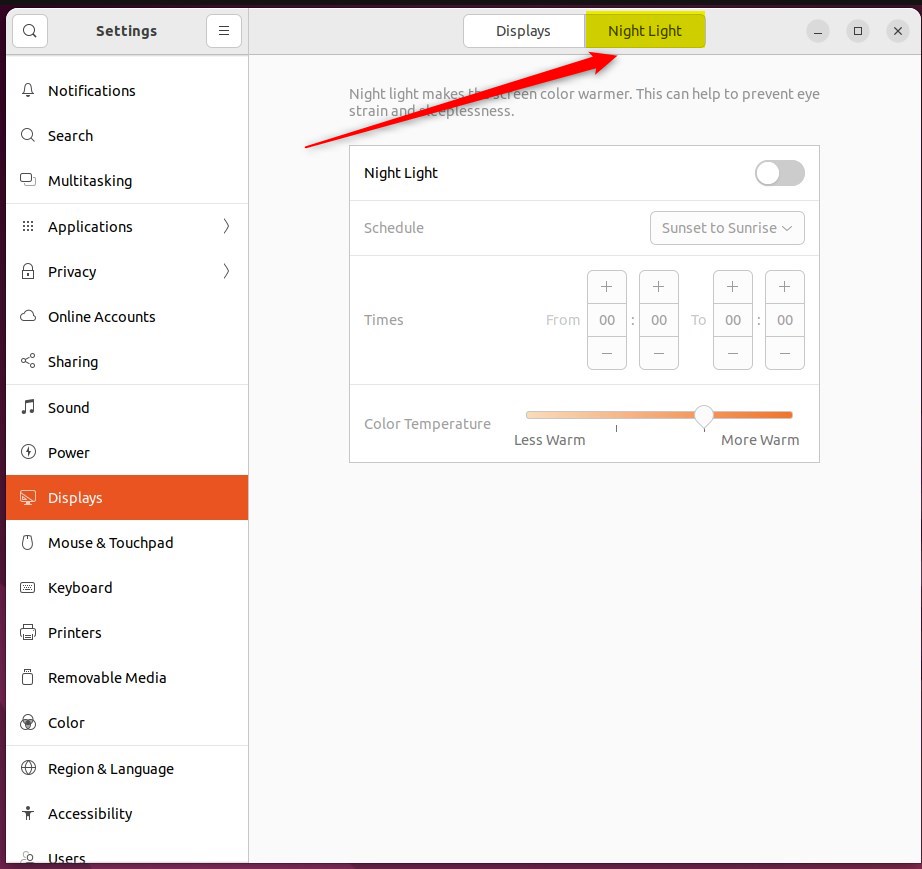
In the System Settings - Displays settings panel, click Night Light in the header bar to access its options.
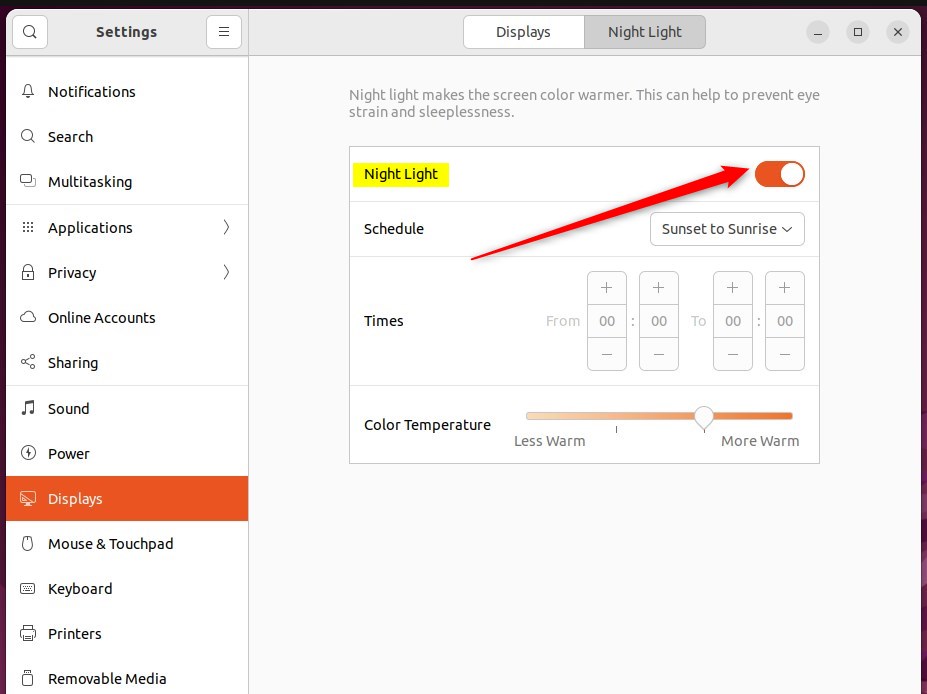
In the System Settings - Displays - Night Light settings panel, toggle the Night Light switch to the On position to enable it.
To disable it, move the Night Light switch back to the Off position or turn it off from the system menu.
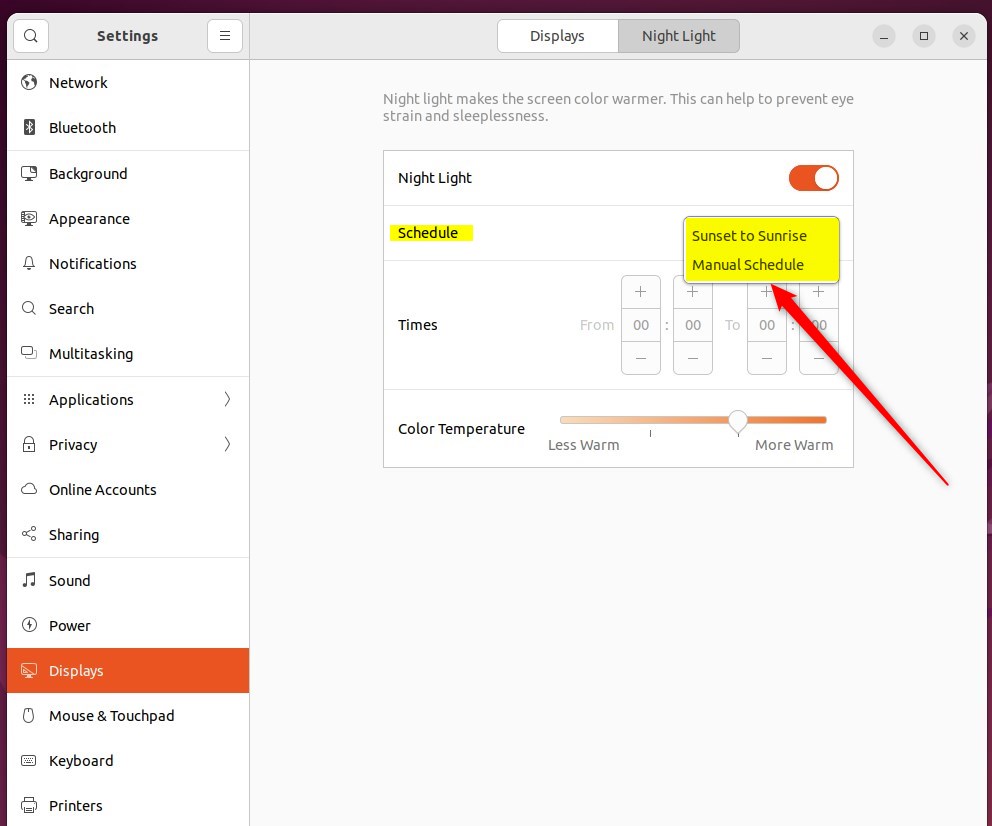
Under Schedule, select Sunset to Sunrise to have the screen color automatically adjust based on your location's sunset and sunrise times.
Select Manual Schedule to set a custom schedule for the Times.
The top bar shows an indicator when Night Light is active. You can temporarily disable it from the system menu.
Configuration finishes here, leaving the Settings app ready to close.
Using Night Light on Ubuntu helps protect your eyes and improve sleep quality during late-night sessions:
- Night Light in Ubuntu Linux provides a convenient way to reduce eye strain and improve sleep quality during nighttime computer usage.
- Users can easily enable or disable Night Light by following a few simple steps in the System Settings and customize its schedule to align with their preferences.
- Utilizing the Sunset to Sunrise option or setting a Manual Schedule allows for flexible control over the warm color display, ultimately enhancing the viewing experience.
- The visual indicator in the top bar conveniently signals when Night Light is active, providing a quick reference for its status.
- Overall, leveraging Night Light in Ubuntu Linux can significantly contribute to a more comfortable and healthier screen viewing experience, especially in low-light conditions.
How to get night light on Linux?
If you use Linux Mint instead of Ubuntu, open the application menu and search for Night Light. Enter to open the night light settings. Inside the settings, enable the Night Light toggle button. This will set the default color temperature automatically.
How do I turn on nightlight mode?
This section is irrelevant to the Ubuntu guide and should be removed.
Is Ubuntu Gnome discontinued?
Ubuntu GNOME (formerly Ubuntu GNOME Remix) is a discontinued Linux distribution, distributed as free and open-source software.
Was this guide helpful?

About the Author
Richard
Tech Writer, IT Professional
Richard, a writer for Geek Rewind, is a tech enthusiast who loves breaking down complex IT topics into simple, easy-to-understand ideas. With years of hands-on experience in system administration and enterprise IT operations, he’s developed a knack for offering practical tips and solutions. Richard aims to make technology more accessible and actionable. He's deeply committed to the Geek Rewind community, always ready to answer questions and engage in discussions.



No comments yet — be the first to share your thoughts!