
Want to keep your computer safe from hackers and bad software? Microsoft Defender Firewall is your first line of defense. This guide shows you simple steps to turn it on or off in Windows 11.
What is Microsoft Defender Firewall?
Microsoft Defender Firewall blocks unwanted access to your PC from the internet or other networks. It works differently depending on what type of network you’re using:
- Domain network: Usually at work or school. Your device connects to a special system that controls access.
- Private network: Your home or a trusted network.
- Public network: Public Wi-Fi spots like cafes, airports, or hotels. Security needs to be higher here.
Keep the firewall on to stay safe. This is true even if you use other security programs.
Important: %%ADMIN_FLAG%% You need admin access to change firewall settings.
Turn On or Off Microsoft Defender Firewall Using Windows Security
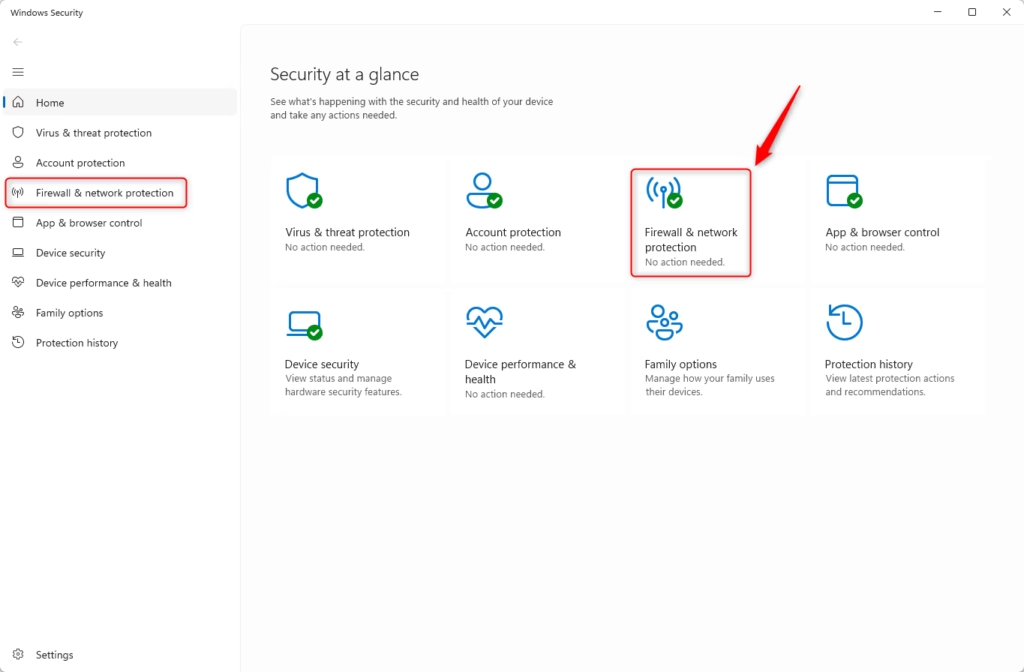
- Click the Start button and open Windows Security. You can type “Windows Security” in the search box.
- In Windows Security, click on Firewall & network protection.
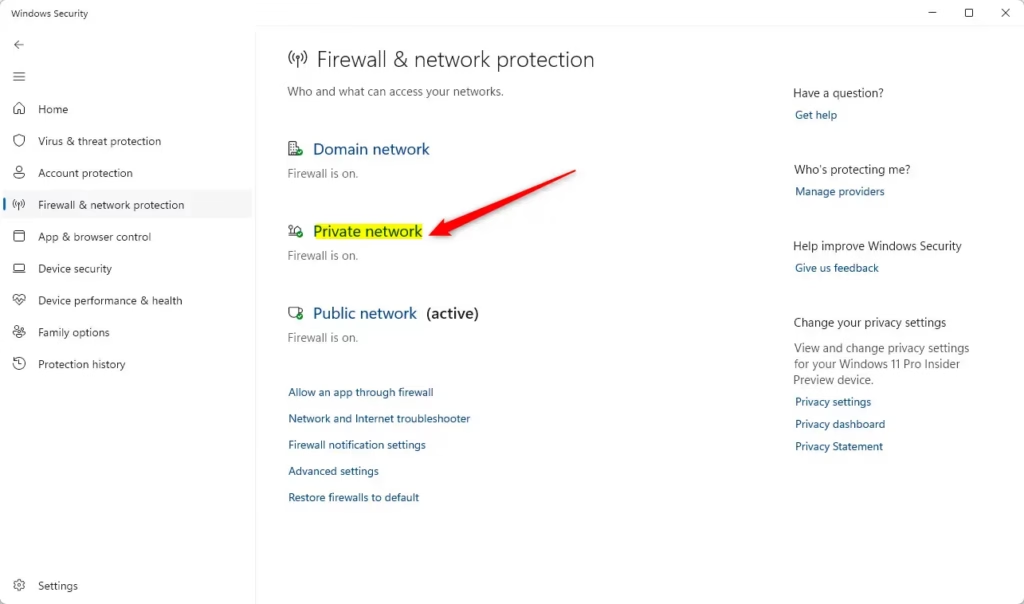
- Choose the network type you want to change (Domain, Private, or Public). You’ll see which one is active next to it.
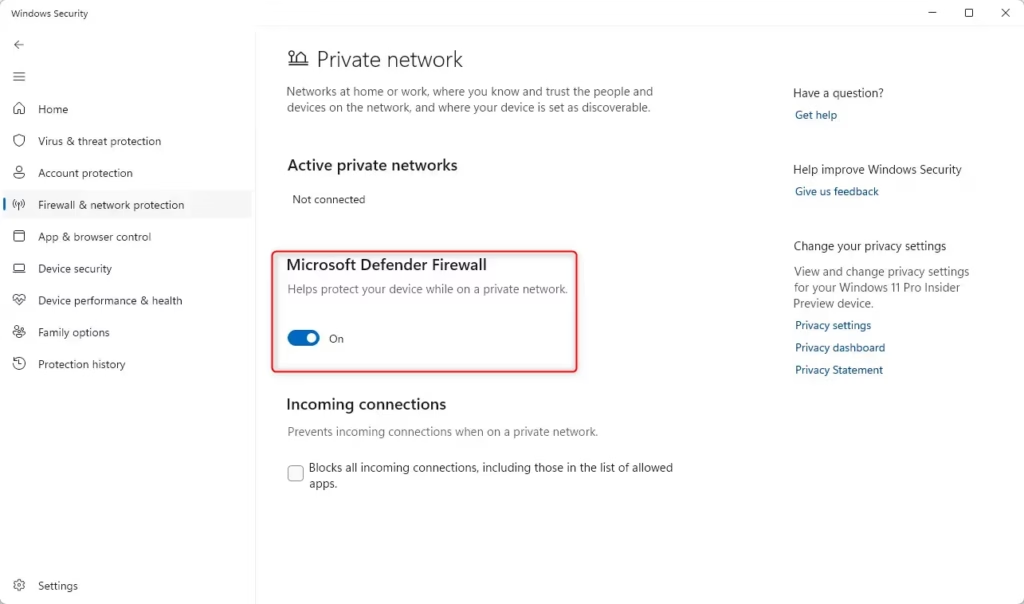
- Turn the switch On or Off for Microsoft Defender Firewall.
- If a confirmation box appears (User Account Control), click Yes.
- Close Windows Security when you’re done.
Turn On or Off Microsoft Defender Firewall Using Control Panel
- Open the Control Panel. (Press Windows + R, type
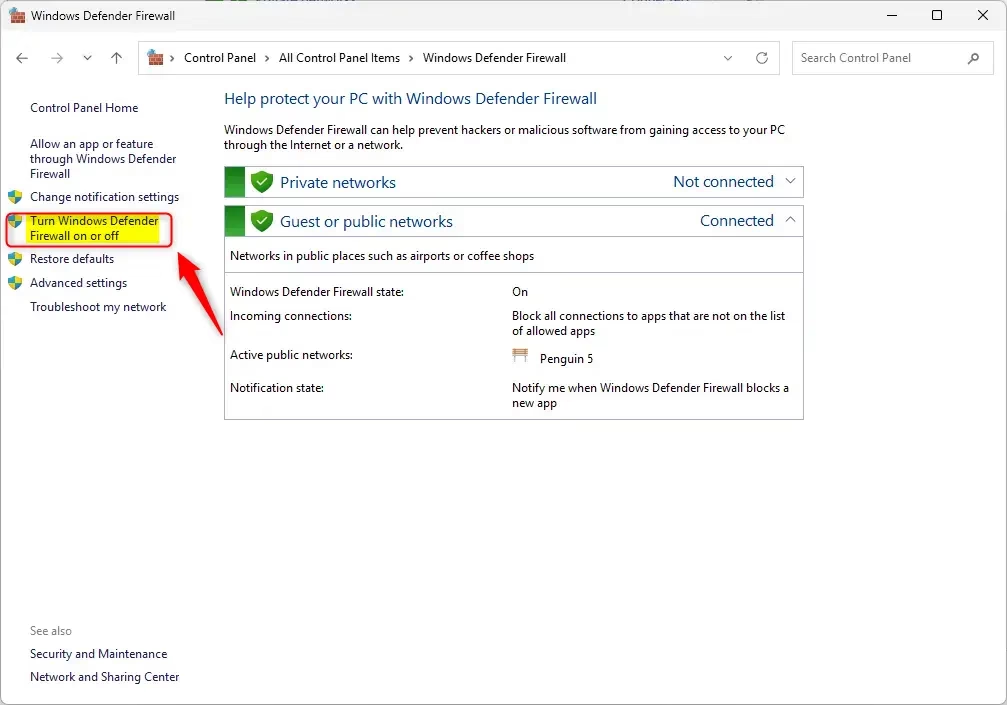
control, and press Enter.) - Click on Windows Defender Firewall.
- On the left side, click Turn Windows Defender Firewall on or off.
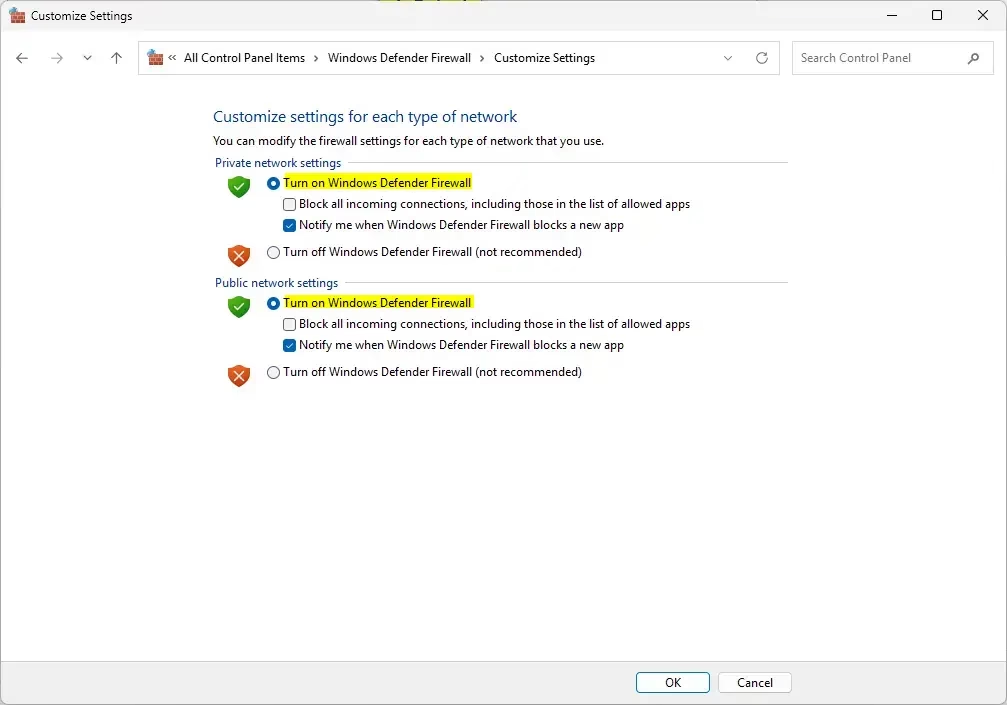
- Choose to turn the firewall On or Off for Domain, Private, and Public networks.
- Click OK to save your changes.
- Close Control Panel if you want.
Turn On or Off Microsoft Defender Firewall Using Command Prompt
%%ADMIN_FLAG%% Follow these steps to use commands to control the firewall:
- Open Windows Terminal (Admin):
- Right-click the Start button and choose Windows Terminal (Admin).
- When it opens, click the down arrow (˅) and select Command Prompt.
- Type or paste one of the commands below, then press Enter:
Turn On Firewall for All Networks (Domain, Private, Public)
netsh advfirewall set allprofiles state onTurn Off Firewall for All Networks
netsh advfirewall set allprofiles state offTurn On Firewall for Current (Active) Network
netsh advfirewall set currentprofile state onTurn Off Firewall for Current (Active) Network
netsh advfirewall set currentprofile state offTurn On Firewall for Specific Network Type
- Domain:
netsh advfirewall set domainprofile state on - Private:
netsh advfirewall set privateprofile state on - Public:
netsh advfirewall set publicprofile state on
Turn Off Firewall for Specific Network Type
- Domain:
netsh advfirewall set domainprofile state off - Private:
netsh advfirewall set privateprofile state off - Public:
netsh advfirewall set publicprofile state off
After running the commands, close Windows Terminal.
Turn On or Off Microsoft Defender Firewall Using PowerShell
PowerShell is another way to manage the firewall. Here’s how:
- Open Windows Terminal (Admin) and select Windows PowerShell.
- Type or paste the commands below, then press Enter:
Turn On Firewall for All Network Profiles
Set-NetFirewallProfile -All -Enabled TrueTurn Off Firewall for All Network Profiles
Set-NetFirewallProfile -All -Enabled FalseTurn On Firewall for Specific Network Profile
- Domain:
Set-NetFirewallProfile -Profile Domain -Enabled True - Private:
Set-NetFirewallProfile -Profile Private -Enabled True - Public:
Set-NetFirewallProfile -Profile Public -Enabled True
Turn Off Firewall for Specific Network Profile
- Domain:
Set-NetFirewallProfile -Profile Domain -Enabled False - Private:
Set-NetFirewallProfile -Profile Private -Enabled False - Public:
Set-NetFirewallProfile -Profile Public -Enabled False
When done, simply close Windows Terminal.
Summary
- Why use the Firewall? It stops hackers and harmful software from reaching your PC.
- Easy to Use: You can turn it on or off through Windows Security, Control Panel, Command Prompt, or PowerShell.
- Different Networks: Firewall settings can be different for your home, work, or public Wi-Fi.
- Admin Rights Needed: Only users with admin access can change firewall settings.
- Stay Protected: It’s best to keep the firewall turned on for your safety.
For more information, visit the official Microsoft guide here: Turn Microsoft Defender Firewall On or Off.



Leave a Reply