
Want your screen to get dimmer automatically? This saves battery on your Windows 11 laptop. We’ll show you how to turn this feature on or off.
What is Energy Saver?
Energy saver is a Windows tool that helps your computer use less power. It reduces screen brightness and background activity. This makes your laptop battery last longer.
You can turn Energy saver on or off anytime. You can also set it to turn on automatically when your battery gets low. Learn more about Energy saver here.
Why Use Lower Screen Brightness?
When Energy saver is on, your screen uses a lot of power. Lowering brightness saves battery. Your laptop can run longer before needing to charge.
How to Turn On or Off Lower Screen Brightness
Follow these steps to control the dimming feature in Windows 11.
Step 1: Open Settings
Click the Start button (the Windows icon) at the bottom left of your screen. Then click Settings. Or press the Windows key + I on your keyboard to open Settings quickly.
Step 2: Go to System Settings
In the Settings window, click System on the left side.

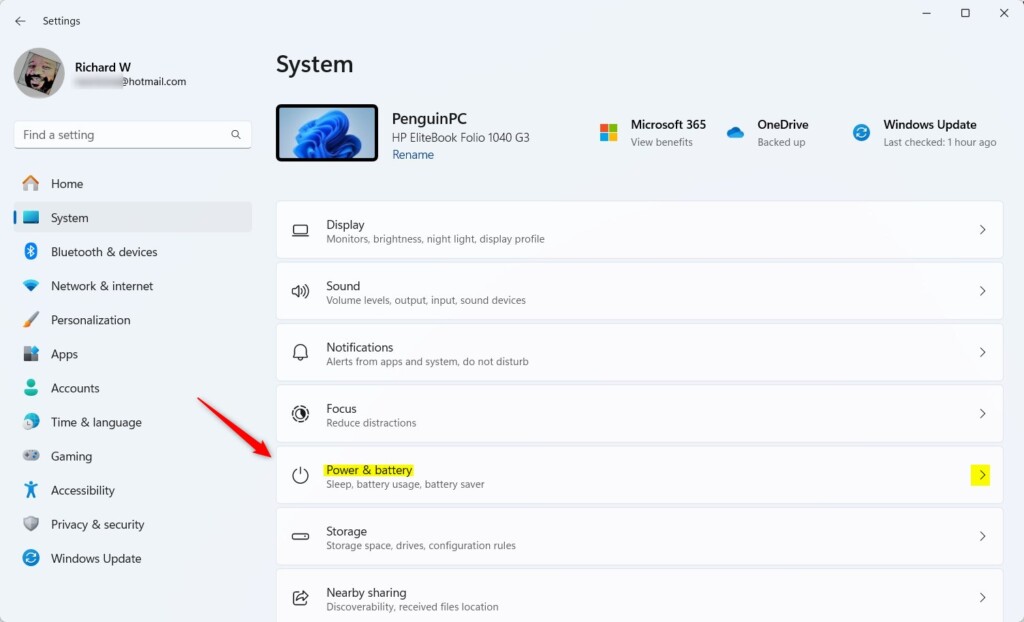
Step 3: Open Power & Battery
On the right side, find and click Power & battery. Sometimes it’s just called Power.
Step 4: Find Energy Saver Settings
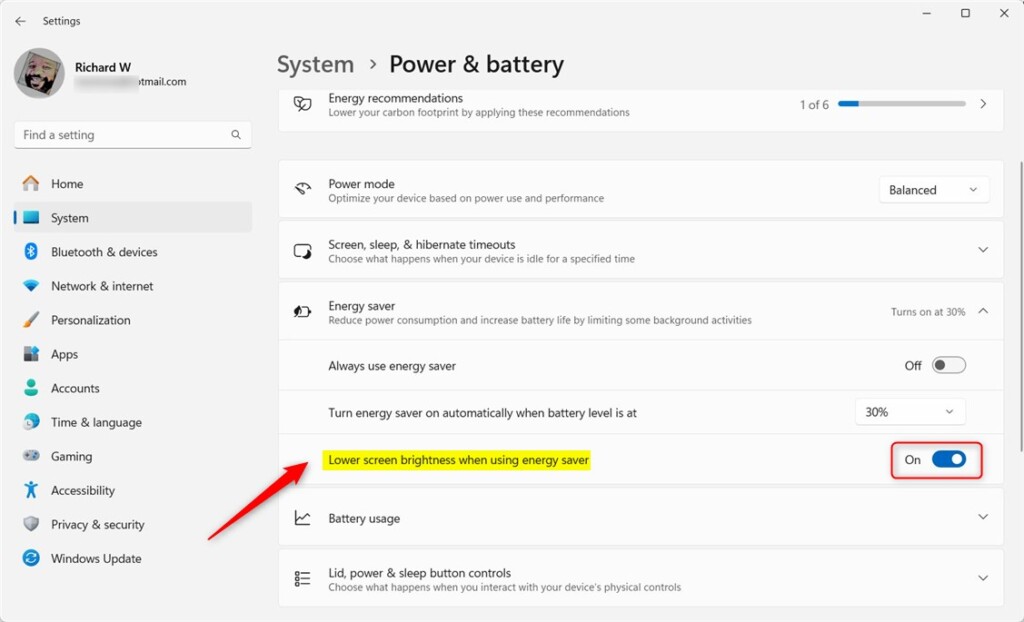
Scroll down until you see Energy saver. Click to expand it.
Step 5: Turn On or Off Lower Screen Brightness
Look for the option labeled “Lower screen brightness when using energy saver”. Click the switch to turn it On if you want your screen to get dimmer when Energy saver is active. Click it Off if you want to keep your brightness the same.
Step 6: Close Settings
When you’re done, close the Settings window. Your choice will be saved automatically.
Summary
You can choose if your screen dims automatically when Energy saver is on. This helps you save battery power. Follow the simple steps above to turn this feature on or off in Windows 11.
Have questions or tips? Leave a comment below. For more detailed guides and tips about Windows 11, visit Geek Rewind.



Leave a Reply