How to Hide Notification Content on Windows 11 Lock Screen

You can hide notification content on your Windows 11 lock screen to enhance privacy.
Your Windows 11 lock screen displays alerts from apps and the system, but you can prevent specific details from appearing there. This ensures private messages and sensitive information remain unseen if someone glances at your unlocked PC.
This privacy setting is available starting with Windows 11 version 22H2. You can easily toggle this feature on or off through your settings-app-in-windows-11/" class="sal-link" rel="noopener" target="_blank" data-sal-id="37599">Windows Settings.
Method 1Using Settings
- Open Settings by pressing ⊞ Win+I.
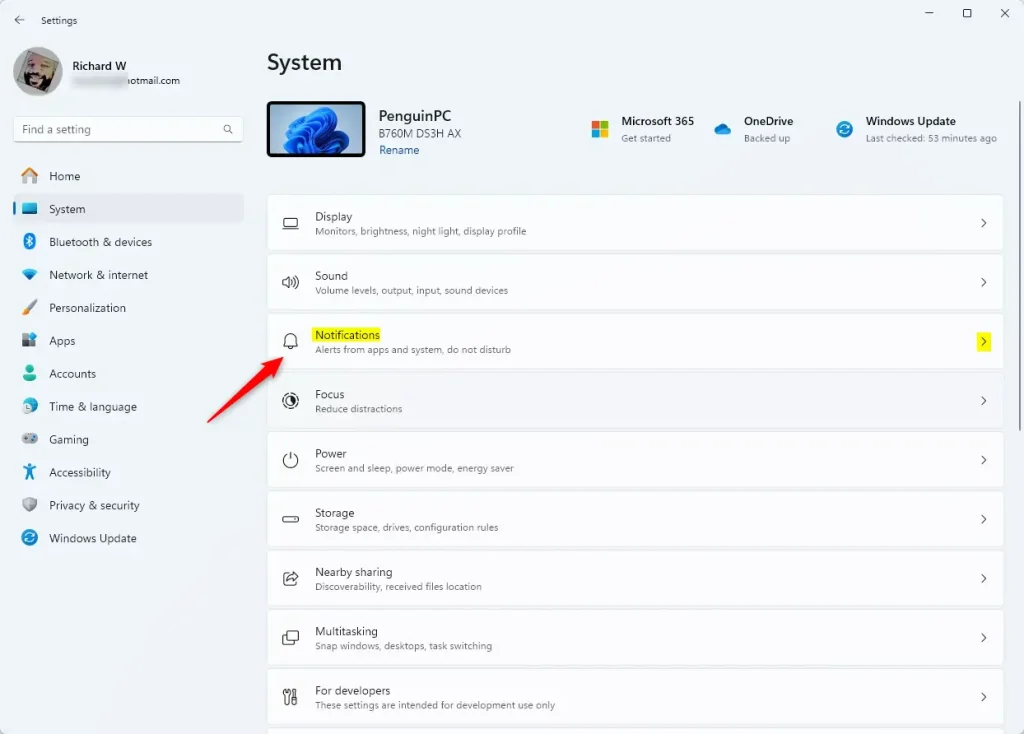
- Click System on the left side, then click Notifications on the right side.
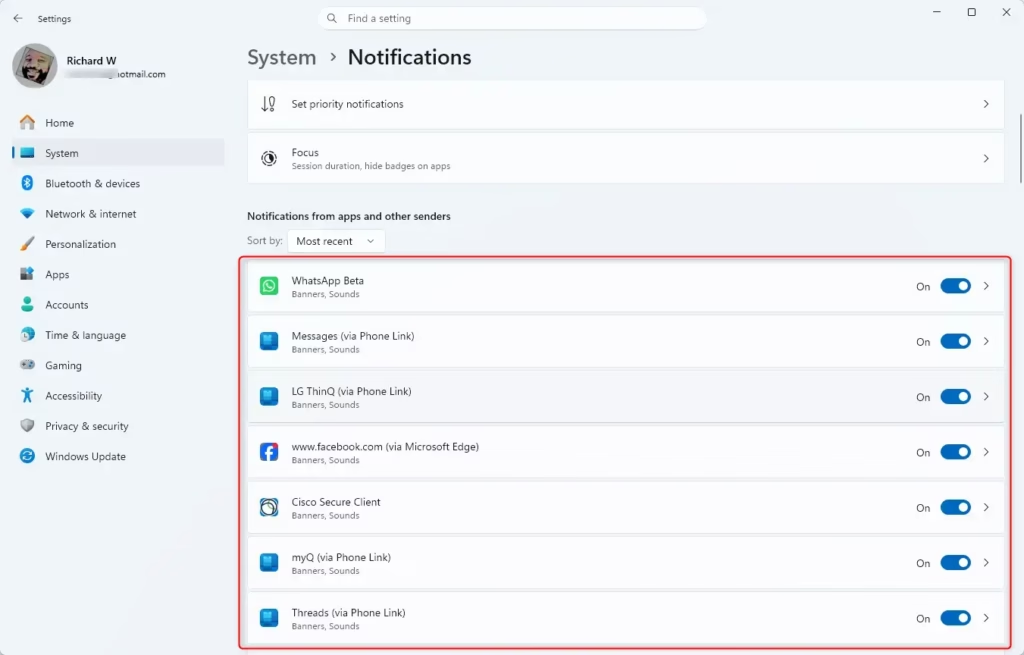
- Under “Notifications from apps and other senders,” click the app you want to change.
- Turn On (the default setting) or Off the option that says “Hide content when notifications are on lock screen.” Choose what works best for you.
- When you’re done, you can close Settings.
Method 2Using Registry Editor
⚠️ Admin Privileges Required — You need administrator access for this method.
- Open Registry Editor by typing
regedit.exein the search bar and pressing Enter. - In the left pane, navigate to this location:
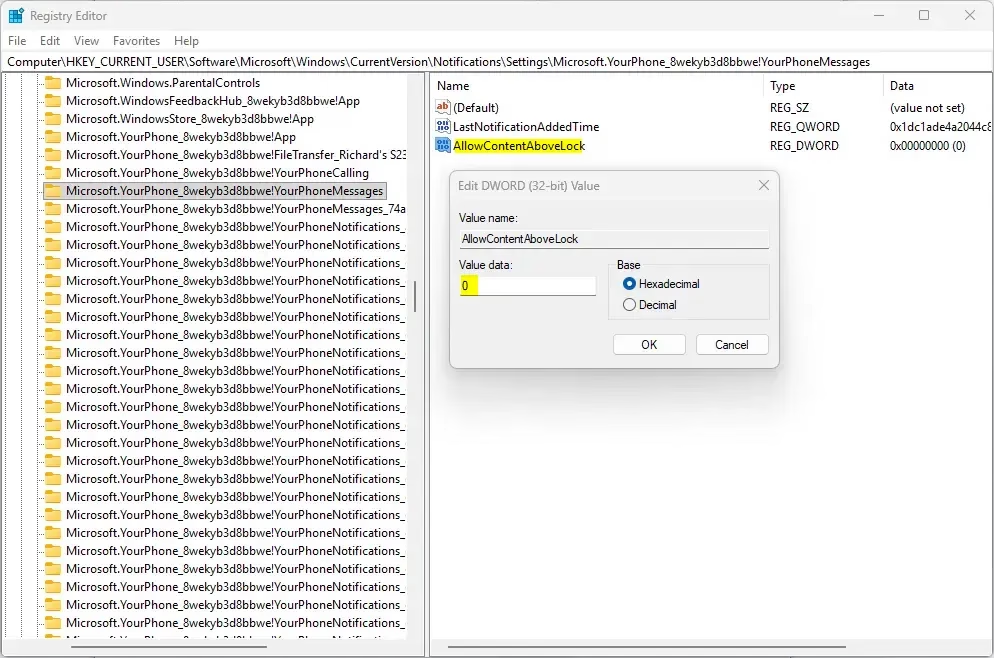
HKEY_CURRENT_USER\Software\Microsoft\Windows\CurrentVersion\Notifications\Settings - Under the “Settings” folder in the left pane, click the app you want to change (for example: “Microsoft.YourPhone_8wekyb3d8bbwe!YourPhoneMessages”).
Turn On Hiding Notification Content (Default Setting)
- In the right pane, look for the value called AllowContentAboveLock.
- Right-click on AllowContentAboveLock and click Delete.
If you don’t see AllowContentAboveLock, your app is already set to hide content. Skip to the final step.
- Click Yes to confirm the deletion.
Turn Off Hiding Notification Content
- In the right pane, double-click the AllowContentAboveLock value to open it.
If AllowContentAboveLock doesn’t exist, right-click in the empty space of the right pane. Click New, then click DWORD (32-bit) Value. Type AllowContentAboveLock as the name and press Enter.
- Type 1 in the “Value data” field.
- Click OK.
- When done, close Registry Editor.
Summary
Why this matters: Hiding notification content on your lock screen keeps your private messages and alerts private from people nearby.
What happens when done: Your notifications will either show or hide their content on the lock screen, depending on which option you chose. This setting applies to the specific app you selected.
Two easy ways: Use Settings for a simple approach, or use Registry Editor if you prefer working with system files directly.
How to hide content of notifications on lock screen?
To hide notification content on your Windows 11 lock screen, open Settings by pressing ⊞ Win+I. Navigate to System, then Notifications. Select the specific app you wish to modify and toggle the switch for "Hide content when notifications are on lock screen" to the On position to protect your private alerts.
What does "hide content on lock screen" mean?
The "hide content on lock screen" setting prevents sensitive information, such as message previews or app alerts, from being displayed while your computer is locked. By enabling this, Windows 11 will show that a notification exists without revealing the actual text or sender details to anyone viewing your screen.
How to hide notification content when phone is unlocked?
To hide notification content while your phone is unlocked, go to your device's Settings, select Notifications, and look for the "Show Previews" or "Lock Screen" settings. Change the preference to "When Unlocked" or "Never" to ensure that message details remain hidden until you manually open the specific application.
How to hide message content when phone is locked on iPhone?
On your iPhone, go to Settings, tap Notifications, and select Messages. Tap "Show Previews" and choose "When Unlocked" or "Never." This ensures that message content is hidden from the lock screen, requiring you to authenticate via Face ID, Touch ID, or your passcode before the message text becomes visible.
Was this guide helpful?

About the Author
Richard
Tech Writer, IT Professional
Richard, a writer for Geek Rewind, is a tech enthusiast who loves breaking down complex IT topics into simple, easy-to-understand ideas. With years of hands-on experience in system administration and enterprise IT operations, he’s developed a knack for offering practical tips and solutions. Richard aims to make technology more accessible and actionable. He's deeply committed to the Geek Rewind community, always ready to answer questions and engage in discussions.



No comments yet — be the first to share your thoughts!