
Want your Windows 11 computer to lock itself automatically when you walk away? This easy guide will show you how to turn on or off Dynamic Lock. This feature keeps your PC safe when you’re not using it.
What Is Dynamic Lock?
Dynamic Lock helps protect your computer by locking it if you step away and forget to do it yourself. Why use it? Your files stay safe even when you’re not at your desk.
Here’s how it works. It uses Bluetooth to connect your phone (or another device) to your PC. When your phone moves away from your PC (out of Bluetooth range), Windows will lock your screen automatically after about a minute. What happens? No one else can use your PC if you forget to lock it before leaving.
Before You Start
- Make sure your PC has Bluetooth turned on.
- Pair your phone with your PC using Bluetooth first. You can follow Microsoft’s guide here: How to Pair Bluetooth Devices in Windows 11
How to Turn On or Off Dynamic Lock in Settings
- Open Settings. Press
Windows key + Ion your keyboard. - Click on Accounts on the left side menu.
- Click Sign-in options on the right.
- Scroll down and find Dynamic lock. Click to expand it.
- Check the box next to “Allow Windows to automatically lock your device when you’re away” to turn it on. Uncheck it to turn it off.
Click here to open Sign-in options directly
Here is how it looks in Settings:

Find Dynamic Lock under Sign-in options.
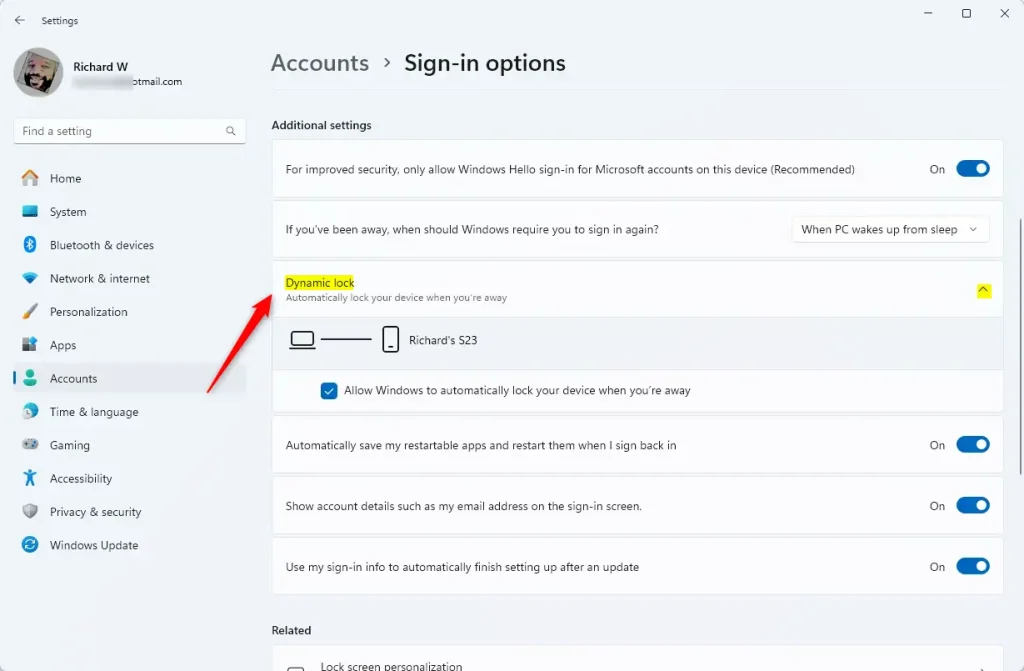
Check this box to enable Dynamic Lock.
Optional: Turn On or Off Dynamic Lock Using a Registry File
If you’re comfortable using registry files, you can enable or disable Dynamic Lock quickly by running these commands. ⚠️ Admin privileges required
To Turn On Dynamic Lock
reg add "HKEY_CURRENT_USER\Software\Microsoft\Windows NT\CurrentVersion\Winlogon" /v EnableGoodbye /t REG_DWORD /d 1 /fTo Turn Off Dynamic Lock (Default Setting)
reg add "HKEY_CURRENT_USER\Software\Microsoft\Windows NT\CurrentVersion\Winlogon" /v EnableGoodbye /t REG_DWORD /d 0 /fNote: Editing the registry can cause problems if done wrong. Be sure to back up your registry before making changes.
Why Use Dynamic Lock?
- Protect Your PC: Automatically locks when you walk away, keeping your files safe.
- Simple to Use: Just pair your phone and turn on the feature.
- Works with Bluetooth: Uses your phone’s Bluetooth connection to know when you are gone.
- Convenient: No need to remember to lock your PC manually every time.
More Help and Info
Learn more about sign-in options and security on Windows 11 from Microsoft:
Microsoft Support – Auto-lock your PC when you step away
Summary
Dynamic Lock is a Windows 11 feature that automatically locks your PC when you walk away. It uses Bluetooth to detect when your paired phone moves out of range. You can turn it on or off in Settings under Accounts > Sign-in options, or use registry commands if you prefer. Why use it? It protects your files and data without you having to remember to lock your computer manually. What happens when enabled? Your PC locks automatically after about a minute when your phone is out of Bluetooth range. By turning on Dynamic Lock, you make sure your Windows 11 computer stays safe even if you forget to lock it yourself. Give it a try today!



Leave a Reply