
If you use a limited data connection (called a metered connection), like mobile hotspot or some Wi-Fi networks, Windows usually tries to save your data by downloading only important updates. But you can change this setting to let Windows download all updates automatically even on these connections, or stop it from doing so.
What Are Metered Connections?
A metered connection is an internet connection where you have a data limit or pay extra for using more data. Windows helps you save data by not downloading big updates automatically on these connections.
How To Turn On or Off Automatic Update Downloads on Metered Connections
Option 1: Use the Settings App (Easy Way)
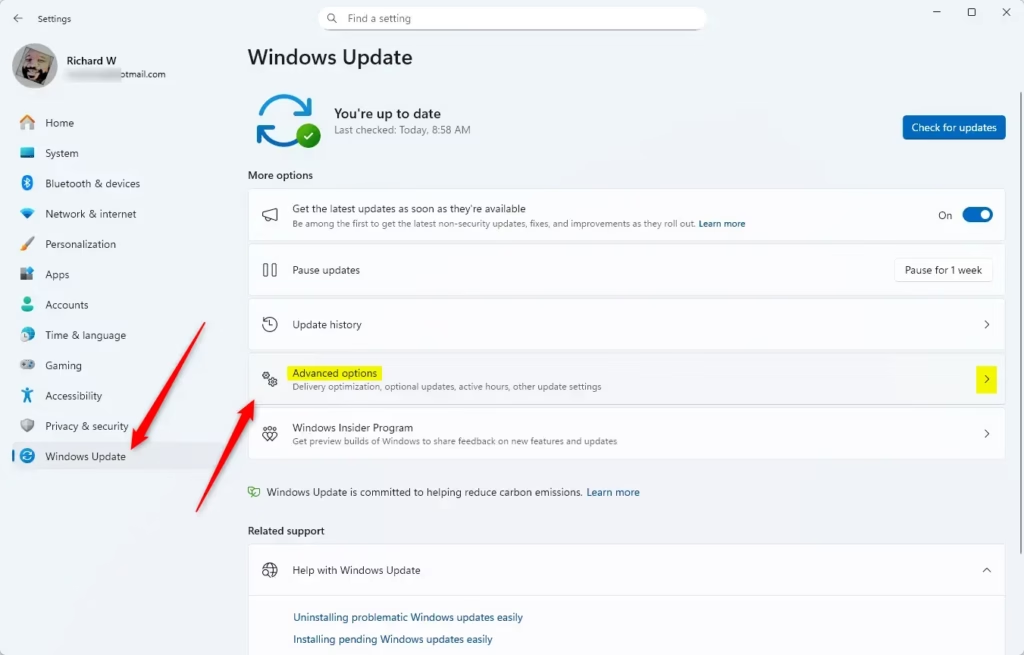
- Press Windows key + I to open Settings.
- On the left side, click Windows Update.
- On the right side, click Advanced options.
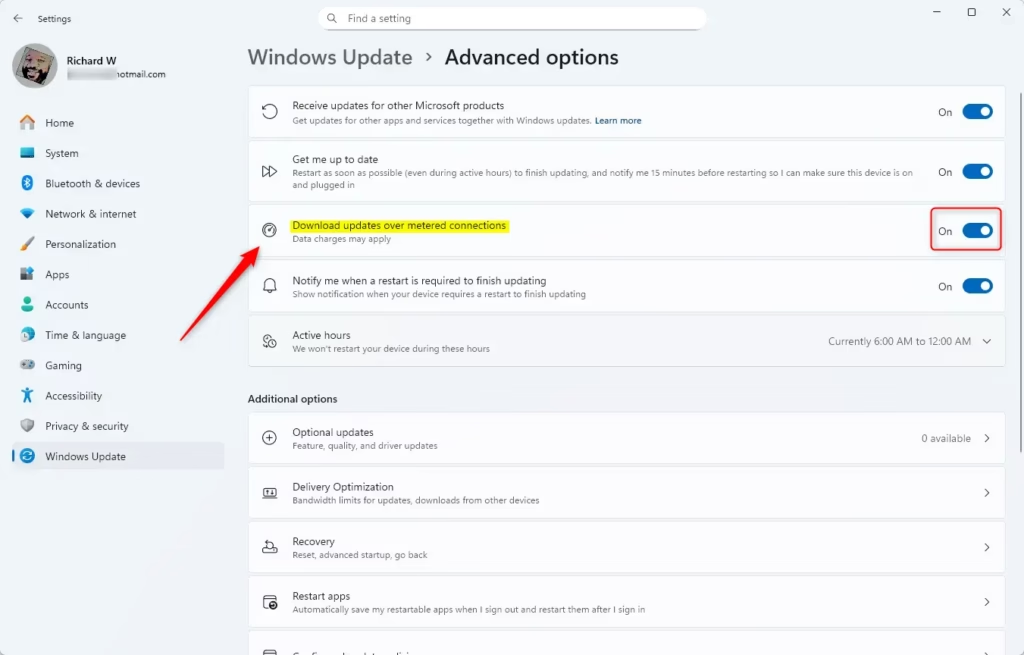
- Find the setting called Download updates over metered connections.
- Turn it On if you want Windows to download all updates even on limited data.
- Turn it Off (default) if you want to save data and download only important updates.
- You can now close the Settings window.
Click here to open Advanced options directly
Option 2: Use a Registry File (For Advanced Users)
Important: You need to be an administrator on your PC to do this.
To enable downloading updates on metered connections, run the command below.
reg add "HKEY_LOCAL_MACHINE\SOFTWARE\Microsoft\WindowsUpdate\UX\Settings" /v AllowAutoWindowsUpdateDownloadOverMeteredNetwork /t REG_DWORD /d 1 /f
To disable downloading updates on metered connections (default setting), use this:
reg add "HKEY_LOCAL_MACHINE\SOFTWARE\Microsoft\WindowsUpdate\UX\Settings" /v AllowAutoWindowsUpdateDownloadOverMeteredNetwork /t REG_DWORD /d 0 /f
After running, restart your PC for changes to take effect.
Option 3: Use Local Group Policy Editor (For Windows 11 Pro and above)
You must be an administrator to do this.
- Press Windows key + R, type
gpedit.msc, and press Enter to open Local Group Policy Editor. - Go to:
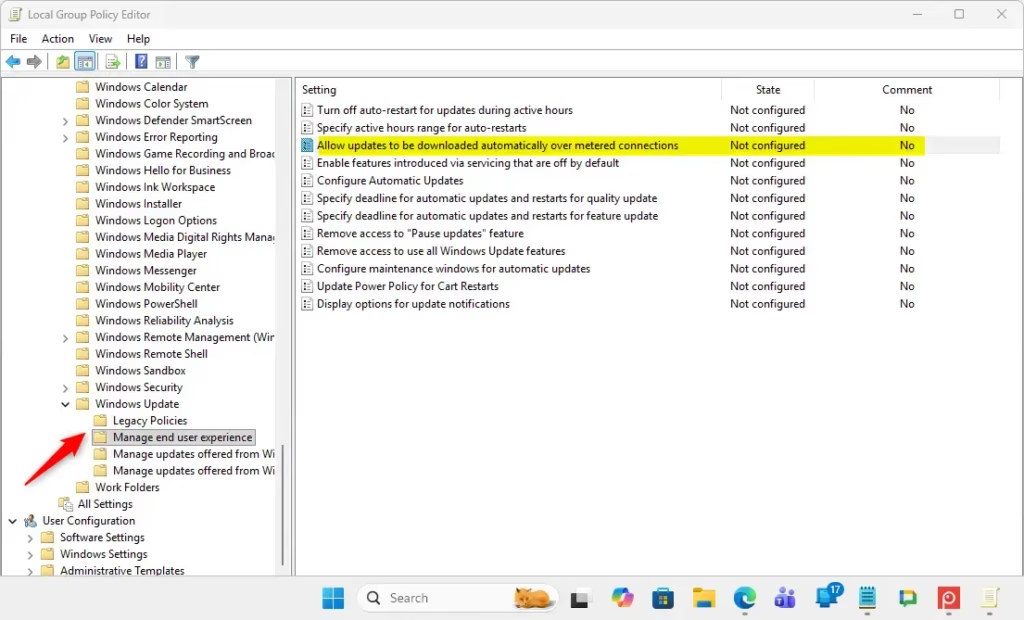
Computer Configuration > Administrative Templates > Windows Components > Windows Update > Manage end user experience
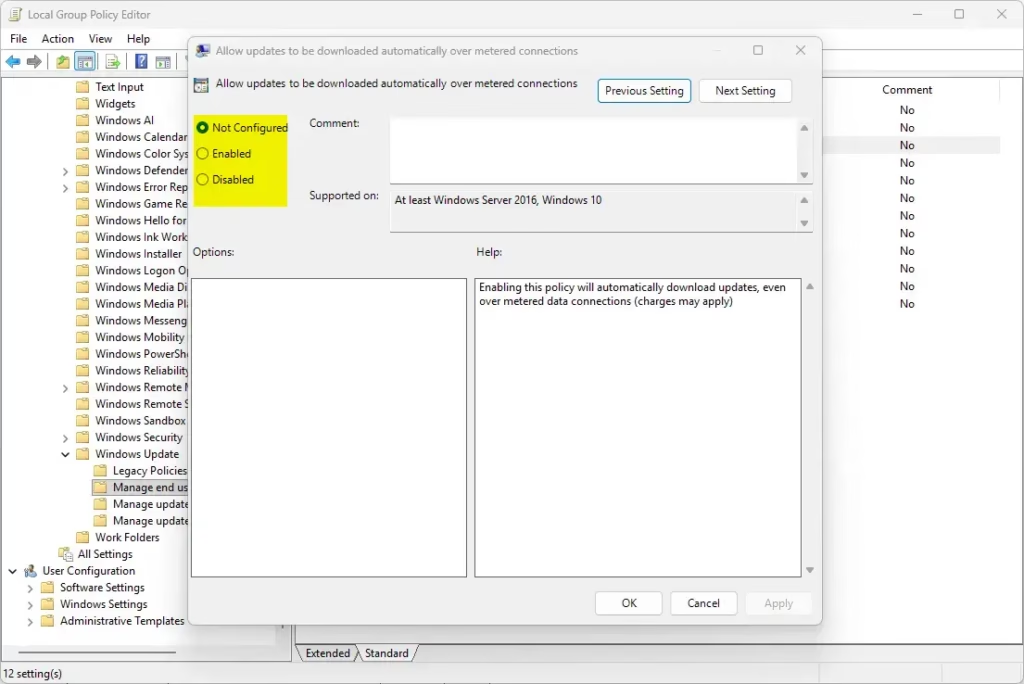
- In the right pane, double-click Allow updates to be downloaded automatically over metered connections.
- To allow automatic updates over metered connections, select Enabled, then click OK.
- To block them, select Disabled or Not Configured (default), then click OK.
- Close the Group Policy Editor and restart your PC.
Option 4: Use Registry File for Policies (Advanced)
This option is similar to Option 2 but changes a different part of the registry.
To enable:
reg add "HKEY_LOCAL_MACHINE\SOFTWARE\Policies\Microsoft\Windows\WindowsUpdate" /v AllowAutoWindowsUpdateDownloadOverMeteredNetwork /t REG_DWORD /d 1 /f
To disable (default):
reg add "HKEY_LOCAL_MACHINE\SOFTWARE\Policies\Microsoft\Windows\WindowsUpdate" /v AllowAutoWindowsUpdateDownloadOverMeteredNetwork /t REG_DWORD /d 0 /f
To remove this setting and use default behavior:
reg delete "HKEY_LOCAL_MACHINE\SOFTWARE\Policies\Microsoft\Windows\WindowsUpdate" /v AllowAutoWindowsUpdateDownloadOverMeteredNetwork /f
Remember to restart your computer after applying these changes.
Summary
- You can control whether Windows 11 downloads all updates automatically on metered (limited data) connections.
- Use the Settings app for the easiest way.
- Advanced users can use Registry Editor or Group Policy Editor for more control.
- Always be sure you have administrator rights before making these changes.
- Checking these settings can help you avoid unexpected extra data charges.
If you want to learn more about Windows Updates in Windows 11, visit the official Microsoft page: Windows Update FAQ.



Leave a Reply