Enable Do Not Disturb in Ubuntu: A Quick Guide


Do Not Disturb in Ubuntu is a system setting that hides pop-up banners and stops alert sounds so you can work without interruptions. Turning on this mode takes less than five seconds using the desktop menu or a quick keyboard shortcut.
Ubuntu sends all missed alerts straight to the top panel notification list so you can check them whenever you want. This feature lets you stay focused while making sure nothing important slips past you.
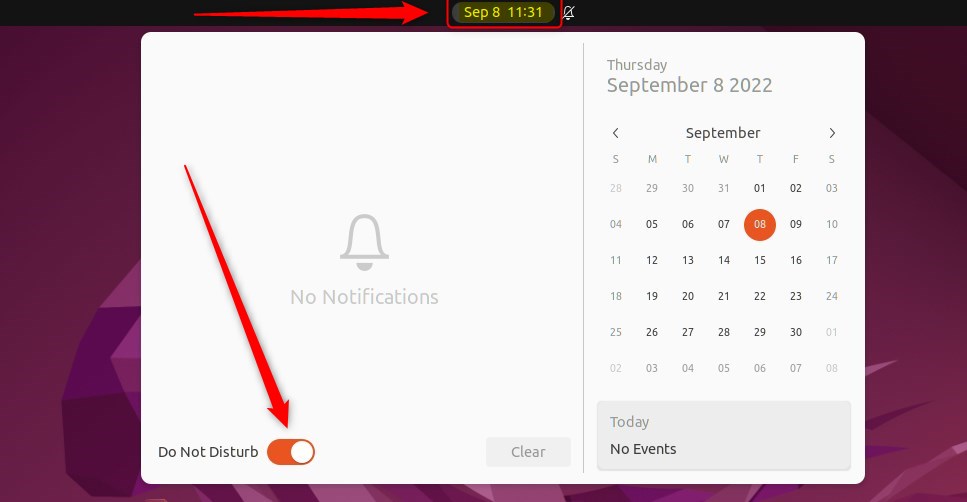
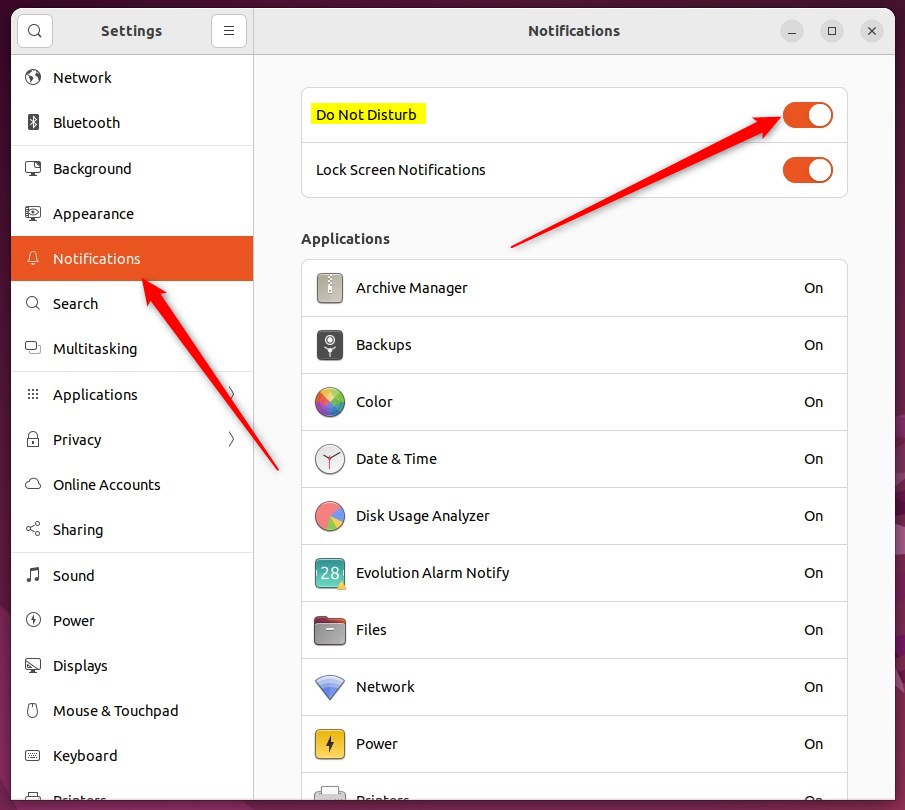
Click the Clock in the top bar and toggle Do Not Disturb to On. Alternatively, go to Settings , then Notifications, and switch Do Not Disturb on. This silences all incoming notifications to help you focus.
How to enable or disable do not disturb in Ubuntu Linux
To enable Do Not Disturb Ubuntu notifications, click the clock in the top bar of your screen to open the menu, then click the switch next to Do Not Disturb. This instantly hides all banner alerts and pop-ups so you can focus on your work. To turn notifications back on, just click the switch again.
Muting alerts prevents distractions during high-focus tasks.
Enabling or disabling the feature follows these steps:
Toggling Do Not Disturb directly from the top bar requires clicking the Clock. Access the Clock menu and adjust Do Not Disturb as shown below.
Alternatively, the Ubuntu Linux Settings app handles this control.
Ubuntu Linux centralizes core controls in the System Settings panel. This hub manages everything from system configurations to user accounts and updates.

Alternatively, click on the System menu located at the top-right corner of the top bar on your desktop.
On the System menu, select Settings, as highlighted below.

Click on the Notifications tile to open the panel in the Settings app.
Inside the System Settings - Notifications panel, flip the Do Not Disturb switch to On to silence everything.
Disabling Do Not Disturb restores normal notification behavior.
Standard alerts resume once the switch turns off.
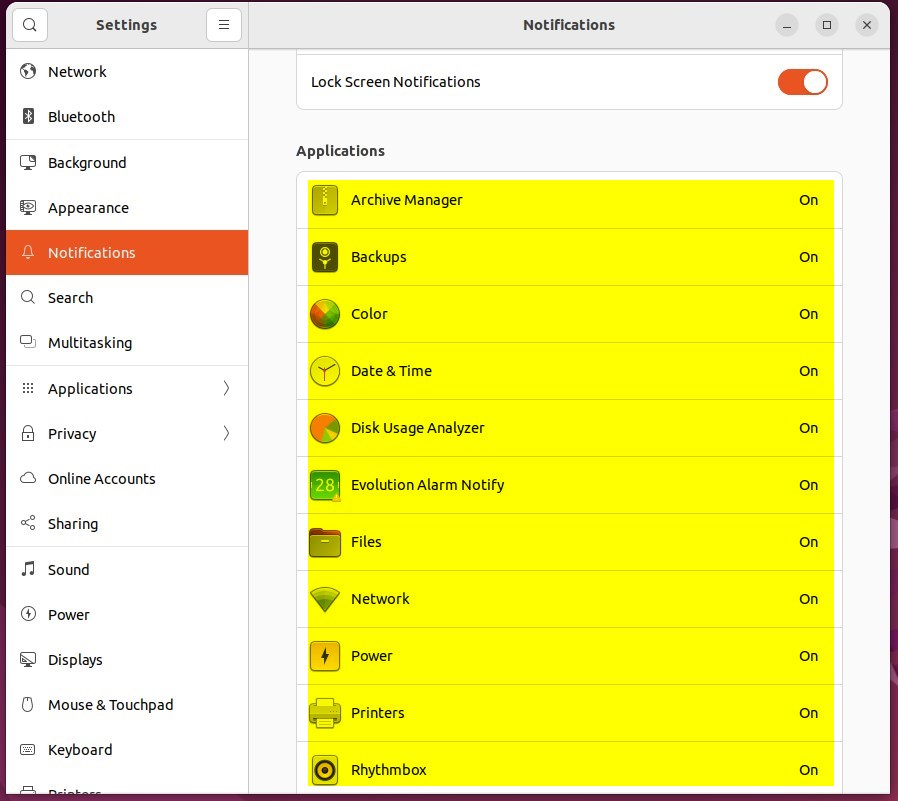
Specific applications also allow customized notification rules within the same panel.
The process wraps up here, meaning the Settings app is safe to close.
Enabling Do Not Disturb helps minimize distractions and keeps you focused on your tasks.
- Enabling Do Not Disturb in Ubuntu Linux helps users minimize distractions and stay focused on tasks.
- Users can quickly toggle the Do Not Disturb feature from the top bar or through the Ubuntu Linux Settings app.
- The Do Not Disturb feature silences notification banners to prevent distractions without entirely disabling notifications.
- Disabling Do Not Disturb restores normal notification behavior on the Ubuntu Linux desktop.
Was this guide helpful?

About the Author
Richard
Tech Writer, IT Professional
Richard is a writer at Geek Rewind who turns complex IT tasks into clear, step-by-step guides. He draws on years of hands-on experience in system administration and enterprise IT operations, focusing on Windows, Linux and WordPress: the problems people actually run into, and the fixes that work. His server and WordPress guides come from systems he runs himself. Richard builds and maintains the platform behind Geek Rewind, from its Ubuntu servers and Nginx configuration to its custom WordPress plugins. Many new tutorials start with readers' questions, and he's always glad to answer them in the comments.


No comments yet — be the first to share your thoughts!