How to Enable BitLocker with PIN and USB Key in Windows 11

You enable BitLocker with a PIN and USB key in Windows 11 to create the strongest pre-boot authentication for your PC’s data.
This setup combines a physical USB startup key with a numeric PIN, requiring both to be present before your Windows 11 Pro operating system will boot.
Combining a PIN with a USB startup key implements multi-factor authentication, making your data significantly more secure than TPM-only unlocking, which is vulnerable to hardware attacks.
When you boot your computer after configuring this, you will see a black screen prompting you to insert your USB drive and enter your PIN before Windows loads.
Prerequisites and TPM Requirements
To use these features, your computer must have a TPM 2.0 chip enabled in your UEFI firmware. If your device lacks a TPM, you must configure a specific Group Policy to allow BitLocker without a compatible TPM.
Common Errors: The device cannot use a Trusted Platform Module
If you see this error, your computer does not have a TPM or it is disabled in the BIOS. You can bypass this by enabling the ‘Require additional authentication at startup’ policy in the Group Policy Editor.
Configuring Group Policy for BitLocker
Note: These steps require admin privileges.
1. Press ⊞ Win+R, type gpedit.msc, and press Enter.
2. Navigate to: Computer Configuration\Administrative Templates\Windows Components\BitLocker Drive Encryption\Operating System Drives.
3. Double-click Require additional authentication at startup.
4. Select Enabled and ensure ‘Allow BitLocker without a compatible TPM’ is checked if needed.
5. Click Apply and OK.
Enable a PIN to Unlock BitLocker
Note: These steps require admin privileges.
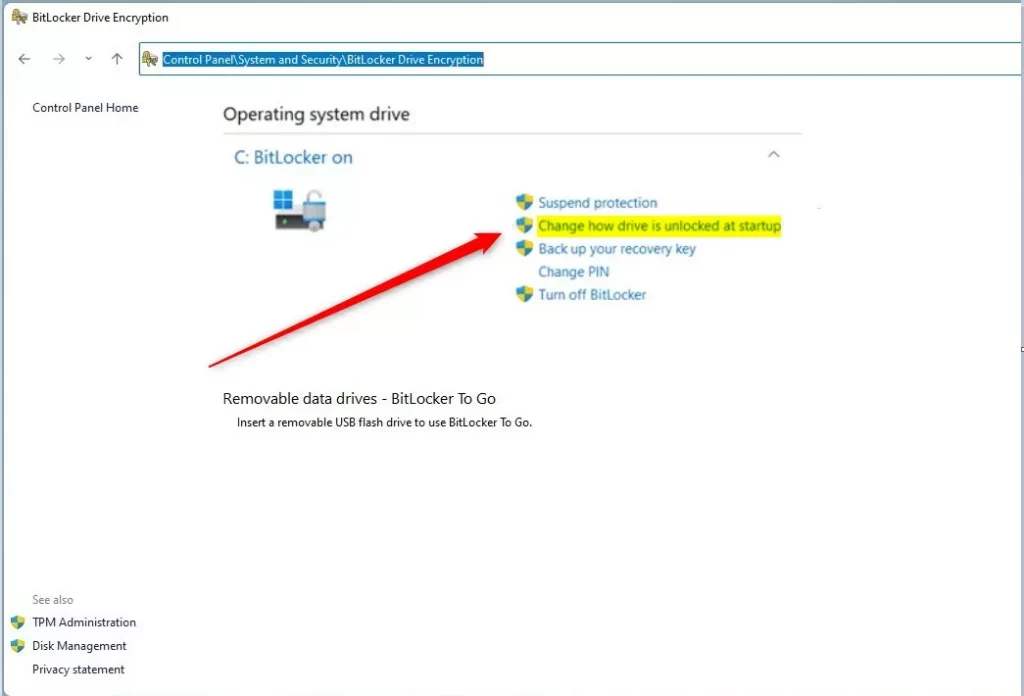
Open the Control Panel and go to Control Panel\System and Security\BitLocker Drive Encryption. Click ‘Change how drive is unlocked at startup’.
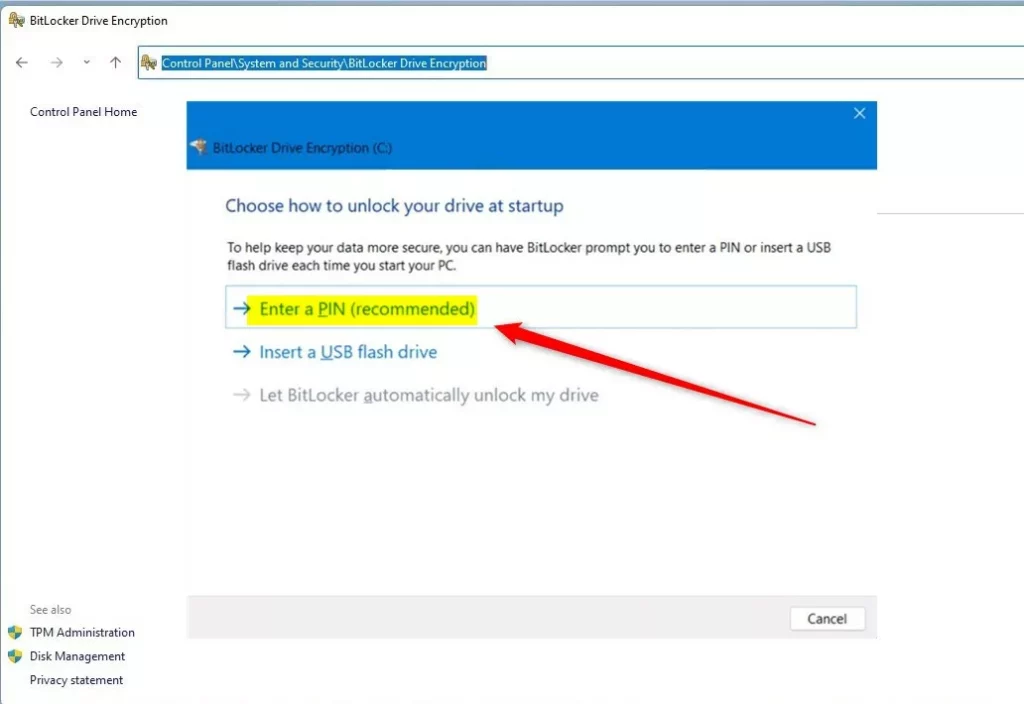
Select ‘Enter a PIN (recommended)’.
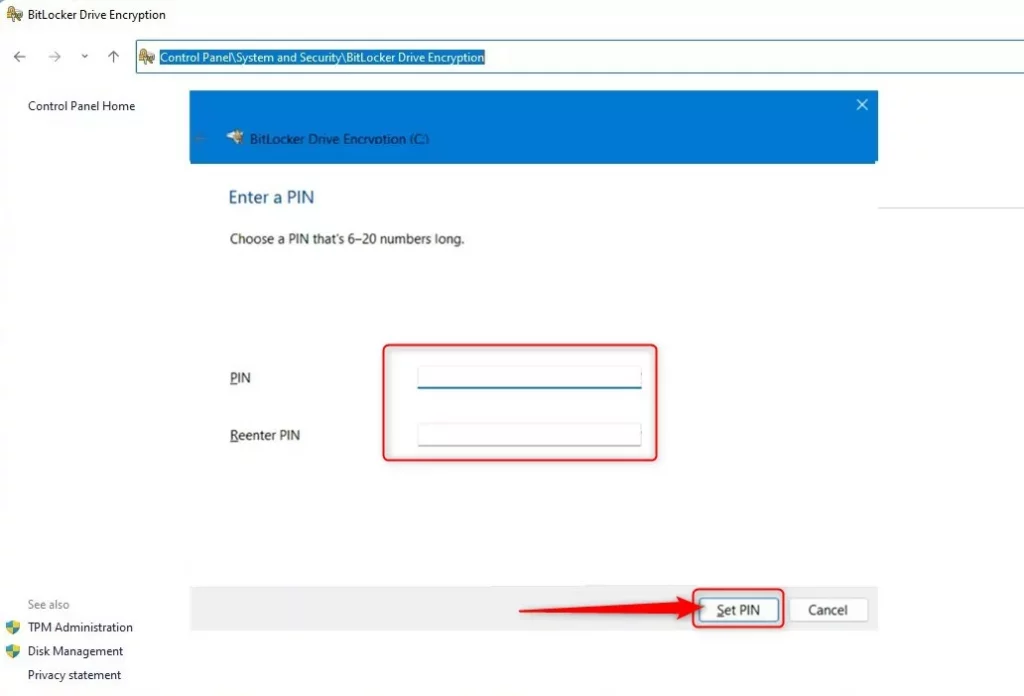
Type in a PIN that is 6 to 20 numbers long. Confirm it and click ‘Set PIN’.
Unlock with a USB Drive at Startup
Note: These steps require admin privileges.
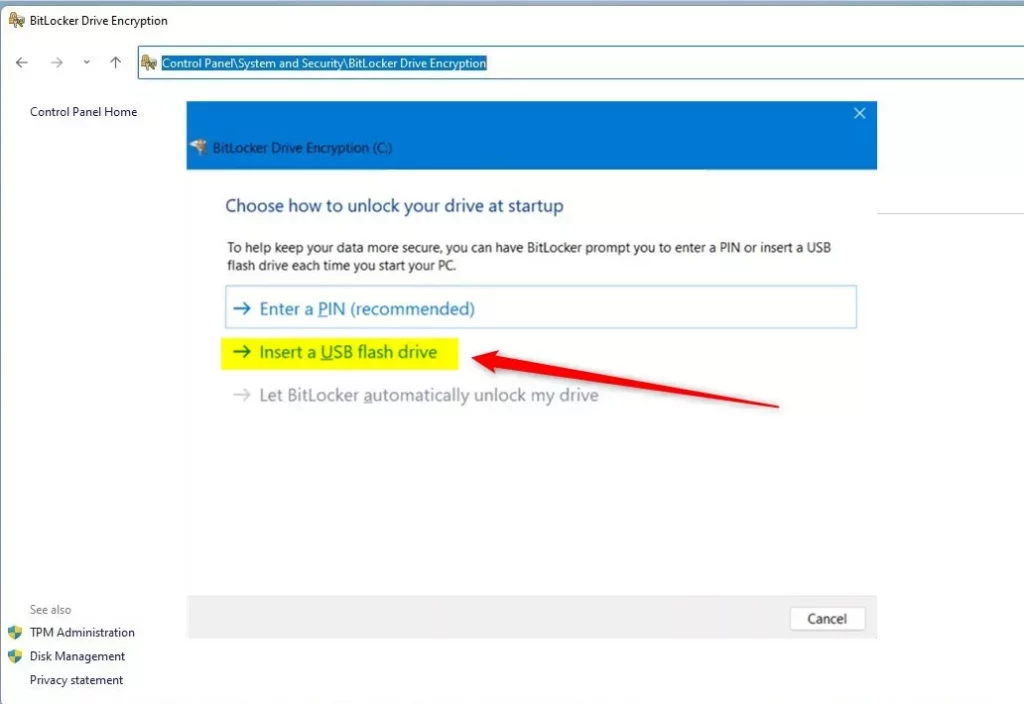
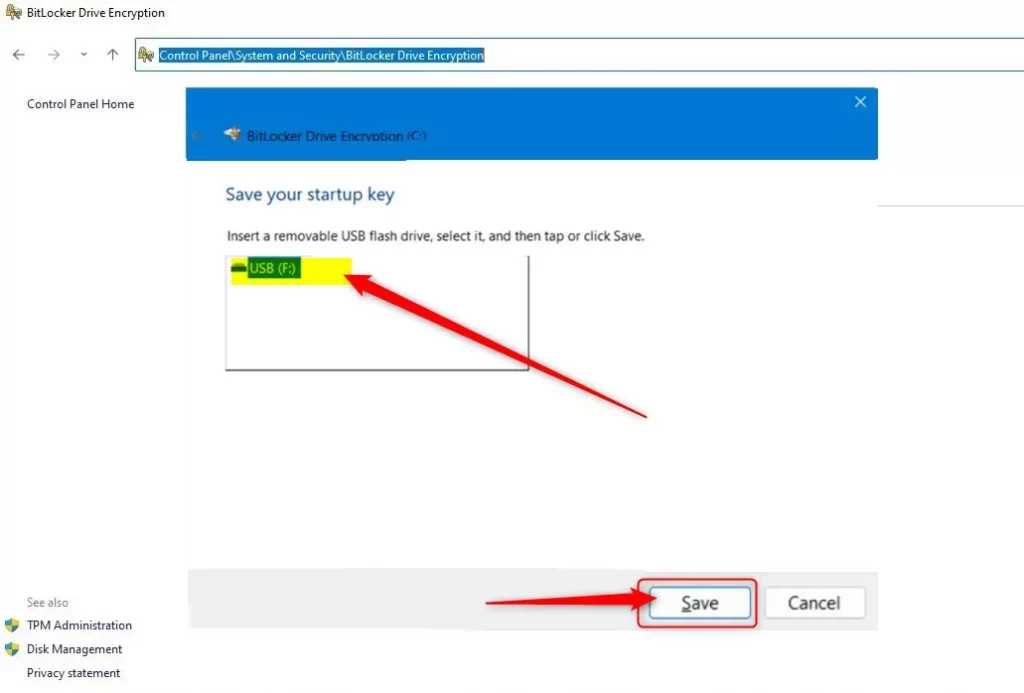
In the same BitLocker menu, select ‘Insert a USB flash drive’.
Choose your USB drive from the list and click ‘Save’.
Ensure the drive is connected during the next reboot to verify the configuration.
Command Line Configuration
For advanced users, you can manage these settings via PowerShell or Command Prompt. Run as Administrator:
manage-bde -protectors -add C: -TPMAndPIN
Summary
You have successfully secured your system with pre-boot authentication. By requiring both a physical USB key and a secret PIN, you have significantly hardened your computer against unauthorized access. Always keep your recovery key ID in a safe location in case you lose your USB drive or forget your PIN.
Can I use a BitLocker PIN without a TPM chip?
Yes, but you must modify the Group Policy settings first. By enabling the ‘Allow BitLocker without a compatible TPM’ policy in gpedit.msc, you can force Windows to use a USB startup key as the primary authentication method instead of relying on the hardware TPM chip.
Does BitLocker PIN affect Windows Hello login?
No, the BitLocker PIN is entirely separate from your Windows Hello login. The BitLocker PIN is requested before Windows even starts, while your Windows Hello PIN or fingerprint is used to sign into your user account after the operating system has successfully loaded.
Was this guide helpful?

About the Author
Richard
Tech Writer, IT Professional
Richard, a writer for Geek Rewind, is a tech enthusiast who loves breaking down complex IT topics into simple, easy-to-understand ideas. With years of hands-on experience in system administration and enterprise IT operations, he’s developed a knack for offering practical tips and solutions. Richard aims to make technology more accessible and actionable. He's deeply committed to the Geek Rewind community, always ready to answer questions and engage in discussions.


[…] you have set up BitLocker to require users to insert a USB drive that contains a startup key and a PIN at sta… before the computer starts, the steps below show you how to revert to the default […]
[…] users can add additional security by requiring a USB flash drive and a PIN to unlock BitLocker at […]