

Want to keep your files safe on a data drive? This easy guide will help you turn on BitLocker encryption for a fixed data drive on your Windows 11 PC.
What is BitLocker?
BitLocker is a security feature built into Windows. It locks your drive with encryption. This means your data is scrambled. Others can’t read it without your permission. This helps protect your files if your computer or drive gets lost or stolen.
Why use BitLocker? Your files stay private and secure.
What happens when it’s on? Any new files you save to that drive get encrypted automatically. If you move files to a drive that isn’t encrypted, they will be unencrypted (normal) on that drive.
You can choose how to unlock your encrypted drive. You can unlock it automatically if your main Windows drive is encrypted. Or use a password. Or use a smart card.
Before You Start
- You need to be signed in as an Administrator on your PC. [ADMIN REQUIRED]
- BitLocker is only available on Windows 11 Pro, Enterprise, or Education editions.
Steps to Turn On BitLocker for a Data Drive
Step 1: Set Your Preferred Encryption Method (Optional)
You can choose between two encryption types:
- XTS-AES 256 bit – the strongest option
- AES-CBC 128 bit – the default option
If you don’t want to set this now, BitLocker will use the default method.
Step 2: Open File Explorer and Find Your Drive
Press Win + E to open File Explorer. Click on This PC. Find the fixed data drive you want to protect (like drive E:). Right-click it. Select Turn on BitLocker.
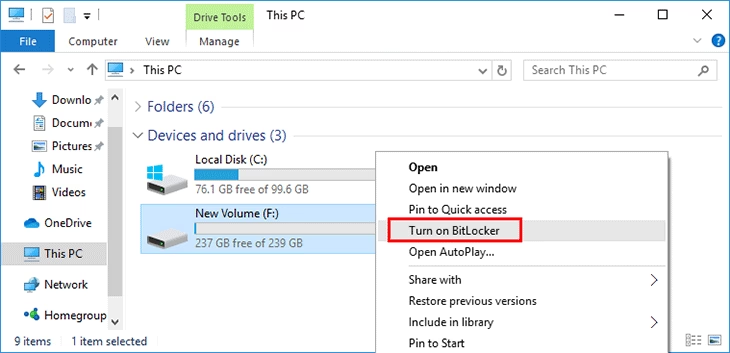
Step 3: Choose How to Unlock Your Drive
You have three options:
- Password (must be at least 8 characters)
- Smart card (if you have one)
- Automatically unlock on this PC (only if your main Windows drive is encrypted)
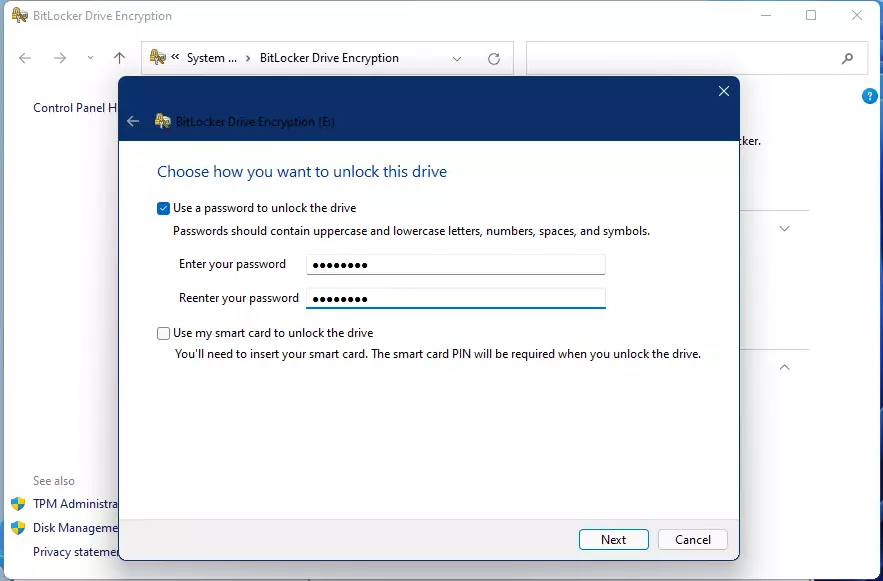
Step 4: Back Up Your BitLocker Recovery Key
This key helps you get into your drive if you forget your password or something goes wrong. You can save it in several ways:
- To your Microsoft account online (if you use one)
- To a USB flash drive
- As a file on your PC
- Print it on paper
Important: Keep this key somewhere safe!
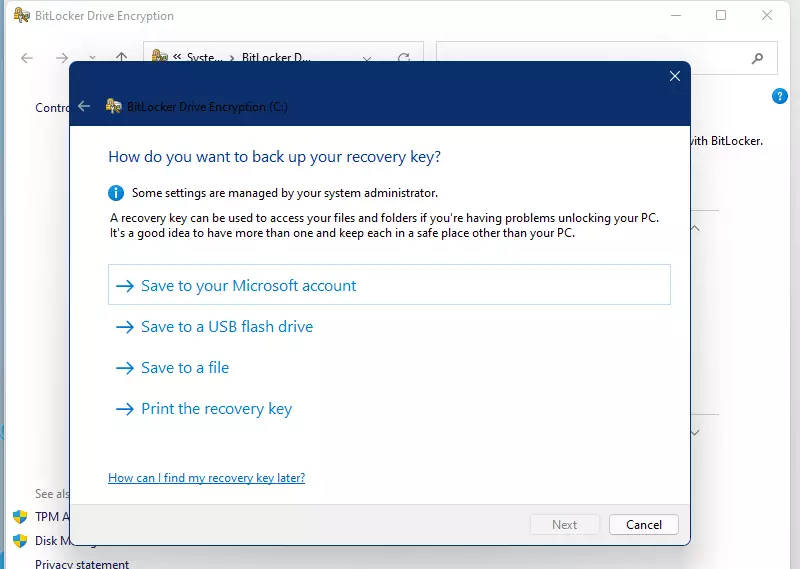
Click Next after backing up your recovery key.
Step 5: Choose How Much of the Drive to Encrypt
You have two options:
- Encrypt used disk space only – faster, but only protects files you already have
- Encrypt entire drive – slower, but protects everything (recommended)
Then click Next.
Step 6: Pick the Encryption Mode
You have two options:
- New encryption mode (XTS-AES 128-bit) – for fixed drives used on Windows 10 or later
- Compatible mode (AES-CBC 128-bit) – for drives that will be used on older Windows versions
Then click Next.
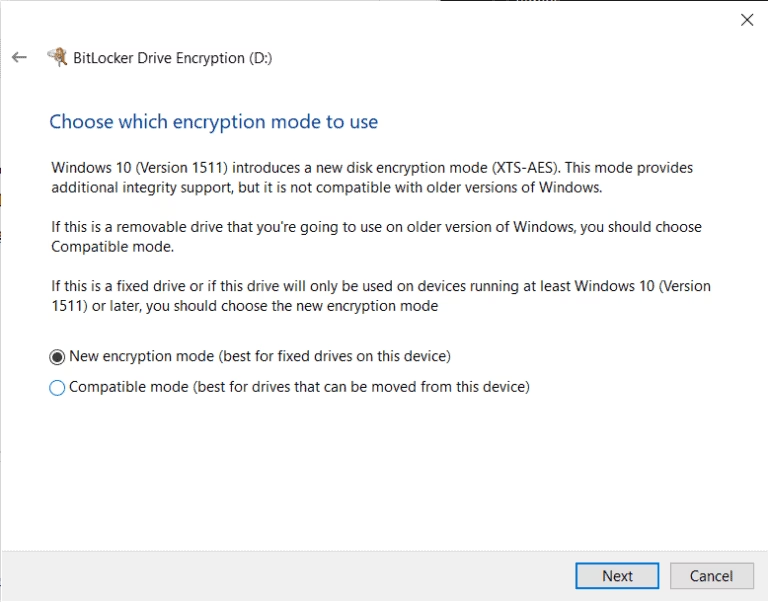
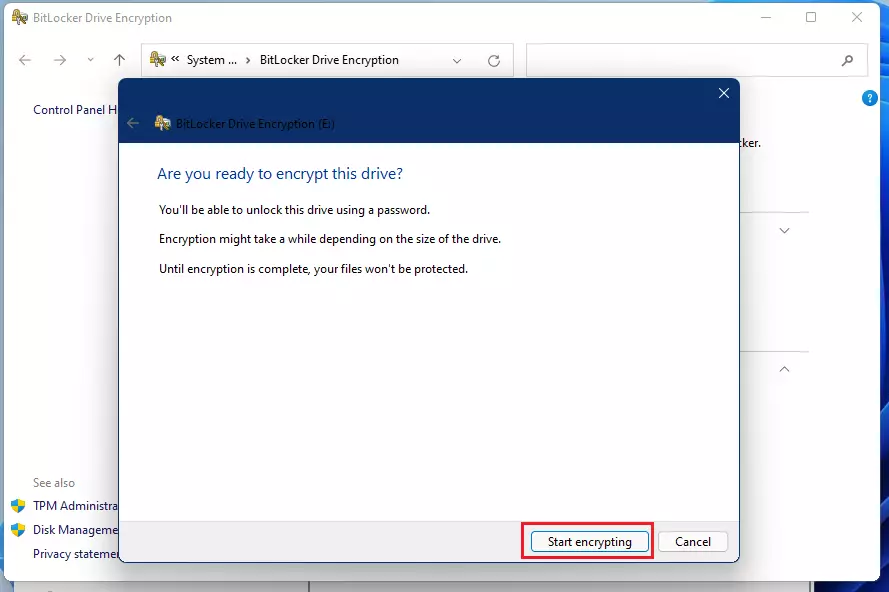
Step 7: Start the Encryption
Click Start encrypting to begin. The encryption process may take a while. It depends on your drive size.
Summary
- Strong Security: BitLocker keeps your data safe from unauthorized access.
- Automatic Protection: New files on the encrypted drive get protected automatically.
- Easy Unlock Options: Use password, smart card, or automatic unlock for convenience.
- Recovery Key Backup: Multiple ways to save your recovery key in case you need it.
- Choose Your Encryption: Pick encryption strength and mode that fits your needs.
- Compatibility: Make sure to select the right mode if you use older Windows versions.
- User Friendly: Simple steps make it easy even if you’re new to encryption.
For more info about BitLocker, visit the official Microsoft page: BitLocker Drive Encryption.



Leave a Reply