How to Turn On “Activate on Hover” Mouse Feature in Windows 11

You turn on “Activate on hover” in Windows 11 by changing a setting in the Ease of Access mouse options.
This feature makes any open window active simply by moving your mouse cursor over it, eliminating the need for a click.
This is a productivity boost for many users, allowing faster multitasking. For example, you can switch between applications instantly.
You can find this setting within the Mouse settings panel.
Turn On “Activate on Hover” Using Settings App
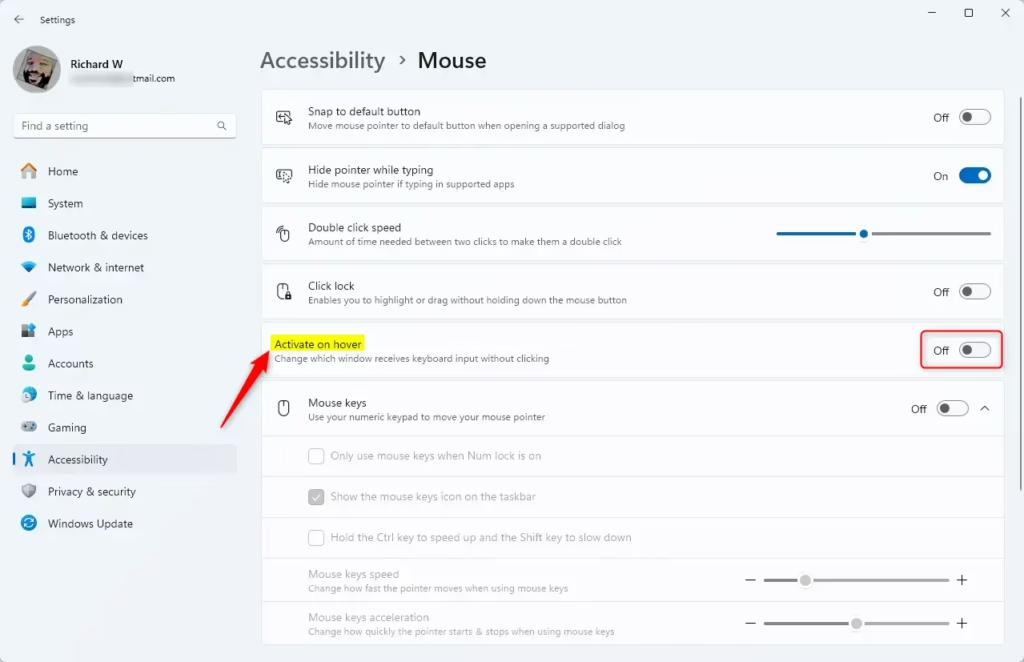
To enable activate on hover in Windows 11 using Settings, open the Settings app, navigate to Accessibility > Mouse, then toggle the “Activate on hover” switch on. This method is the fastest way to activate the feature in modern Windows 11 installations.
- Open Settings: Click the Start menu (the Windows icon at the bottom-left corner) and select Settings. Or press Windows key + I on your keyboard to open Settings right away.
- In the Settings window, click on Accessibility in the left panel.
- Scroll down and click on the Mouse option on the right side.
- Find the Activate on hover toggle switch and click it to turn it On.
- Once done, you can close the Settings app.
Here’s what the steps look like:
Turn On “Activate on Hover” Using Control Panel
If you prefer using the Control Panel, here’s how:
- Open Control Panel: Click the Start menu, type Control Panel, and press Enter. Or learn more about opening Control Panel here: Open Control Panel in Windows 11.
- In Control Panel, go to Ease of Access > Ease of Access Center.
- Under the Explore all settings section, click on Make the mouse easier to use.
- Check the box next to Activate a window by hovering over it with the mouse to turn it on.
- Click OK or Apply to save your changes.
Here are some helpful pictures showing where to click:
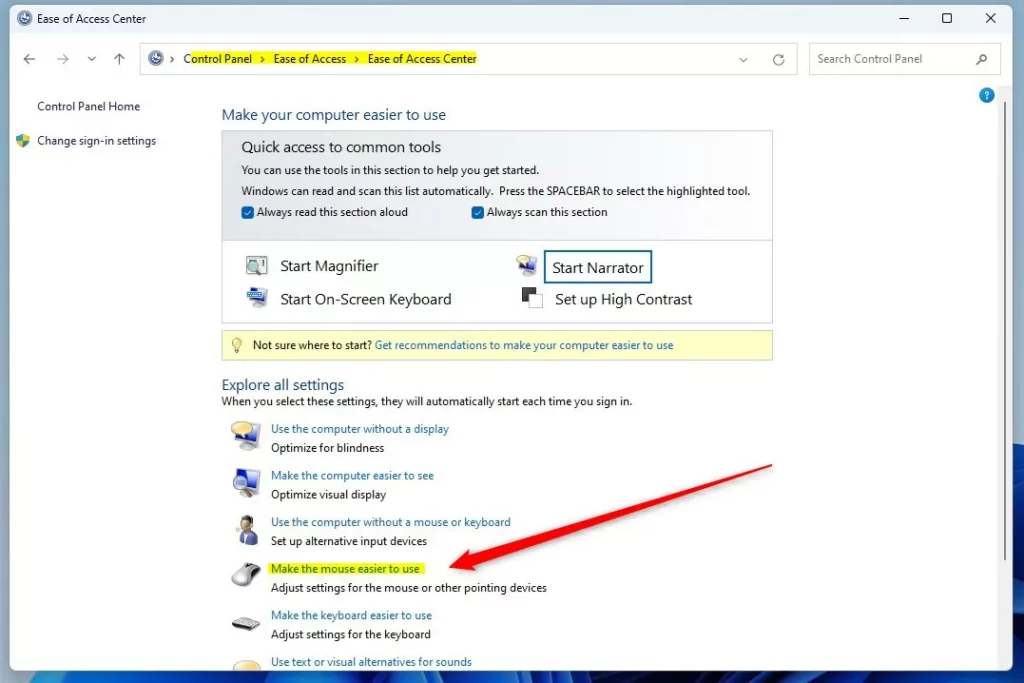
Click “Make the mouse easier to use” link
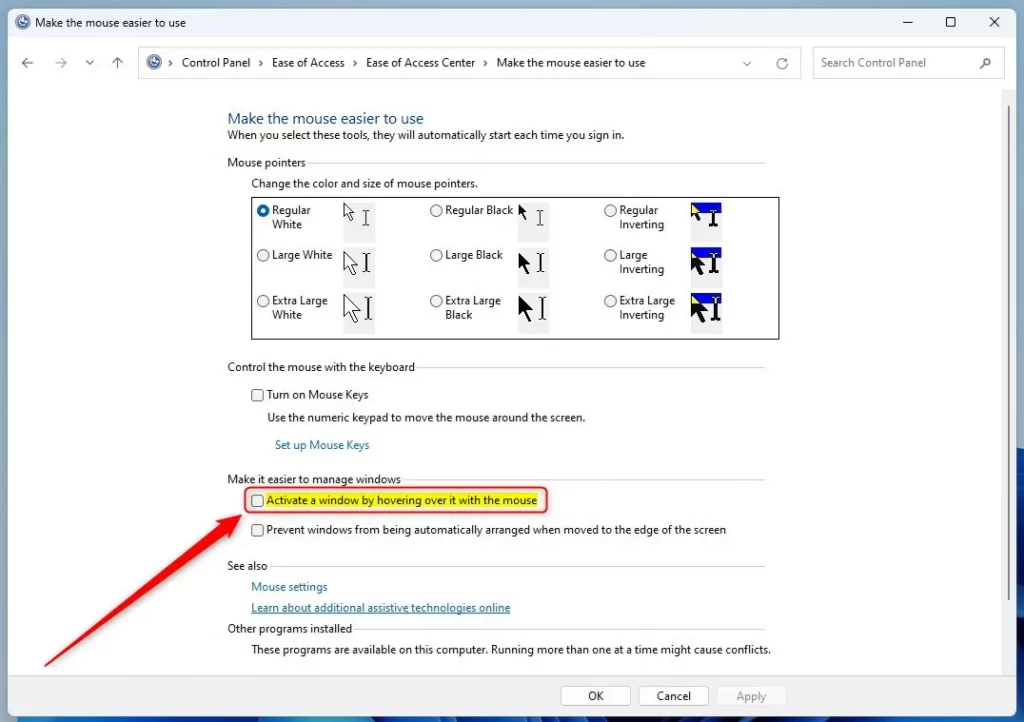
Check this box to enable “Activate a window by hovering over it with the mouse”
Summary
What is “Activate on hover”? It lets you switch windows just by moving your mouse over them. No clicking needed.
Why use it? This feature can make working with many windows easier and faster if you like using your mouse a lot.
How to control it: You can turn this feature on or off anytime through Windows Settings or Control Panel.
Try it out today and see if it makes your Windows 11 experience smoother!
Was this guide helpful?

About the Author
Richard
Tech Writer, IT Professional
Richard, a writer for Geek Rewind, is a tech enthusiast who loves breaking down complex IT topics into simple, easy-to-understand ideas. With years of hands-on experience in system administration and enterprise IT operations, he’s developed a knack for offering practical tips and solutions. Richard aims to make technology more accessible and actionable. He's deeply committed to the Geek Rewind community, always ready to answer questions and engage in discussions.



No comments yet — be the first to share your thoughts!