How to Enable or Disable Sticky Keys in Windows 11

Sticky Keys in Windows 11 allows you to press modifier keys like CTRL, ALT, and SHIFT one at a time for keyboard shortcuts, instead of holding them down simultaneously.
This accessibility feature simplifies complex key combinations for users who have difficulty pressing multiple keys at once. For instance, you can press CTRL, then press C, to copy text, rather than needing to hold CTRL while pressing C.
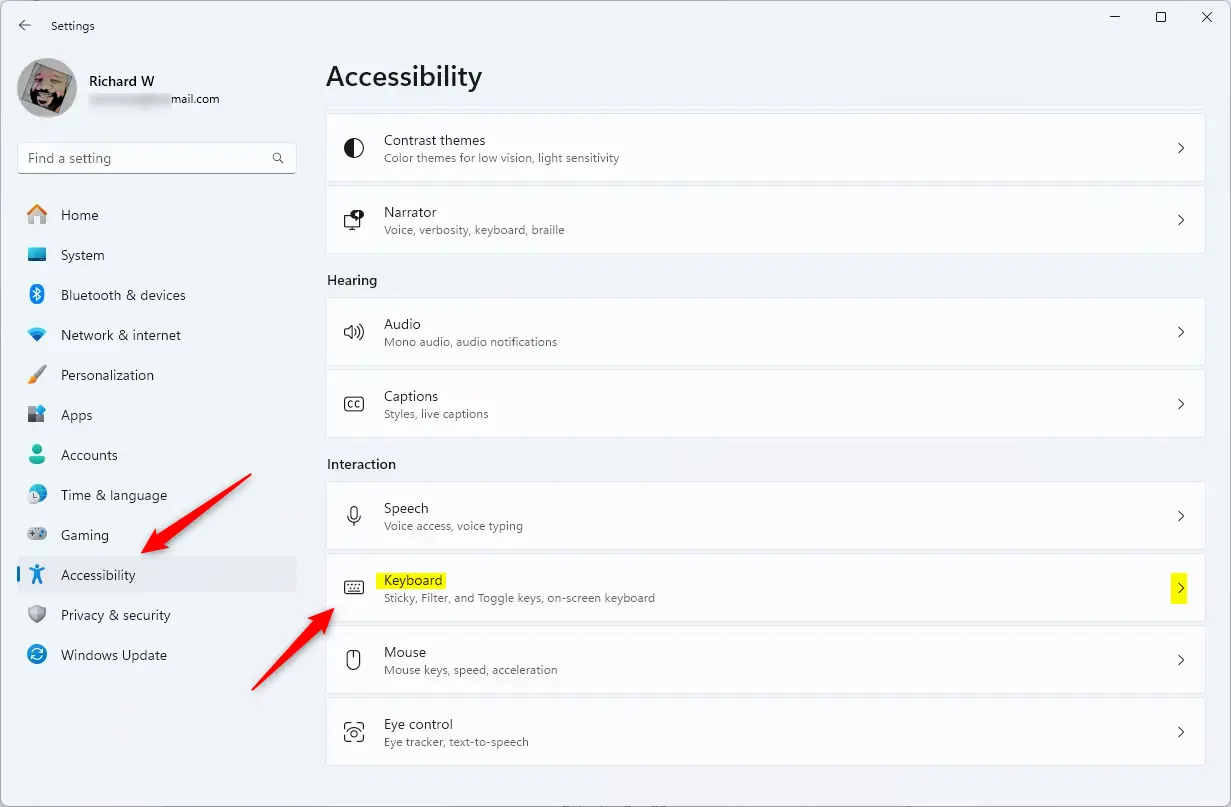
You can toggle Sticky Keys on or off directly within the Windows 11 Settings app. Navigate to Accessibility, then select Keyboard settings to find this option.
When enabled, your PC registers keys pressed sequentially as a single command, making shortcut usage significantly more manageable.
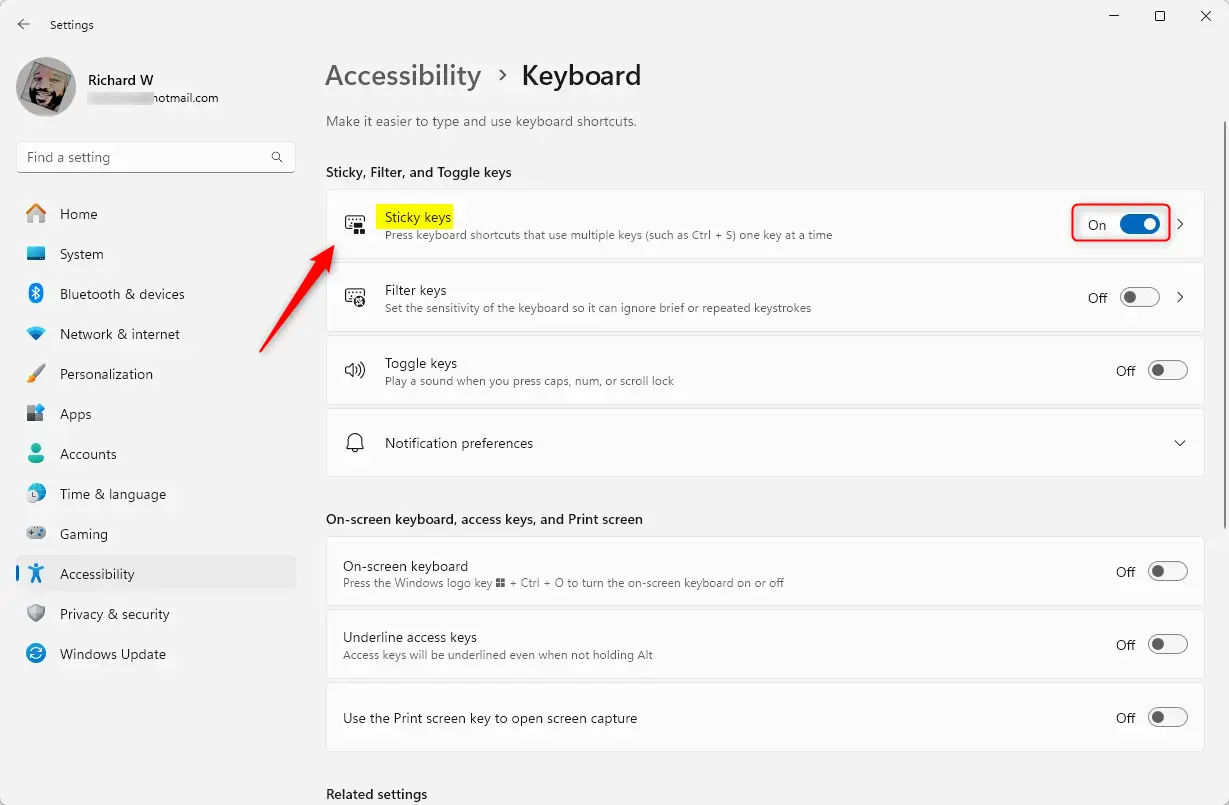
To enable or disable Sticky Keys, go to Settings > Accessibility > Keyboard and toggle the Sticky keys switch. You can also prevent accidental activation by unchecking the “Keyboard shortcut for Sticky keys” option in the same menu.
How to change Sticky Keys settings
You can easily turn Sticky Keys on or off in Windows 11 using the Settings app, which is the main place to manage this helpful keyboard feature.
- Open the Settings app. You can do this by pressing the Windows key + I on your keyboard or by searching for “Settings” in the taskbar.
- In the Settings menu, click on Accessibility in the left sidebar.
- Select Keyboard on the right side of your screen.
- Find the Sticky keys option. Toggle the switch to On to enable it , or Off to disable it .
How to disable the Shift key shortcut
If Sticky Keys keeps turning on by itself, it’s probably because you’re accidentally pressing the Shift key five times, which is the shortcut to activate it.
- Go to Settings > Accessibility > Keyboard.
- Click on the Sticky keys text (not the toggle switch) to open more options.
- Uncheck the box that says Keyboard shortcut for Sticky keys.
Advanced Configuration: Registry Edits
For advanced users, you can disable Sticky Keys permanently using the Registry Editor, but be careful as incorrect changes can affect your computer.
To disable Sticky Keys via the registry, follow these steps:
- Press ⊞ Win+R, type regedit, and press Enter.
- Navigate to the following path: 🗝️HKEY_CURRENT_USER\ Control Panel\Accessibility\StickyKeys
- Double-click the Flags entry and change the value to 506.
To disable the feature via command prompt, use this command:
reg add "HKEY_CURRENT_USER\Control Panel\Accessibility\StickyKeys" /v Flags /t REG_SZ /d 506 /f
Troubleshooting Persistent Pop-ups
If Sticky Keys keeps popping up even after you’ve turned it off or restarted your PC, it’s usually because the shortcut to turn it on is still active.
Summary
Sticky Keys is a Windows 11 feature that lets you use keyboard shortcuts without holding down multiple keys, and you can easily turn it on or off in Settings.- Sticky Keys helps users perform keyboard shortcuts without needing to hold down multiple keys at once.
- You can toggle this feature on or off in Settings > Accessibility > Keyboard.
- Disabling the Shift key shortcut is the best way to prevent accidental activation.
- Advanced users can use the Registry Editor to manage these settings permanently.
How do I stop Sticky Keys from turning on when I press Shift 5 times?
To stop this, navigate to Settings > Accessibility > Keyboard. Click on the Sticky Keys menu and uncheck the box labeled “Keyboard shortcut for Sticky keys.” This prevents the feature from activating when you accidentally press the Shift key five times in a row while typing.
Can I completely uninstall Sticky Keys from 🪟 Windows 11?
Sticky Keys is a core component of the Windows accessibility framework and cannot be completely uninstalled. However, you can effectively disable it by turning off the feature in the Settings app and disabling the keyboard shortcut to ensure it never triggers during your daily computer use.
Why does Sticky Keys keep re-enabling after a reboot?
If Sticky Keys re-enables after a reboot, it is usually because the keyboard shortcut is still enabled or a sync setting is pulling your old preferences from your Microsoft account. Disable the shortcut in the Accessibility menu and check your Windows sync settings to prevent the behavior from returning.
Was this guide helpful?

About the Author
Richard
Tech Writer, IT Professional
Richard, a writer for Geek Rewind, is a tech enthusiast who loves breaking down complex IT topics into simple, easy-to-understand ideas. With years of hands-on experience in system administration and enterprise IT operations, he’s developed a knack for offering practical tips and solutions. Richard aims to make technology more accessible and actionable. He's deeply committed to the Geek Rewind community, always ready to answer questions and engage in discussions.




[…] What are Sticky Keys and how to turn them off/on […]
[…] Sticky Keys: Press keyboard shortcuts one key at a time instead of all at once. […]
[…] Sticky Keys – helps you press keyboard shortcuts one key at a time. […]