

This article explains how to turn “Automatic media download” on or off in the Telegram app on mobile devices.
Telegram is a cross-platform instant messaging app that focuses on speed and security. It allows users to send text and voice messages, make voice and video calls, and share photos and videos with end-to-end encryption to help ensure user privacy and security.
When you install and set up Telegram on Windows, you can start it up automatically when signing into Windows, turn the spell checker on or off, change media download paths, turn disable filtering on or off, change who can add you to groups and channels, turn send with enter on or off, change who can see my phone number, change who can see your last seen and online status, change who can call me, turn auto-delete messages on or off, and more.
When you use the mobile version, you can turn Power Saving Mode on or off, use less data for calls, and more, which are unavailable on the desktop version.
When you use the mobile version, you can also turn “Automatic media download” on or off so photos and videos are not automatically saved in the gallery.
Turning “Automatic media download” on or off in Telegram can be useful to manage your device storage and data usage. When this feature is turned on, photos and videos sent to you will be automatically downloaded and saved in the gallery.
This can quickly take up your device’s storage capacity and consume your data plan. On the other hand, when you turn this feature off, you can choose which media to download and save and reduce your data usage and device storage consumption.
Turn “Automatic media download” on or off in Telegram
As mentioned above, users can turn “Automatic Media download” on or off to manage their device’s storage and usage.
Here’s how to do it.
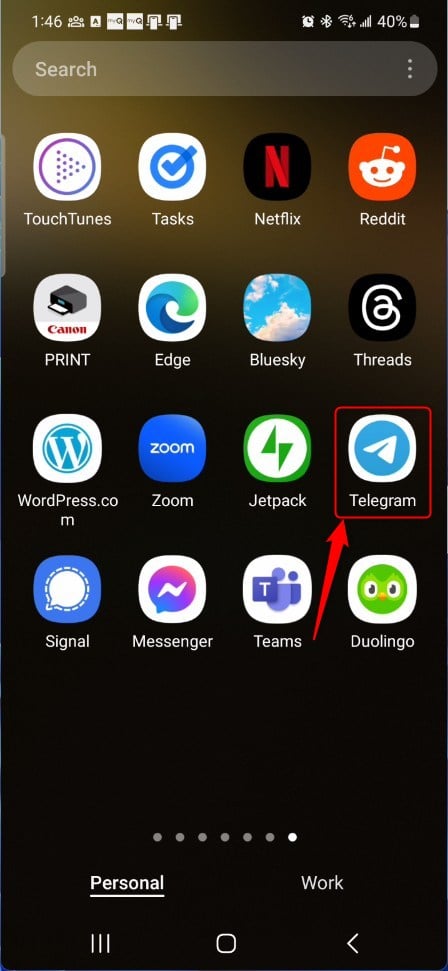
First, open the Telegram app on your mobile device.
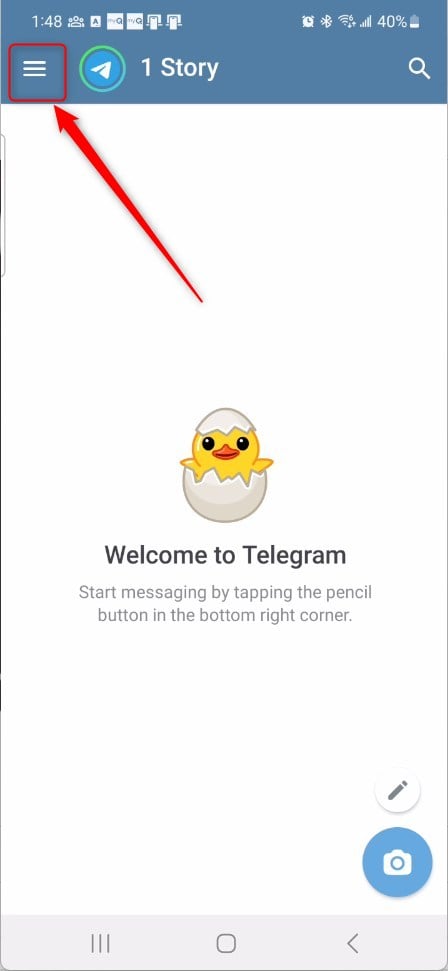
When the app opens, click the Menu button at the top left, then select Settings on the context menu.
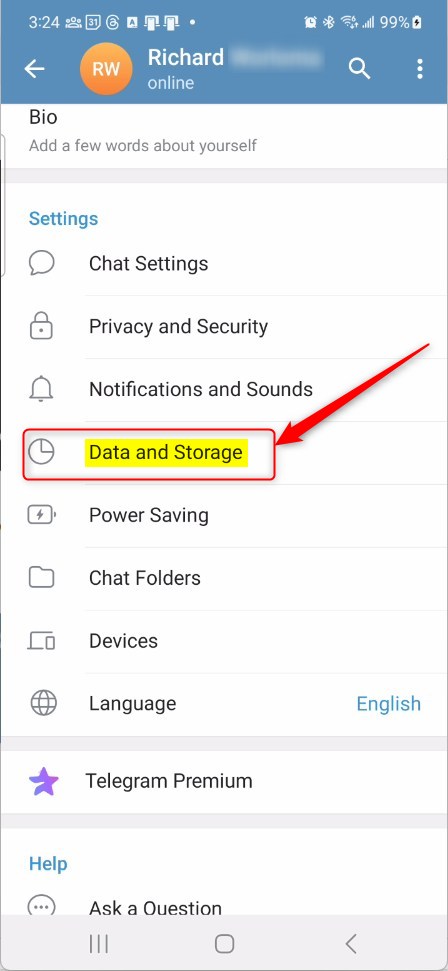
On the Settings page, select the “Data and Storage” tile to expand it.
On the Settings -> Data and Storage settings page, under “Automatic medis download,” toggle the switch button to the On or Off position to enable or disable media download for each network connection:
- When using mobile data – Turn On/Off
- When connected to Wi-Fi – Turn On/Off
- When roaming – Turn On/Off
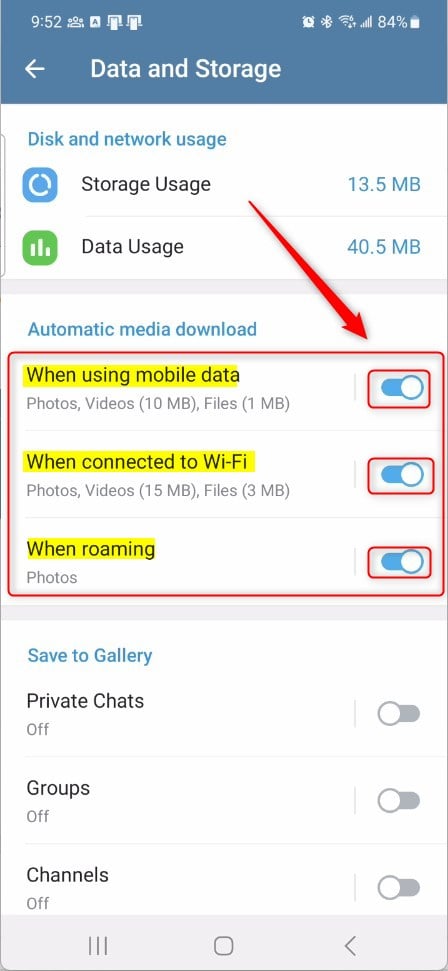
Turn On for all network connections to enable automatic media download. To disable it, turn Off all network connections.
That should do it.
Conclusion:
- Managing “Automatic media download” in Telegram is crucial for optimizing device storage and data usage.
- Users can avoid storage overload and data consumption by selectively enabling or disabling media downloads for different network connections.
- Following the outlined steps allows users to take control of their media download preferences and enhance their Telegram experience.
Leave a Reply