How to Exit S Mode in Windows 11

Windows 11 in S mode is a specific version of the operating system focused on security and performance. By limiting your system to apps found only in the Microsoft Store, it prevents malicious software from being installed. It is common on budget-friendly laptops and devices used for education.
Why Exit S Mode?
Why do this? You may need to install specialized software, web browsers like Chrome or Firefox, or development tools that are not available in the Microsoft Store.
What happens when done? Your computer will run a standard version of Windows 11. You can install any program, but you cannot return to S mode. This change is permanent.
Security and Performance Risks
Exiting S mode removes the safety net that prevents you from installing unverified software. Once you switch, your computer is more vulnerable to viruses and malware if you download files from untrusted websites. Additionally, some users may notice a slight decrease in battery life or performance because the system is no longer restricted to optimized store apps.
How to Exit S Mode
Follow these steps to disable S mode. Note: This process requires an administrator account.
- Open the Start menu and select Settings.

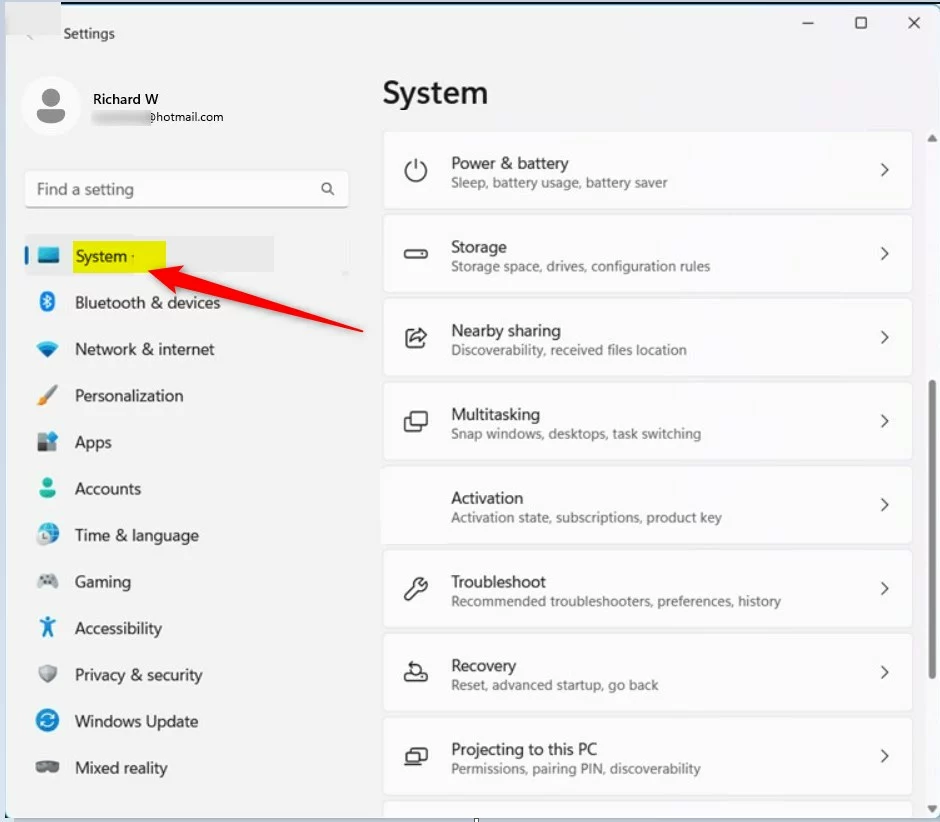
- Click on System in the left-hand sidebar.
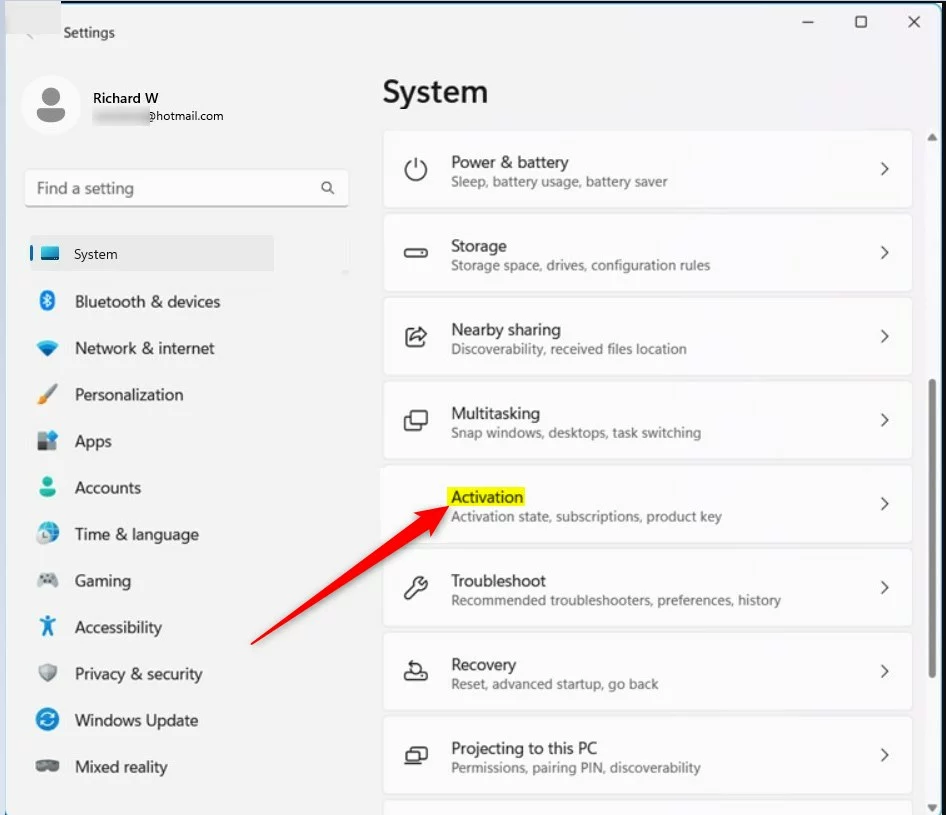
- Select Activation from the list.
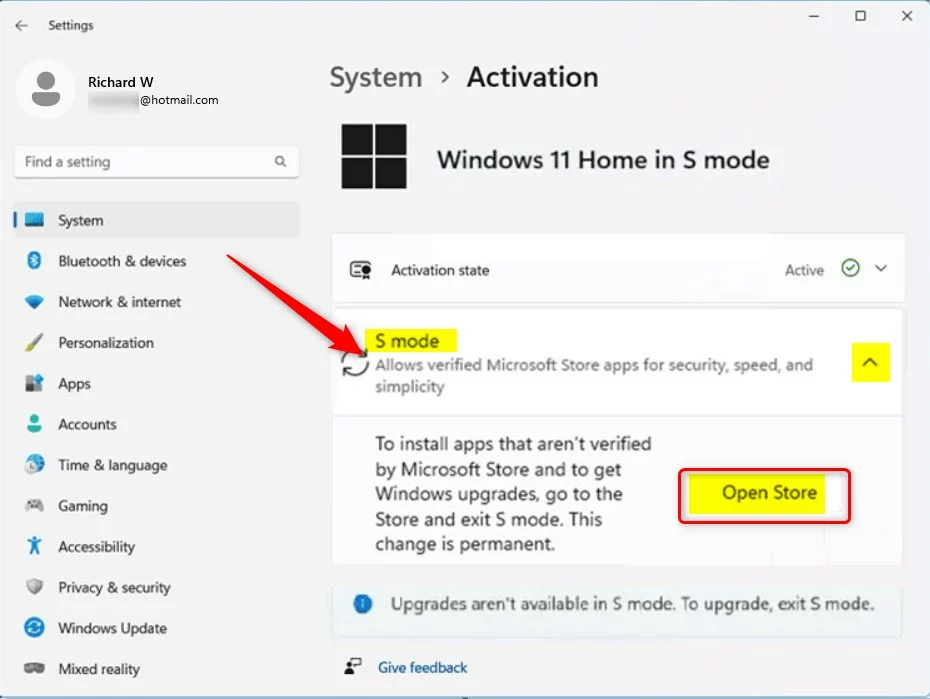
- Look for the S mode section and click the arrow to expand it.
- Click the Open Store button.
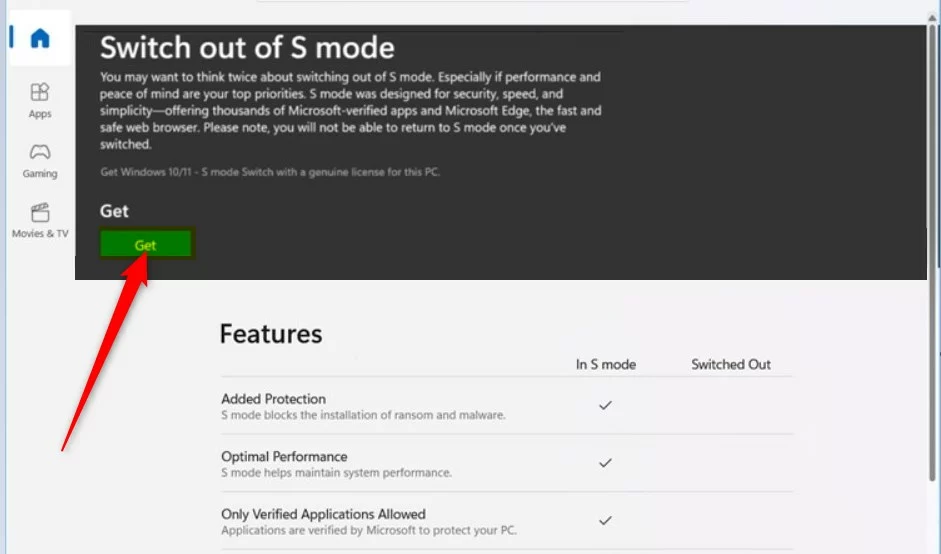
- In the Microsoft Store, you will see the Switch out of S mode page. Click the Get button.
Once the process completes, you will see a confirmation message. You can now install apps from any source.
Troubleshooting Common Issues
If the ‘Get’ button is missing, ensure you are signed into a valid Microsoft Account. Sometimes, a pending Windows Update can block the process. Check for updates by navigating to Settings > Windows Update. If you encounter an error, restart your computer and try again.
Summary
Exiting S mode is a permanent, free, and one-way process that allows you to install software from any source. While it offers more freedom, remember that you lose the added security of the Microsoft Store-only environment. Ensure you have reliable antivirus software installed once you make the switch.
Does exiting S mode void my laptop warranty?
No, switching out of S mode is a software configuration change provided by Microsoft. It does not void your hardware warranty. However, if you install software that causes system instability, the manufacturer may not cover the cost of software-related repairs or technical support for those specific third-party applications.
Does exiting S mode cost money?
No, switching out of S mode is completely free. You do not need to pay for any upgrades to move from Windows 11 Home in S mode to the standard version of Windows 11 Home. If you are prompted for payment, ensure you are on the official Microsoft Store page.
Was this guide helpful?


[…] The blocklist is enabled on systems that have memory security (aka Hypervisor-protected Code Integrity (HVCI)) enabled or run Windows in S Mode. […]