How to Stop Spotify from Starting Automatically on Windows 11

You can stop Spotify from starting automatically on Windows 11 directly through the app’s settings.
This prevents Spotify from launching every time you boot up your PC, which helps your computer start faster and frees up system resources.
Many users find this essential for optimizing boot times, especially on older hardware or when running multiple demanding applications.
By default, Spotify is often configured to launch on startup, consuming memory and CPU cycles before you even begin your work.
Disabling this feature ensures Spotify remains closed until you decide to open it, giving you full control over your Windows 11 startup sequence.
Method 1Change Spotify Settings
The easiest way to stop the app from opening is through its own internal menu.
- Open Spotify from your Start menu or desktop icon.
- Click the three dots (…) in the top-left corner.
- Go to Edit > Preferences.
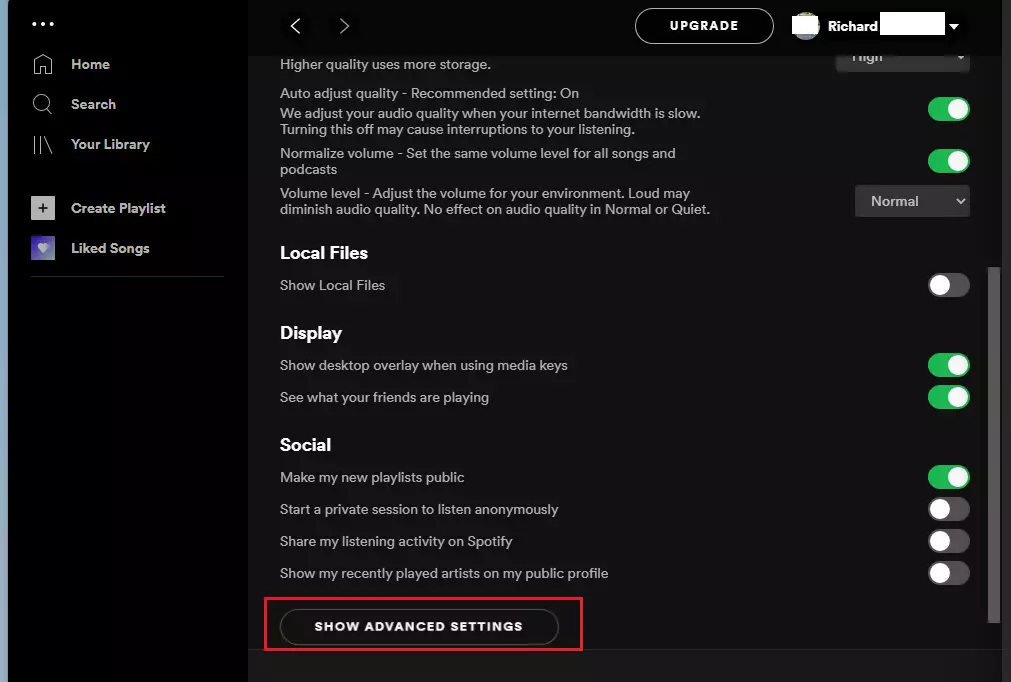
Scroll to the bottom of the page and click Show Advanced Settings.
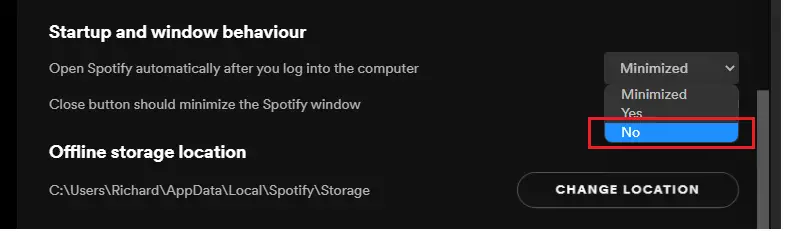
Look for the section called Startup and windows behavior. Change the option for “Open Spotify automatically after you log into the computer” to No.
Method 2Use Task Manager
You can also control startup apps using the Windows Task Manager. Note: This method may require admin privileges depending on your system settings.
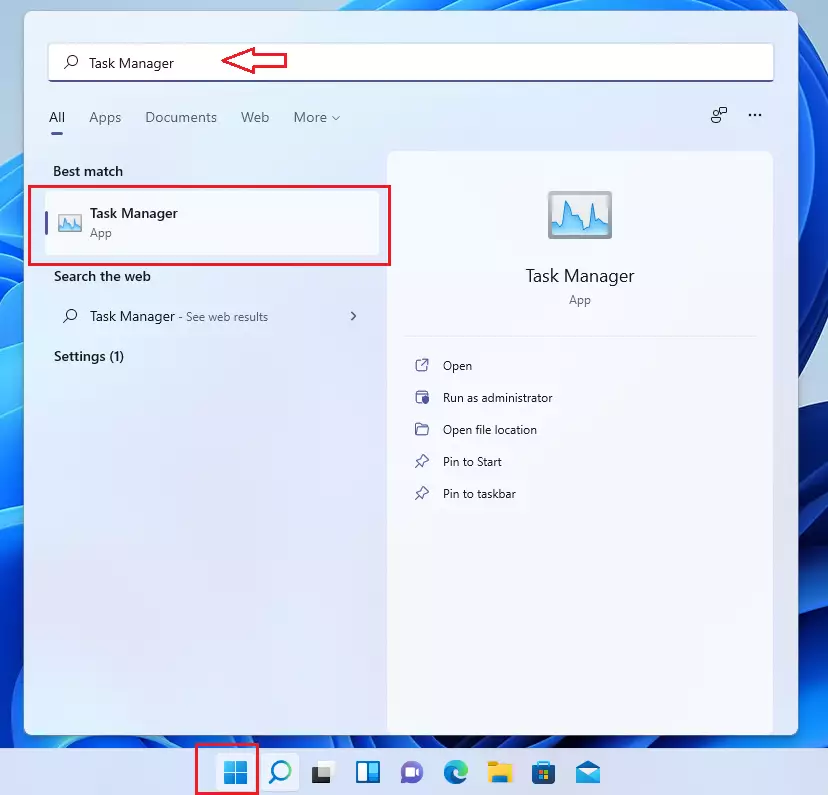
- Click the Start button and type “ Task Manager.”
- Select the Task Manager app from the list.
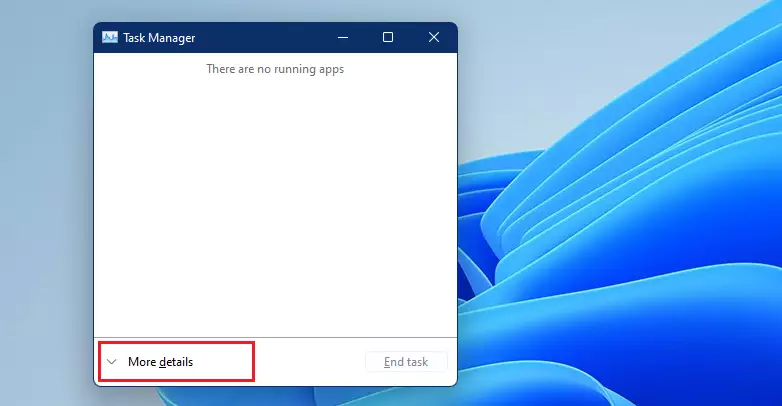
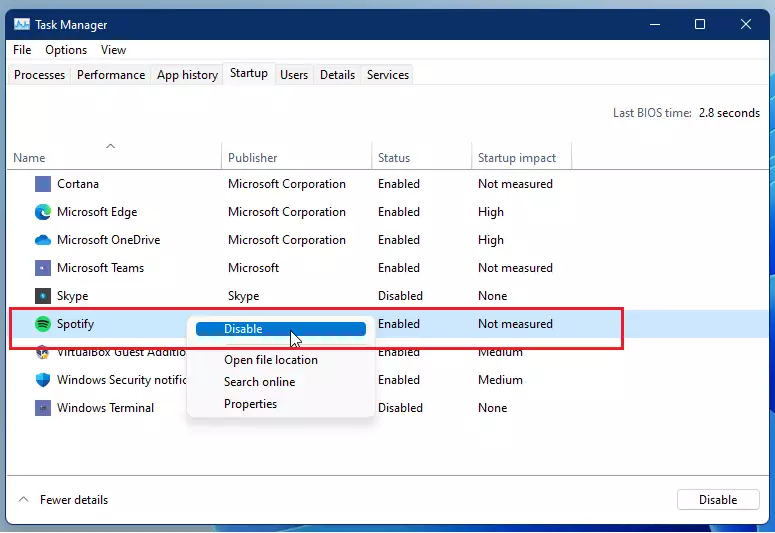
Click the Startup tab. If you don’t see it, click More details at the bottom first.
Find Spotify in the list. Right-click it and select Disable.
Summary
You now know two ways to keep Spotify from launching automatically. Using the Spotify Preferences menu is the most direct way, while Task Manager allows you to manage all your startup apps in one place. By following these steps, you will enjoy a faster login experience every time you turn on your PC.
Was this guide helpful?

About the Author
Richard
Tech Writer, IT Professional
Richard, a writer for Geek Rewind, is a tech enthusiast who loves breaking down complex IT topics into simple, easy-to-understand ideas. With years of hands-on experience in system administration and enterprise IT operations, he’s developed a knack for offering practical tips and solutions. Richard aims to make technology more accessible and actionable. He's deeply committed to the Geek Rewind community, always ready to answer questions and engage in discussions.



No comments yet — be the first to share your thoughts!