How to Stop Spotify from Starting Automatically on Windows 11

This guide explains how to stop Spotify from opening on its own every time you turn on your computer.
Why stop Spotify from starting automatically?
When too many apps open at once, your computer takes longer to start up. Stopping Spotify helps your PC reach the desktop faster and saves memory for other tasks.
What happens when you are done?
Once you finish these steps, Spotify will stay closed until you click on it. Your computer will boot up faster and run more smoothly.
This post assumes you already have the app. If you need to install it, use the link below. Windows download – Spotify
Once you have the file, open your Downloads folder and run the installer. %%SCTOK0%%
Method 1: Change Spotify Settings
The easiest way to stop the app from opening is through its own internal menu.
- Open Spotify from your Start menu or desktop icon.
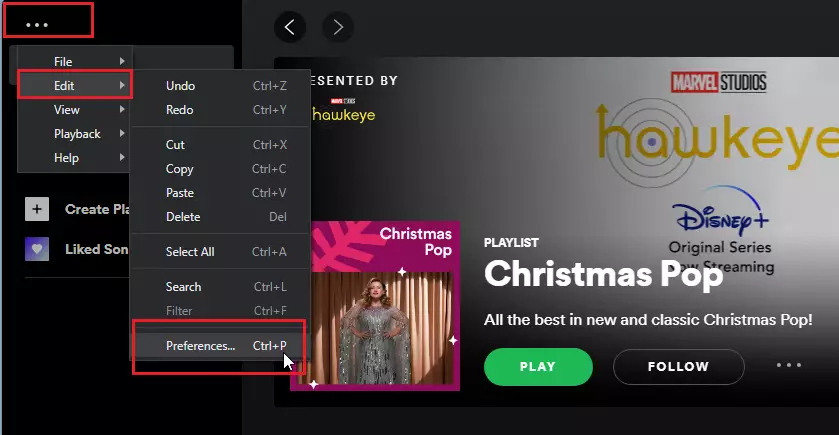
- Click the three dots (…) in the top-left corner.
- Go to Edit > Preferences.
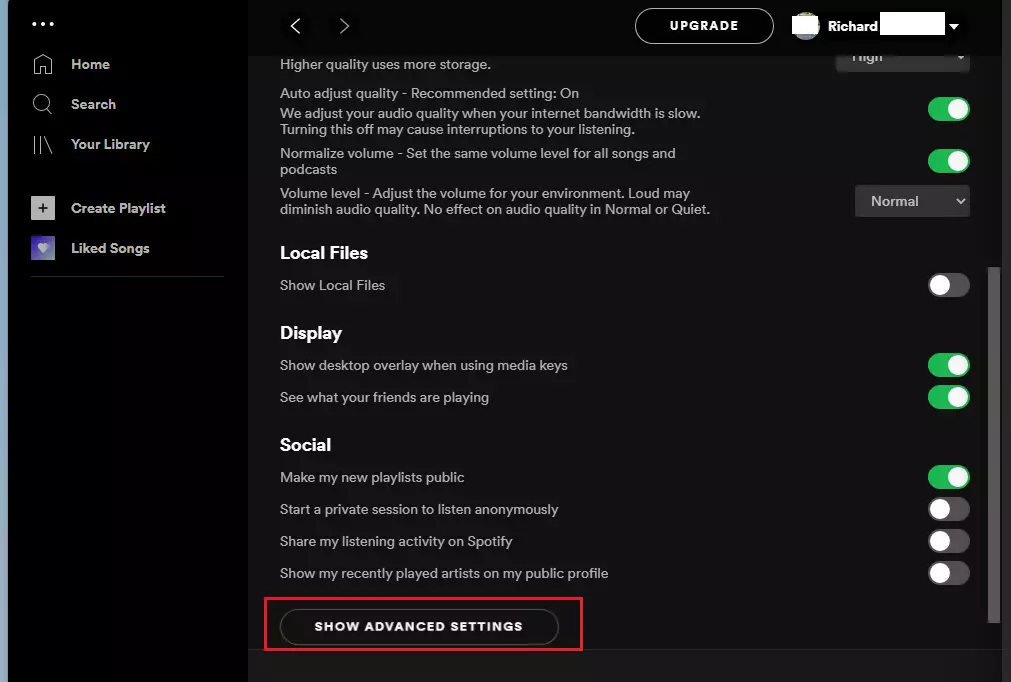
Scroll to the bottom of the page and click Show Advanced Settings.
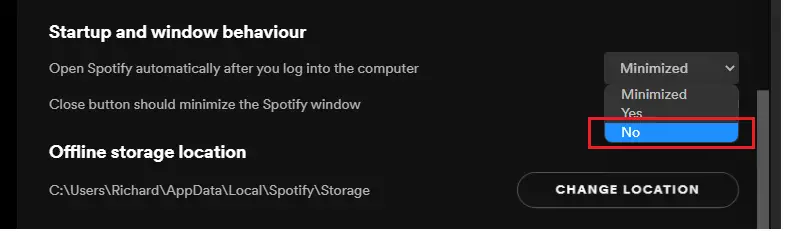
Look for the section called Startup and windows behavior. Change the option for “Open Spotify automatically after you log into the computer” to No.
Method 2: Use Task Manager
You can also control startup apps using the Windows Task Manager. Note: This method may require admin privileges depending on your system settings.
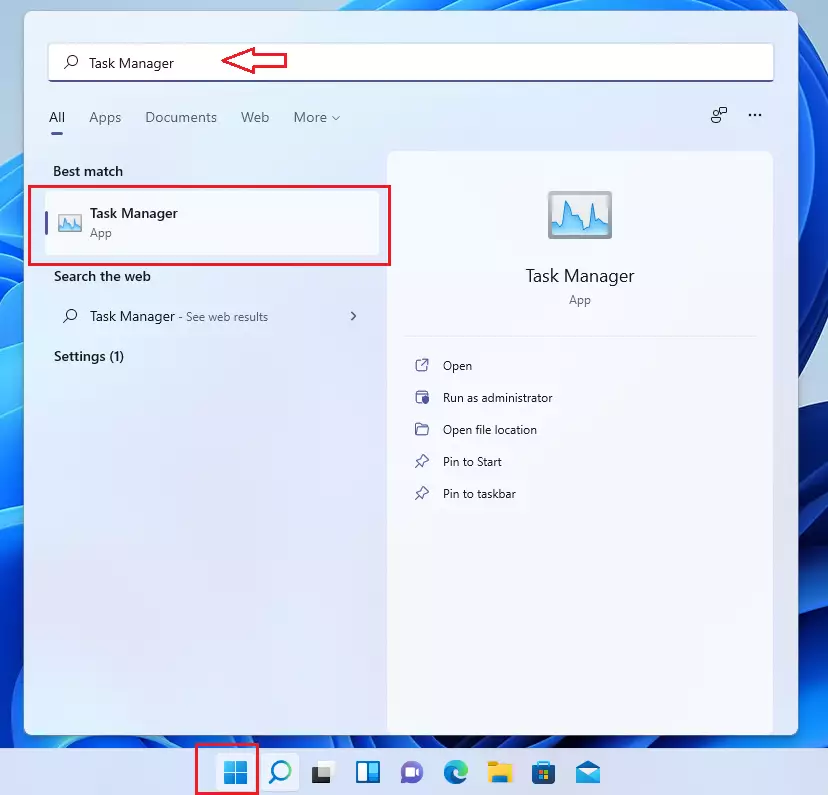
- Click the Start button and type “Task Manager.”
- Select the Task Manager app from the list.
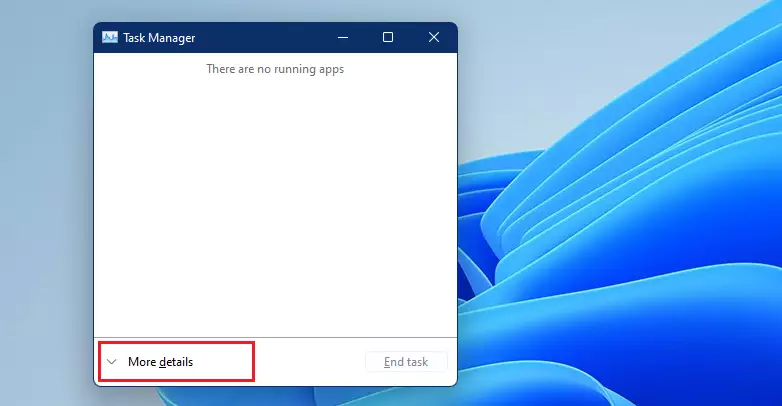
Click the Startup tab. If you don’t see it, click More details at the bottom first.
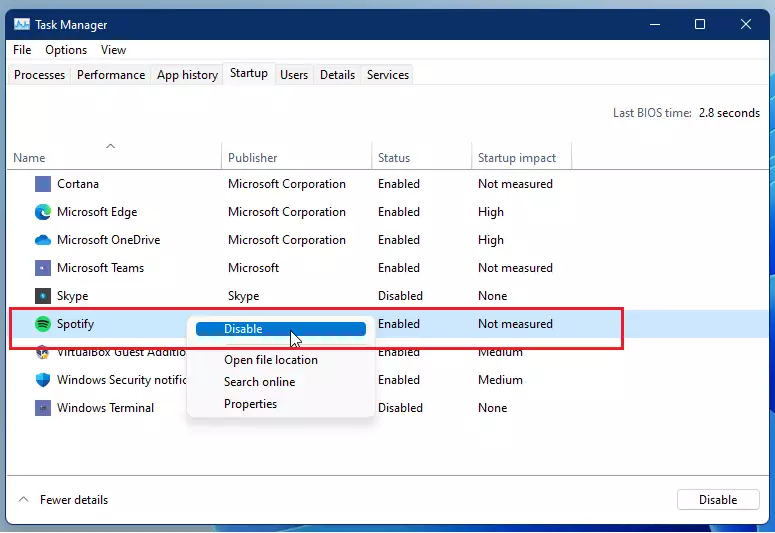
Find Spotify in the list. Right-click it and select Disable.
Summary
You now know two ways to keep Spotify from launching automatically. Using the Spotify Preferences menu is the most direct way, while Task Manager allows you to manage all your startup apps in one place. By following these steps, you will enjoy a faster login experience every time you turn on your PC.
Was this guide helpful?




Leave a Reply Cancel reply