

This article explains how to sign in or out of Manage Mobile Devices in Windows 11.
Windows Mobile devices (or Phone Link) allow you to access your mobile devices from your PC instantly. This feature comes in handy when transferring files, sending messages, or receiving notifications from your phone while working on your computer.
When you want to link your Mobile device to Windows, you must sign into your Microsoft account before managing your mobile devices. Once you’re signed in, you can link your devices.
A recent update to Windows 11 Insider channels lets you sign out of Manage Mobile Devices if you want to stop using Manage Mobile Devices with your Microsoft account on the PC.
Sign in to Mobile Devices in Windows 11
As mentioned, you must sign into your Microsoft account to use the Mobile devices feature in Windows 11.
Here’s how to do that.
First, open the Windows Settings app.
You can do that by clicking on the Start menu and selecting Settings. Or press the keyboard shortcut (Windows key + I) to launch the Settings app.
When the Setting app opens, click the Bluetooth & devices button on the left.

Select the Mobile devices tile under ‘Bluetooth & devices ‘on the right to expand it.

Next, select the “Manage devices” button under “Allow this PC to access your mobile device.”

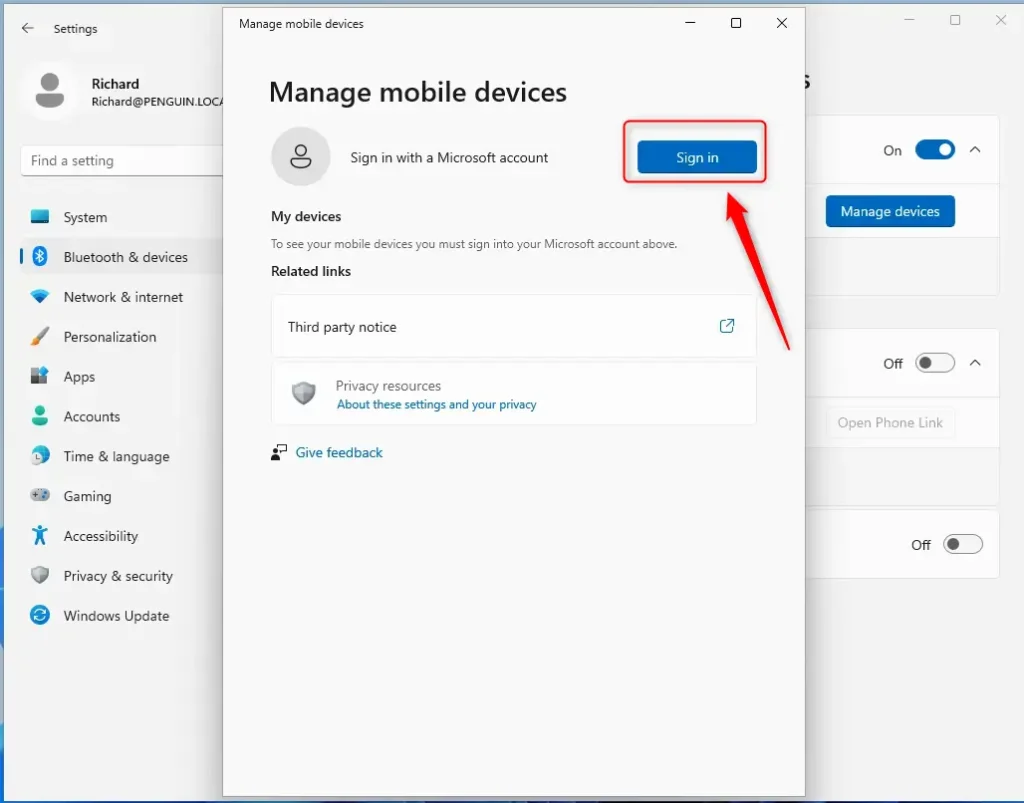
Next, click the Sign in button to sign into Mobile devices on your PC.
Type in your Microsoft account email address and continue if your account isn’t listed.
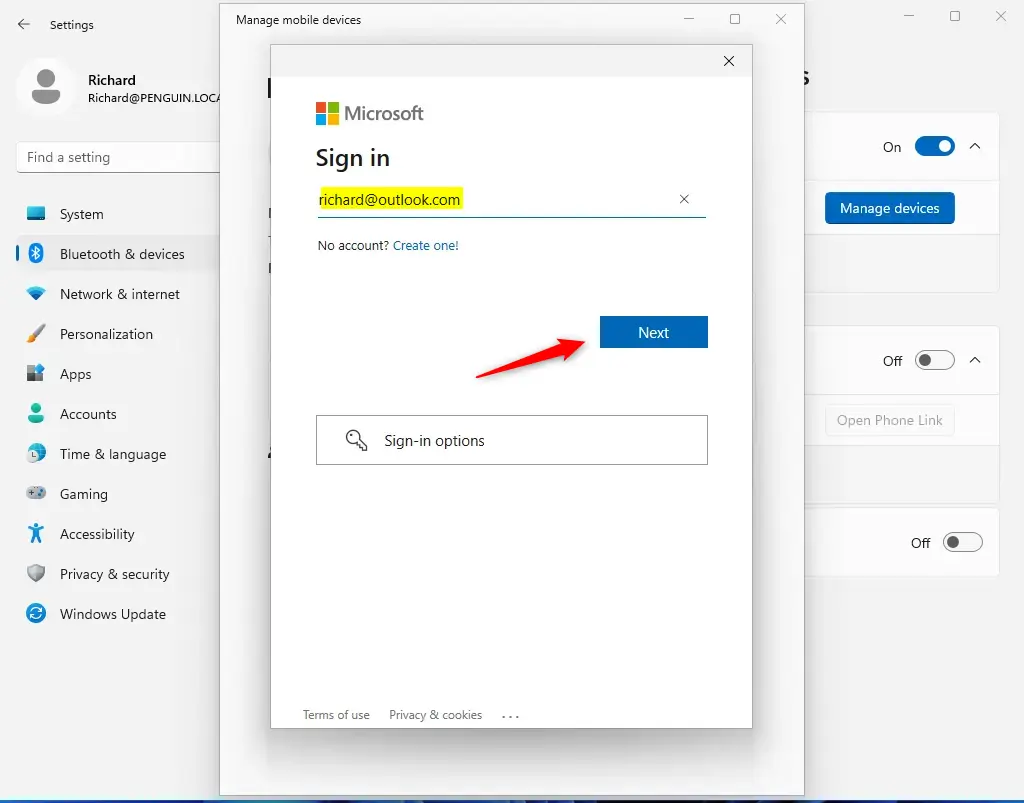
Once you have signed in, you can close the dialog box and start managing your mobile devices.
Sign out of Mobile Devices
After signing into the Mobile devices on your PC, you can sign out if you don’t want to continue linking your mobile device to your Windows PC.
To do that, return to the Mobile Devices settings pane using the steps above. Then, click the Sign out link under your account name.
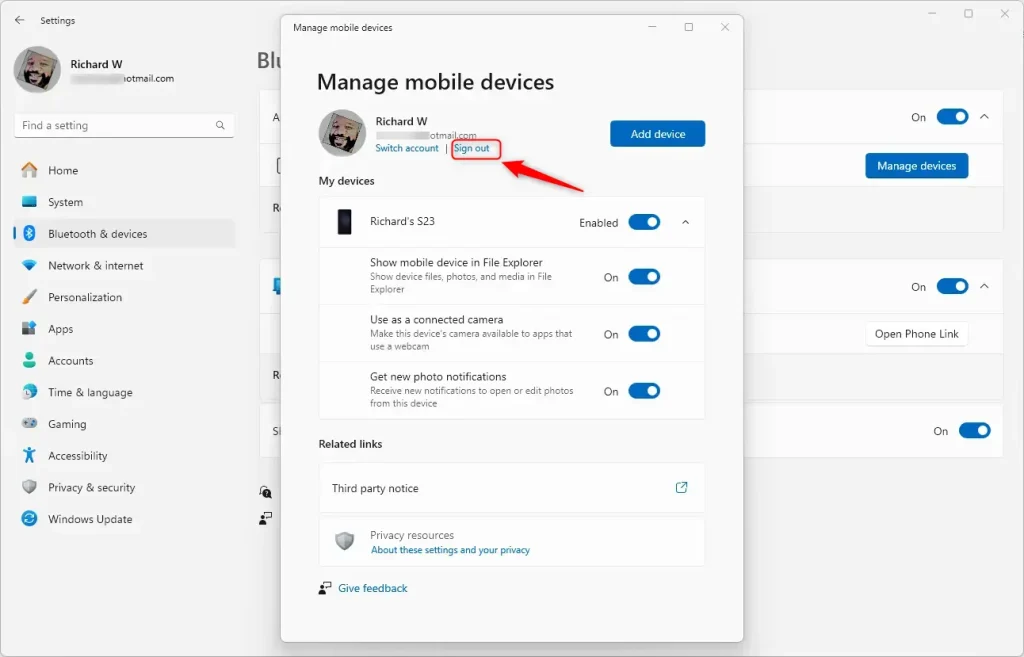
That should do it!
Conclusion:
In summary, managing mobile devices in Windows 11 enhances your productivity by allowing seamless integration between your mobile devices and your PC. Here are the key takeaways:
- Sign In: Ensure you are signed into your Microsoft account to access Mobile devices.
- Linking Devices: Use the Windows Settings app to link your mobile devices effortlessly.
- Sign Out Option: Easily sign out if you no longer wish to connect your mobile devices to your PC.
- User-Friendly: The process is straightforward and can be done in just a few steps.
- Stay Updated: Keep your Windows 11 updated to benefit from the latest features and improvements.
By following these steps, you can make the most out of the Mobile devices feature in Windows 11.


Leave a Reply