How to Show Weekday on Ubuntu Top Menu Bar


Showing the weekday on the Ubuntu top menu bar adds the day name next to the clock so you can check the full date at a glance. This quick change works on Ubuntu version 22.04 LTS and newer.
You need a free app called GNOME Tweaks (a tool that lets you change how the GNOME desktop looks and acts) to turn on this date feature.
Open Settings , click Date & Time, and toggle the Weekday switch to On in the Clock section. Alternatively, use the terminal command gsettings set org.gnome.desktop.interface clock-show-weekday true.
Show the day of the week using GNOME Settings
You can show the day of the week on your Ubuntu top menu bar using GNOME Settings (the app that controls system preferences). Open the Settings app, go to the Date & Time section, and turn on the weekday option under the clock settings. This makes the panel display both the date and the day without needing any extra tools.
- Open your Settings app from the app menu.
- Click on the Date & Time tab in the sidebar.
- Look for the Clock section.
- Toggle the switch for Weekday to the On position.
Readers can also display the current weather forecast of their city alongside the clock.
Show the day of the week using Terminal
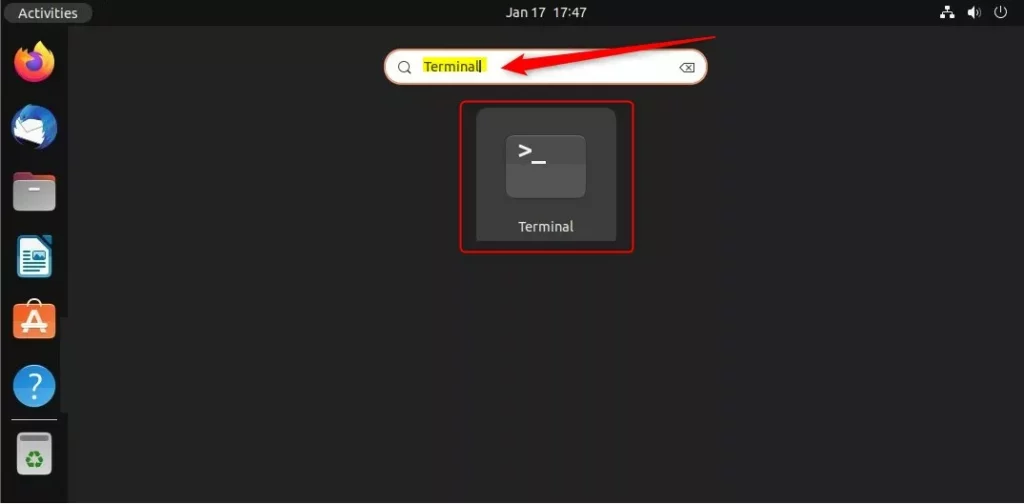
You can quickly show the weekday on your Ubuntu top menu bar using Terminal (the command-line interface) with a single command. Running this command updates the desktop settings instantly without making you click through the graphical menus. It is the fastest way to change your clock format if you already use the keyboard shortcut.
- Press Ctrl+Alt+T to open the Terminal.
- Type the following command and press Enter:
gsettings set org.gnome.desktop.interface clock-show-weekday true
Disabling the feature later requires this command: gsettings reset org.gnome.desktop.interface clock-show-weekday
Show weekday on the top menu bar using the Dconf Editor
Dconf Editor adjusts hidden system settings to display the weekday on the Ubuntu top menu bar. Navigate to: /org/gnome/desktop/interface/ and find the clock-show-weekday setting.
Dconf Editor handles hidden system settings much like the Windows Registry Editor does.
How to add or remove software on Ubuntu Linux
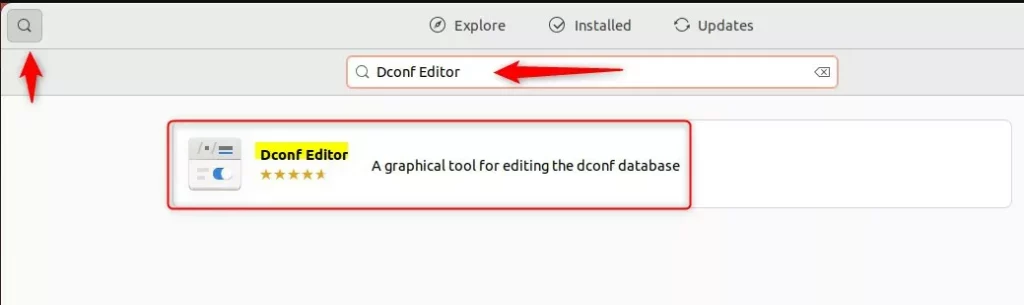
You can add or remove software on Ubuntu Linux (the operating system) using either the graphical App Center or the Terminal command line. Installing new programs takes only a few clicks or a short text command. This gives you total control over the applications on your system.
sudo apt install dconf-editor
Once installed, open Dconf Editor and follow these steps:
- Navigate to:
org>gnome>desktop>interface - Find
clock-show-weekdayin the list. - Toggle the switch to On.
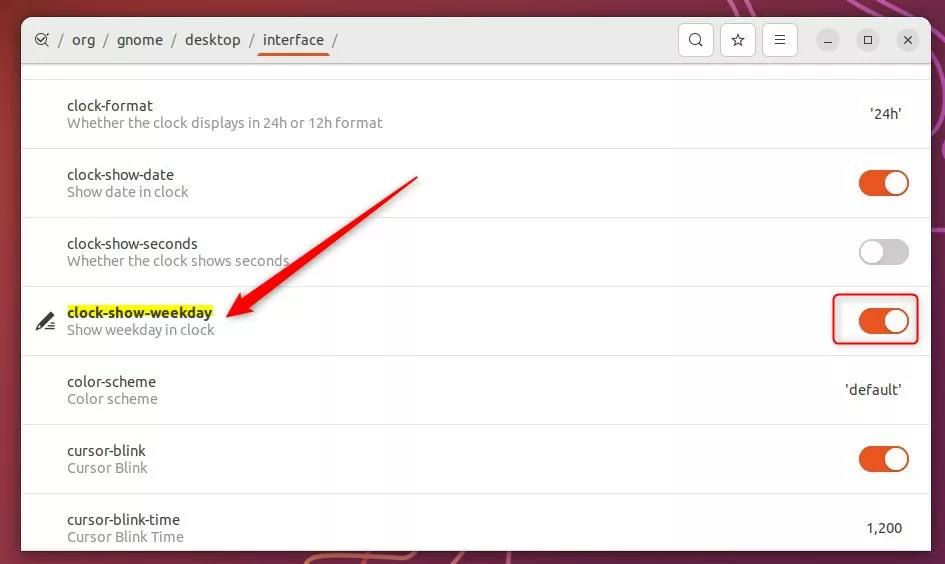
Enabling the setting makes the day of the week appear on the top bar.

Including the day of the week makes the desktop more useful. Utilizing either the Settings app or advanced tools allows for personalizing the Ubuntu experience.
How do I show the day of the week in Ubuntu?
System Settings displays the day of the week in Ubuntu, especially on newer versions like Ubuntu 24.04. Press Super + S to open Quick Settings, launch 'Settings', go to System Date & Time, and turn on the 'Week Day' option.
How do I show the menu bar in Ubuntu?
CTRL + Home works for the Ubuntu menu bar at the top of the screen.
How to see calendar in terminal?
The cal Command. The cal command displays a formatted calendar in the terminal. If no options are specified, cal displays the current month, with the current day highlighted.
Is Ubuntu Gnome discontinued?
Ubuntu GNOME (formerly Ubuntu GNOME Remix) is a discontinued Linux distribution, distributed as free and open-source software.
Was this guide helpful?

About the Author
Richard
Tech Writer, IT Professional
Richard, a writer for Geek Rewind, is a tech enthusiast who loves breaking down complex IT topics into simple, easy-to-understand ideas. With years of hands-on experience in system administration and enterprise IT operations, he’s developed a knack for offering practical tips and solutions. Richard aims to make technology more accessible and actionable. He's deeply committed to the Geek Rewind community, always ready to answer questions and engage in discussions.

[…] only can you display the clock, but you can also choose the day of the week on the top menu […]
[…] Ubuntu, the popular open-source operating system based on the Debian Linux distribution, will not display weekday on the top bar by default. In our last post, we wrote a detailed guide to add “Week Day” to the top bar. […]