
If you want to quickly see how much battery life you have left on your Windows 11 laptop or tablet, you can turn on the battery percentage display right on the taskbar. This way, you don’t have to open extra menus or settings to check your battery.
Starting with Windows 11 update build 26120.3000, Microsoft added a new way to show battery percentage next to the battery icon on the taskbar. The battery icon also changes colors to show your battery status:
- Green: Your PC is charging and everything is fine.
- Yellow: Your PC is running on battery saver mode because the battery is low (20% or less).
- Red: Your battery is very low — plug in your PC soon to avoid losing power.
How to Turn On Battery Percentage on the Taskbar
Follow these simple steps to show the battery percentage on your Windows 11 taskbar:
- Open Settings: Click the Start menu (the Windows icon in the bottom-left corner), then click Settings. Or press
Windows key + Ion your keyboard to open Settings directly. - Go to System: In the Settings window, click System from the menu on the left side.
- Find Power & battery: On the right side, scroll down a bit and click on Power & battery to open its settings.
- Turn on Battery Percentage: Look for the option called Battery percentage and toggle the switch to On.

Click System in Windows Settings
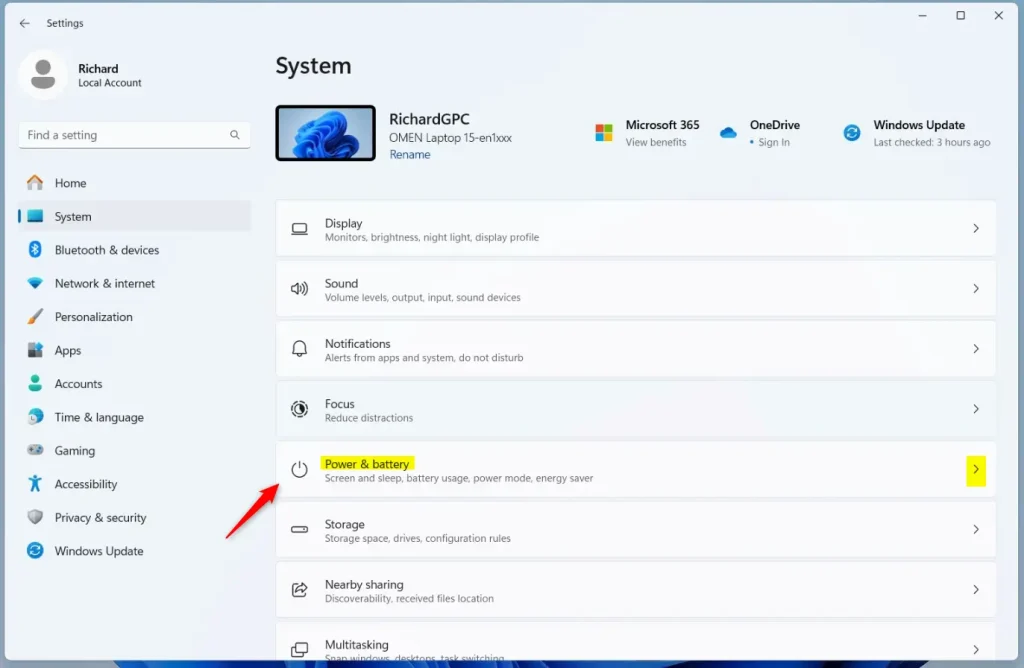
Click Power & battery in System settings
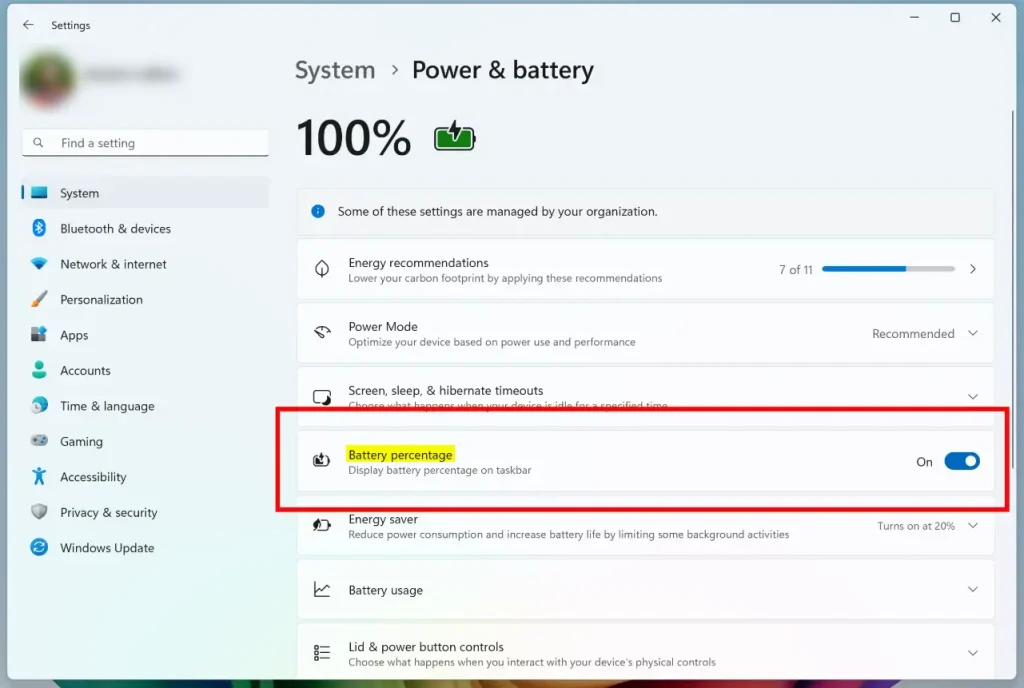
Toggle Battery percentage On to show it
Once you turn it on, you’ll see the battery percentage right next to the battery icon on your taskbar.
Alternative: Use Registry Editor to Show Battery Percentage
If you like advanced options, you can also turn this feature on or off using the Windows Registry Editor. But be careful! Changing registry settings can affect your computer. It’s a good idea to back up your registry or create a restore point before you start.
Here’s how to do it:
- Open the Registry Editor by typing
regeditin the Start menu search and pressing Enter. - Navigate to this folder path:
Computer > HKEY_CURRENT_USER > Software > Microsoft > Windows > CurrentVersion > Explorer > Advanced - Right-click on Advanced, select New > DWORD (32-bit) Value.
- Name the new value
IsBatteryPercentageEnabled. - Double-click the new value and set its data to
1to turn on battery percentage. To turn it off, set the value to0. - Close Registry Editor and restart your PC to see the changes.
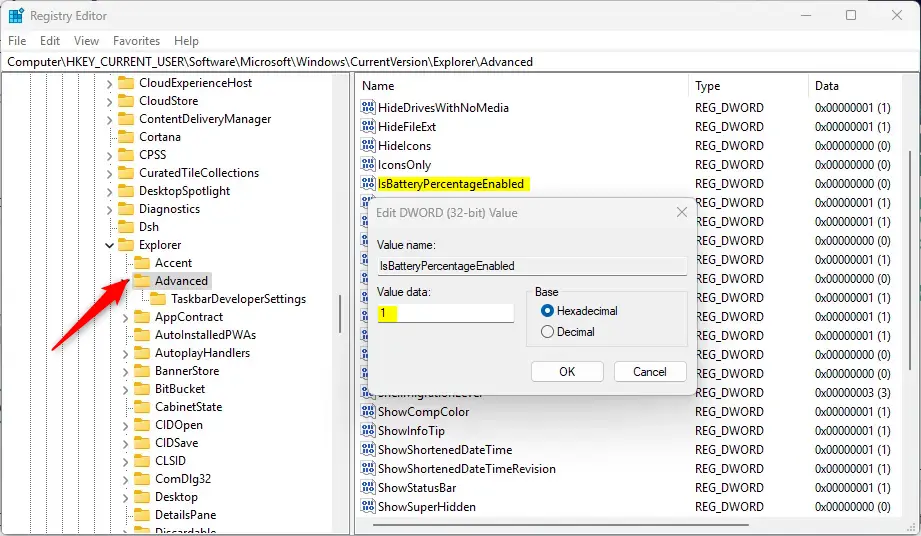
Registry Editor – Battery Percentage setting
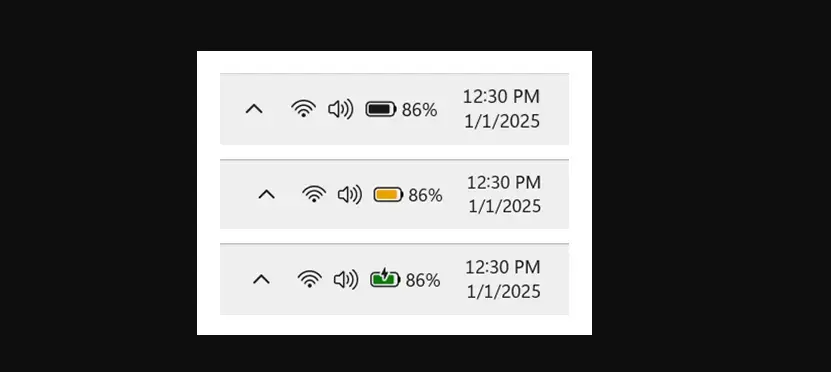
Battery percentage shown next to battery icon on the taskbar
Summary
- Easy to check: See your battery life at a glance without extra clicks.
- Colors show battery status: Green means charging, yellow means low battery saver mode, red means very low battery.
- Change anytime: Turn battery percentage on or off in Settings or Registry Editor.
- Be safe: Always back up your registry or create a restore point before making changes.
Now you know how to quickly see your battery percentage on Windows 11. This can help you manage your device’s power better and avoid surprises!
References: Microsoft Windows Insider Blog



Leave a Reply