
Do you have a printer plugged into your Windows 11 computer? You can share it with other computers and devices on your network. This way, everyone can print without needing their own printer.
Important: The computer with the printer must be turned on and awake for others to print. You also need to be an administrator on your PC, and File and Printer Sharing needs to be turned on.
Method 1: Share Your Printer Using Windows Settings
This is the easiest way to share your printer.
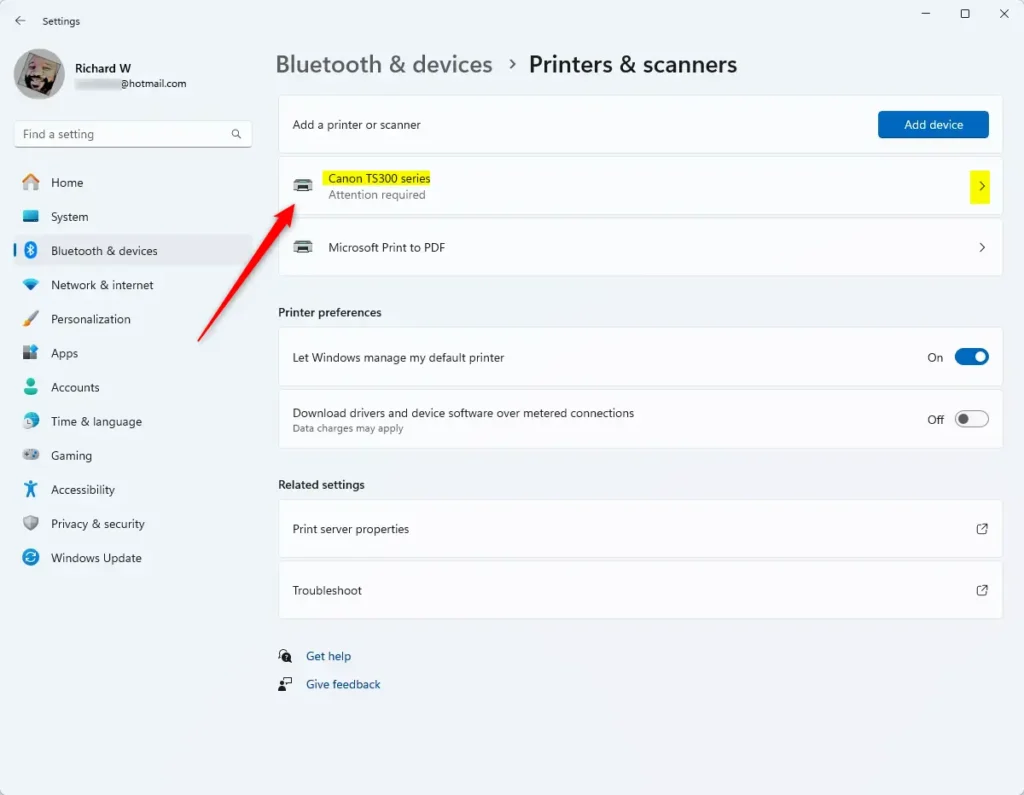
- Open Settings by clicking the Start menu and choosing Settings, or press
Windows key + Ion your keyboard. - Click Bluetooth & devices on the left side.
- On the right, click Printers & scanners.

- Click on the printer you want to share.
- Click Printer properties.
- Select the Sharing tab in the new window.
- Click the Change Sharing Options button.

- Check the box that says Share this printer.
- Give it a share name if you want—this is what others will see when they look for your printer.
- Click OK to save your settings.
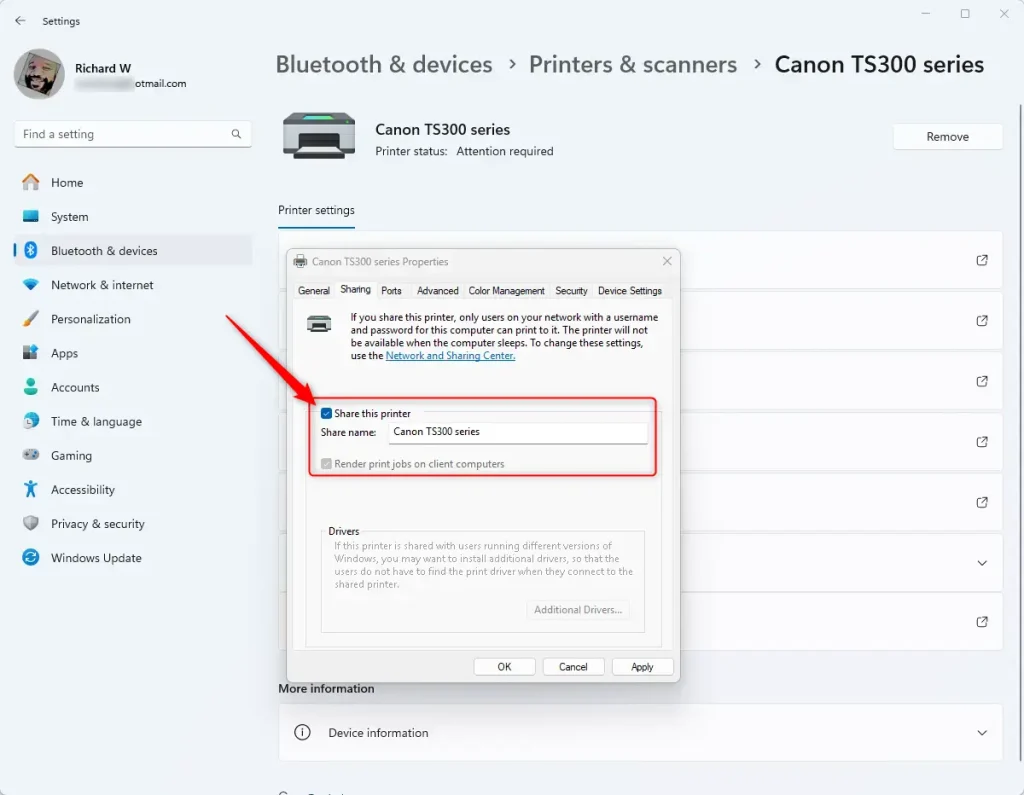
Your printer is now shared! Other computers on your network can find and use it.
Method 2: Share Your Printer Using Devices and Printers
You can also share your printer from the Devices and Printers window.
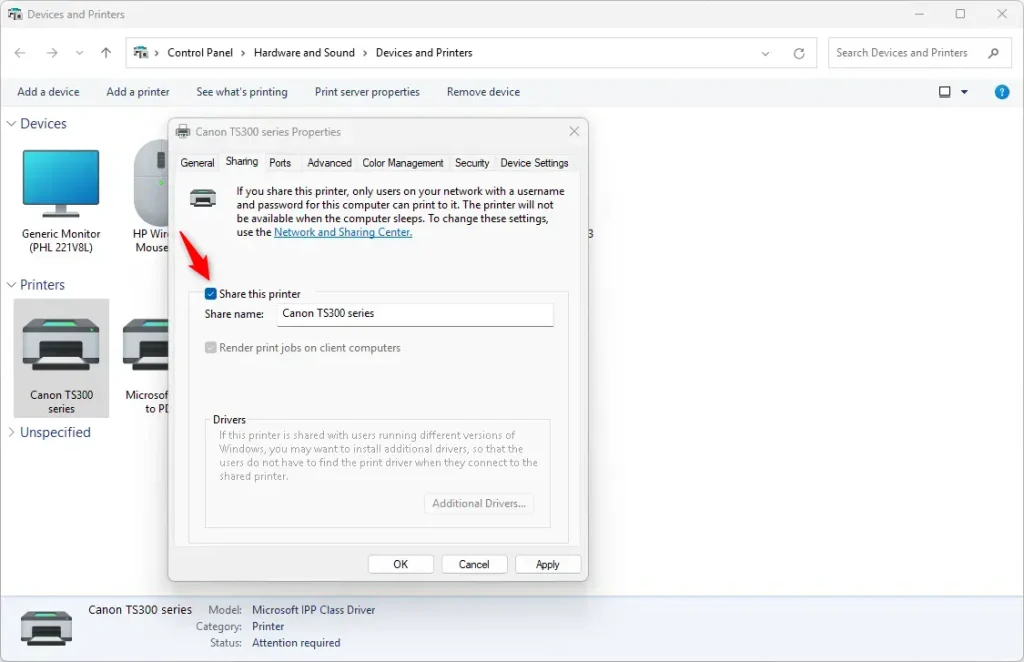
- Open Open Devices and Printers from the Control Panel or Start menu.
- Right-click the printer you want to share and select Printer properties.
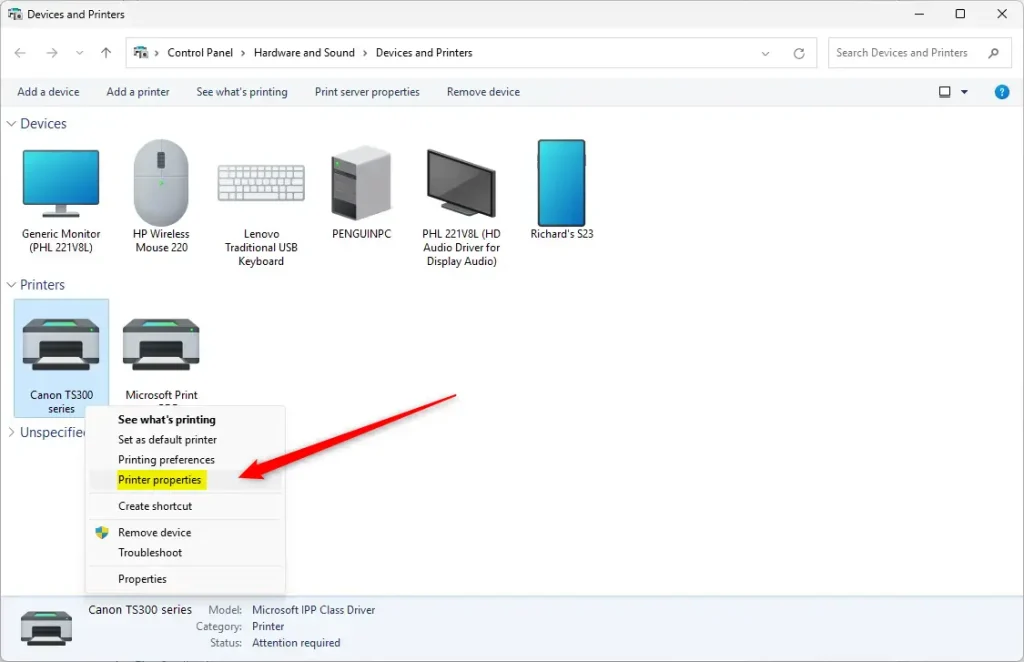
- Go to the Sharing tab.
- Click Change Sharing Options.
- Check the box Share this printer.
- Click OK to save.
Method 3: Share Your Printer Using PowerShell (Advanced)
If you like typing commands, you can share a printer using PowerShell.
- ⚠️ Requires admin privileges: Open Windows PowerShell as an administrator.
- Type this command to see all printers on your PC:
Get-Printer | Format-List Name,ShareName,Shared - Find the exact name of the printer you want to share. Then run this command:
Set-Printer -Name "Your Printer Name" -Shared $TrueReplace
Your Printer Namewith your printer’s actual name. - If you want to set a custom share name, use this command instead:
Set-Printer -Name "Your Printer Name" -Shared $True -ShareName "New Share Name"
Your printer will now be shared on the network!
Summary
- Why share a printer? All devices on your network can print without buying extra printers.
- What you need: The PC with the printer must be turned on for others to use it. You need administrator rights and file & printer sharing turned on.
- How to do it: You can share your printer using Settings, Devices and Printers, or PowerShell commands.
- What happens next: Enjoy printing from any device on your network!



Leave a Reply