

Do you use Microsoft Teams for video calls? If you have more than one camera connected to your computer, you can pick which one Teams uses. This guide will show you how in easy steps.
What is Microsoft Teams?
Microsoft Teams is a free app that helps you chat, have video meetings, and share files all in one place. You can find it on Windows, usually with an icon on your taskbar (the bar at the bottom of your screen).
Why Set a Default Camera?
If you have more than one camera (like a laptop camera and an external webcam), setting a default camera means Teams will always use the one you want. This makes your meetings look better and feel more professional.
How to Choose Your Default Camera in Microsoft Teams
Step 1: Open Microsoft Teams
Click the Start menu (Windows icon on the bottom left of your screen). Find and click on Microsoft Teams in the list of apps.

Or launch from your taskbar: Look for the Teams icon on your taskbar at the bottom of the screen. If it’s hidden, click the small arrow to see more icons (called Taskbar overflow).

Step 2: Go to Settings
Once Teams is open, look at the top right corner and click on the three dots (…) next to your profile picture. Choose Settings from the dropdown menu.

Step 3: Select the Camera
In the Settings window, click on Devices on the left side. Under Video Settings, click the dropdown menu to see all cameras connected to your computer. Pick the camera you want Teams to use by default.
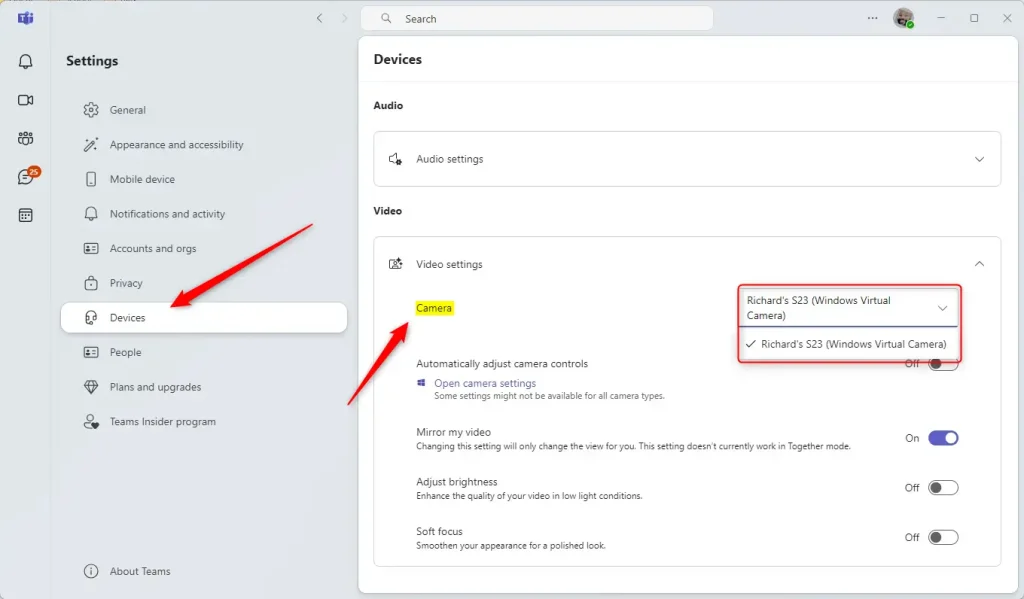
That’s it! Your selected camera will now be used automatically in your Teams meetings.
Summary
- Easy to start: Open Teams from Start menu or taskbar.
- Simple settings: Find camera options under Settings > Devices.
- Multiple cameras supported: Choose whichever camera you prefer.
- Better meetings: Using the right camera helps your video calls look great.
If you want to explore more about Microsoft Teams, like connecting your calendar or managing your microphone and speakers, check out these helpful guides:



Leave a Reply