

This guide shows you how to let the Windows Terminal app keep running even when you’re not actively using it.
Windows Terminal is a modern tool that lets you use command-line shells like Command Prompt, PowerShell, and Linux commands through Windows Subsystem for Linux (WSL).
You can customize Windows Terminal in many ways. You can change its language, size, and startup behavior. One useful option is to allow it to run in the background. This keeps your command-line tasks going even when the app window isn’t open.
How to Let Windows Terminal Run in the Background
Follow these simple steps to turn on (or off) the background running feature:
- Open Windows Terminal: Click the Start menu (the Windows icon at the bottom-left). Type Terminal. Then click on Windows Terminal from the list.

- Go to Settings: Once Windows Terminal opens, click the down arrow ▼ on the top bar. Then click Settings. Or press
Ctrl + ,on your keyboard.
- Find the Compatibility option: In the Settings window, find and click Compatibility on the left side. Look for the option that says “Allow Windows Terminal to run in the background.” Turn the switch On to allow it to run in the background. Turn it Off to stop it.
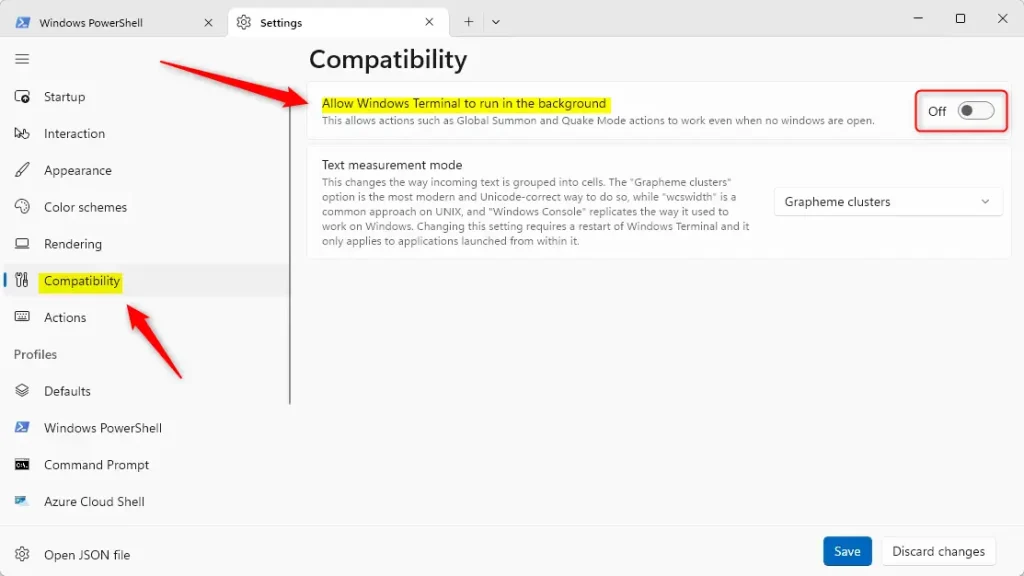
- Save your changes: Click the Save button at the bottom to apply the changes. Then close the Settings window.
That’s it! Now Windows Terminal can keep running in the background. Your tasks won’t stop even if you close the Terminal window.
Why Run Windows Terminal in the Background?
- It lets you continue running scripts or commands without interruption.
- The settings page makes it easy to turn this feature on or off anytime.
- You can customize Windows Terminal to fit your workflow better.
- Keep Windows Terminal updated for the best experience and new features.
Running Windows Terminal in the background enables uninterrupted script and command execution, allowing long-running processes to complete without keeping the window active, improving workflow efficiency and system resource management. oft.com/commandline/windows-terminal-preview-1-23-release/#compatibility-(new)”>Microsoft Windows Terminal blog.
Summary
Running Windows Terminal in the background is simple. Open Windows Terminal, go to Settings, find the Compatibility section, and turn on “Allow Windows Terminal to run in the background.” Save your changes and you’re done. This feature keeps your command-line tasks running even when you close the app window.



Leave a Reply