How to Replace Image Background in Windows 11 Photos App


Background removal in the Windows 11 Photos app lets you cut a person or object out of a picture and swap the background with a single click. This built-in tool saves you from opening heavy photo editing software just to isolate a subject.
Microsoft includes this feature natively in Photos version 2023.11090.13001.0 and newer. You do not need any special design skills to drop in a solid color or blur out messy details behind your main subject.
Open your photo in the Photos app, click Edit image, then select the Background tab. Click Remove to make the background transparent or Replace to choose a new color. Click Apply and then Save a copy.
Why the Confusion? Desktop Wallpaper vs. Image Editing
Many users searching for background replacement settings are actually trying to change desktop wallpaper. That process manages screen appearance rather than editing individual image files.
Why Replace an Image Background?
Replacing a distracting image background helps your main subject stand out clearly and gives portraits or product shots a clean, professional finish. You can use this built-in Windows 11 feature to swap out busy surroundings without needing complicated editing software, making your photos look sharp and focused in just a few clicks.
How to Replace an Image Background Using the Photos App
Replacing an image background in the Windows 11 Photos app takes just a few steps using the built-in editing tools. You can open your picture, use the edit menu to select the background tab, and swap out the surroundings automatically without paying for extra software.
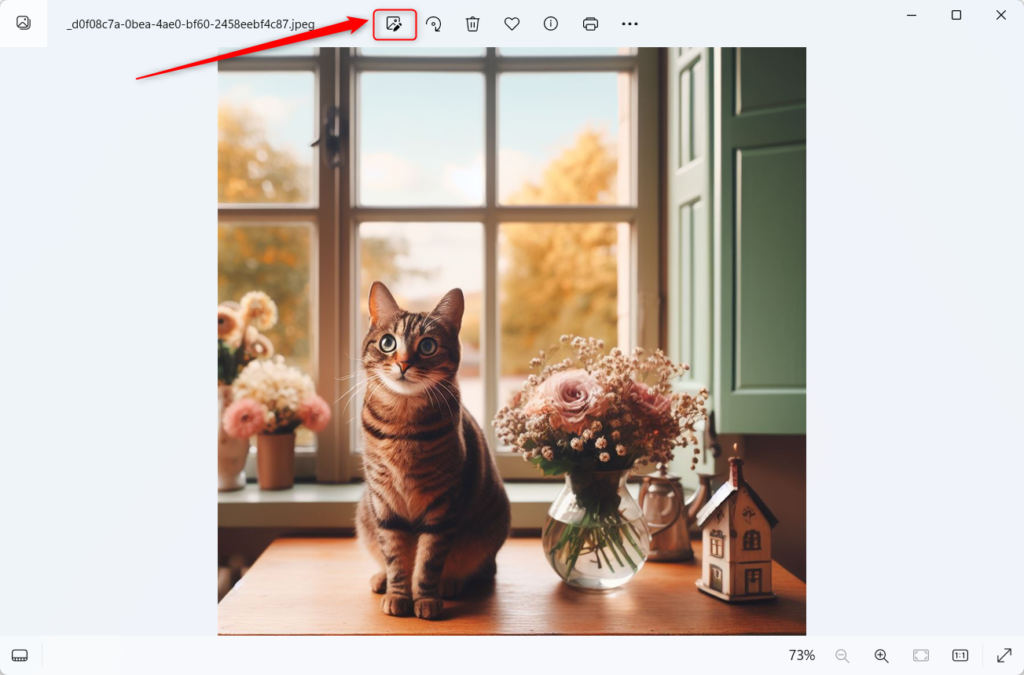
- Open your photo in the Photos app. Click the Edit image button or press Ctrl+E.
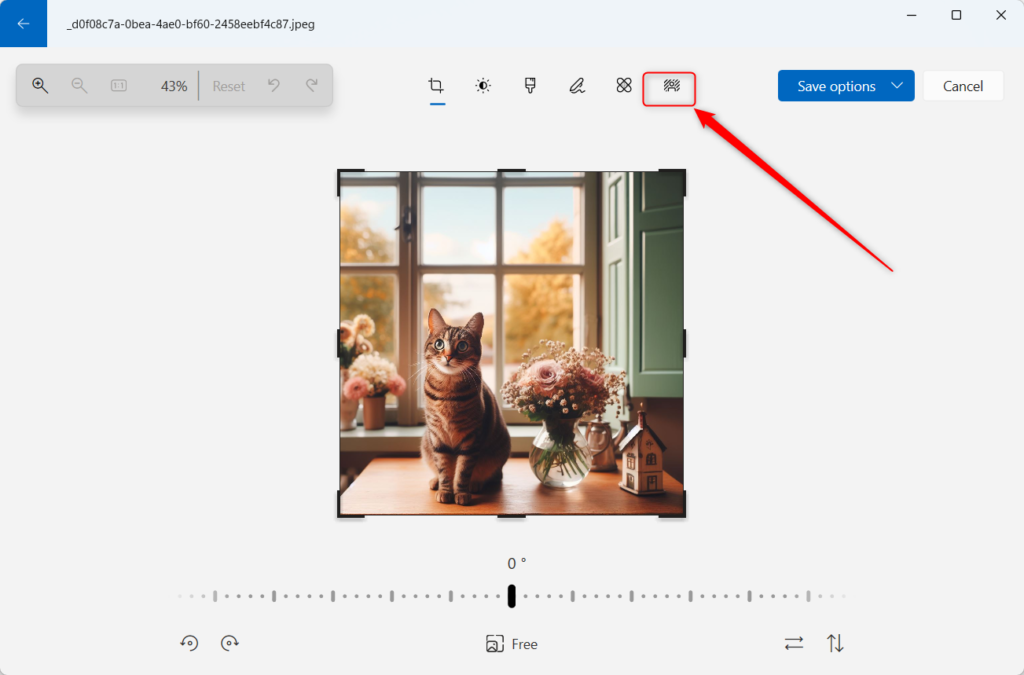
- Click the Background tab in the top toolbar.
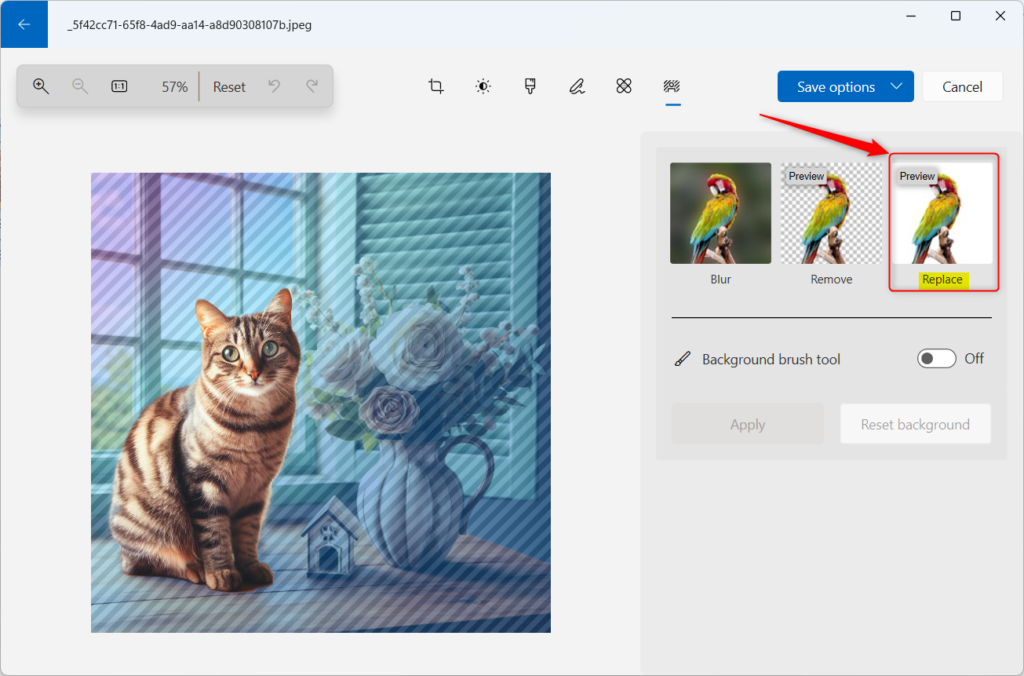
- The app will automatically identify the background. Click Remove to make it transparent, or Replace to select a new color.
- Use the color picker to choose a new background. You can enter specific Hex or RGB codes for branding.
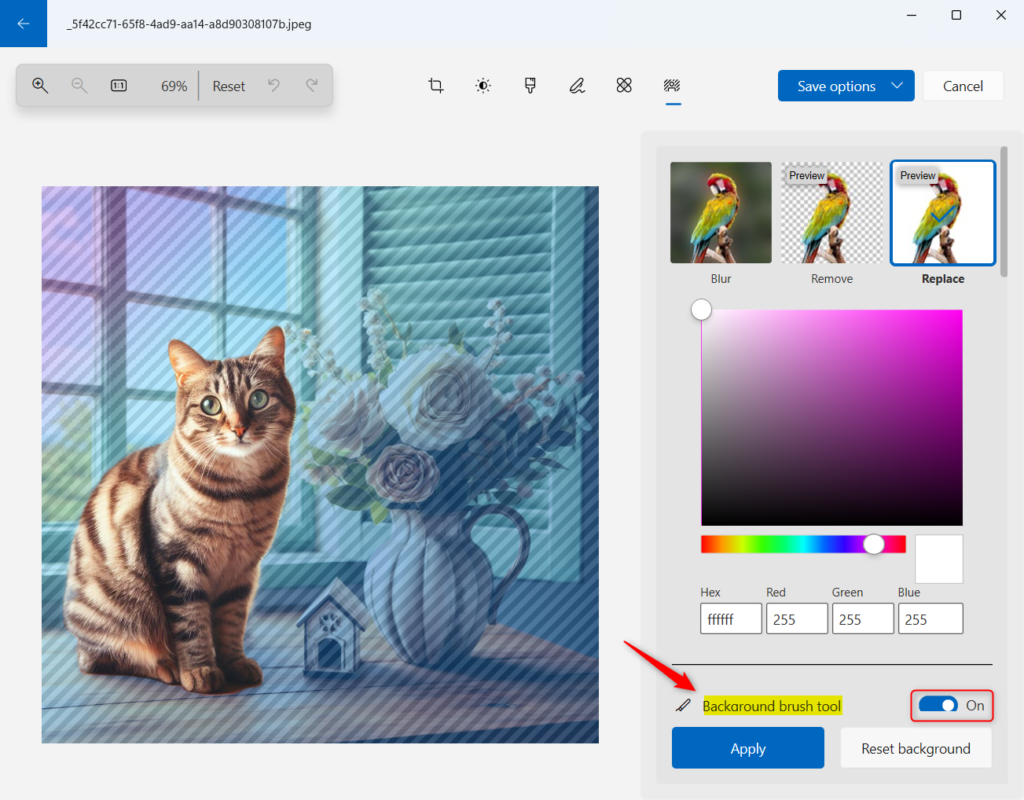
- If the AI misses a spot, use the Background brush tool. Adjust the Brush size and Softness to refine the edges.
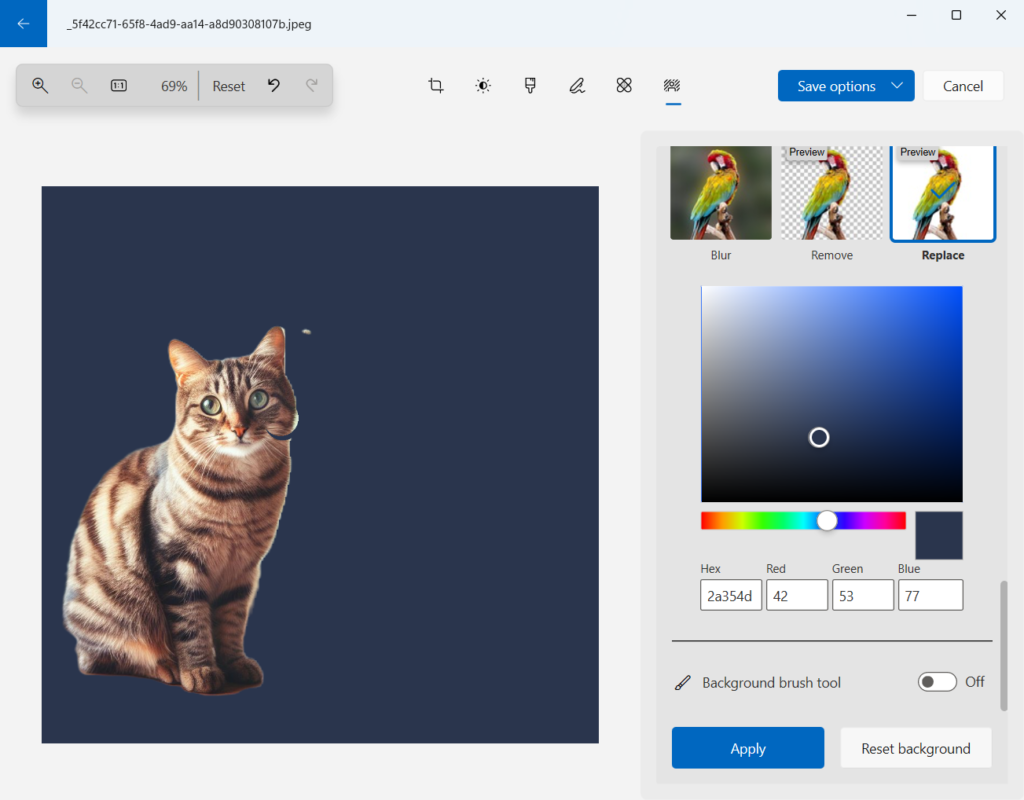
- Click Apply to finalize, then Save a copy to keep your original file safe.
Troubleshooting Common Issues
Missing background controls usually point to outdated software. Updating the package through the Microsoft Store restores missing options.
Summary
Background replacement within the Photos app requires zero financial investment while delivering polished results.
Does the Windows Photos app support transparent backgrounds?
Yes, the Photos app lets you remove a background entirely. When you choose the remove option, the app creates a transparent layer. You can then save this as a PNG file to maintain the transparency for use in other design projects or web graphics.
Is the background removal feature free in 🪟 Windows 11?
The background removal and replacement feature costs nothing to use. It integrates directly into the Microsoft Photos app for all Windows 11 users. Subscriptions and third-party downloads remain completely unnecessary.
Can I use the Photos app to replace backgrounds on batch images?
Currently, batch background replacement is unsupported. Processing requires handling every individual image separately. This isolation gives the artificial intelligence engine enough precision to detect subjects accurately across varying scenes.
Was this guide helpful?

About the Author
Richard
Tech Writer, IT Professional
Richard, a writer for Geek Rewind, is a tech enthusiast who loves breaking down complex IT topics into simple, easy-to-understand ideas. With years of hands-on experience in system administration and enterprise IT operations, he’s developed a knack for offering practical tips and solutions. Richard aims to make technology more accessible and actionable. He's deeply committed to the Geek Rewind community, always ready to answer questions and engage in discussions.



[…] can use the Photos app to replace an image background, remove an image background, import photos and videos, show iCloud in the app, change mouse wheel […]
[…] File Explorer is good, users can also use the Paint and Photos apps to rotate images in […]
[…] can use the Photos app to replace an image background, remove an image background, import photos and videos, show iCloud in the […]
[…] can use the Photos app to replace an image background, remove an image background, import photos and videos, show iCloud in the app, change mouse […]
[…] can use the Photos app to replace an image background, remove an image background, import photos and videos, show iCloud in the app, change mouse […]
[…] can do a lot with Photos, like change picture backgrounds, remove backgrounds, and […]