How to Rename Bluetooth Devices in Windows 11

Bluetooth is a wireless way to connect devices like headphones, speakers, or phones to your Windows 11 PC without using cables.
After you connect (or “pair”) a Bluetooth device to your computer, you can listen to music, make calls, or transfer files. What you can do depends on what the device is designed to do.
Sometimes, the Bluetooth device might show up with a name that’s hard to remember. You can change that name to something easier to recognize.
Why rename your Bluetooth devices?
- Makes it easier to find and connect to the right device.
- Helps you tell apart devices if you have several similar ones.
- Keeps your Bluetooth devices organized and easy to manage.
Steps to rename a Bluetooth device in 🪟 Windows 11
Follow these simple steps to rename your Bluetooth device:
Step 1Open the Devices and Printers window
- Click the Start button or press the Windows key on your keyboard.
- Type
Control Paneland open it. - In Control Panel, select Devices and Printers. (If you want detailed help opening Devices and Printers, click here.)
Step 2Find your Bluetooth device
- Look for the device you want to rename in the list.
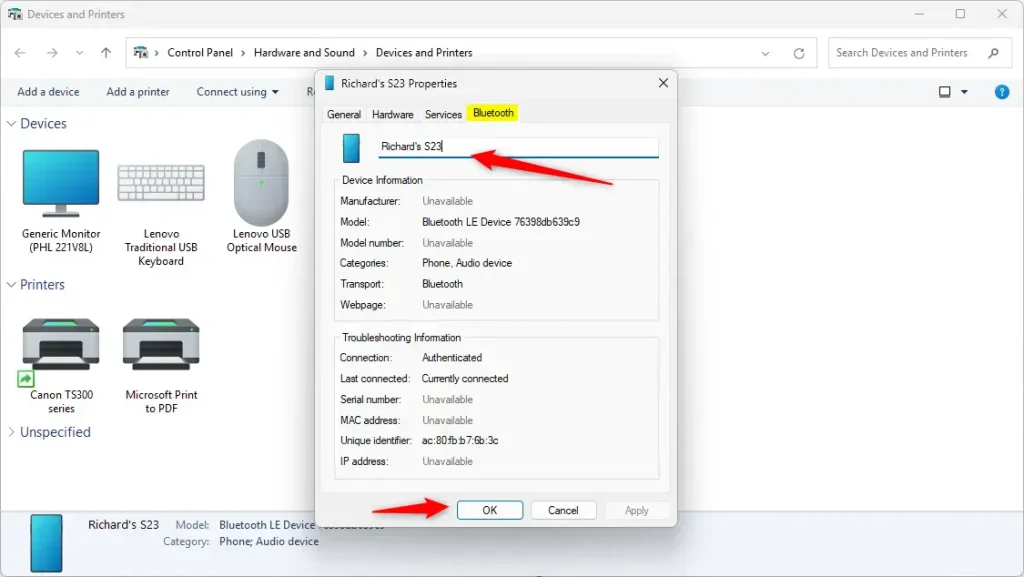
- Right-click on the device icon and choose Properties.
Step 3Rename your device
- In the Properties window, click the Bluetooth tab.
- You will see a box with the device’s current name.
- Click inside the box, delete the old name, and type the new name you want.
- Click OK to save your changes.
Tip: To make sure the new name shows up right away, disconnect and reconnect your Bluetooth device. If needed, you can also restart your PC.
Summary
Renaming your Bluetooth devices makes them easier to recognize. This is especially helpful if you have many devices that look similar. By following these simple steps in Windows 11, you can quickly rename your devices. If you have questions or need help, feel free to ask!
Was this guide helpful?

About the Author
Richard
Tech Writer, IT Professional
Richard, a writer for Geek Rewind, is a tech enthusiast who loves breaking down complex IT topics into simple, easy-to-understand ideas. With years of hands-on experience in system administration and enterprise IT operations, he’s developed a knack for offering practical tips and solutions. Richard aims to make technology more accessible and actionable. He's deeply committed to the Geek Rewind community, always ready to answer questions and engage in discussions.



No comments yet — be the first to share your thoughts!