How to Check Bluetooth Device Battery in Windows 11

You can check the battery level of your Bluetooth devices directly in Windows 11.
Windows 11 shows battery indicators for compatible Bluetooth devices, like headphones, mice, and keyboards, directly in the operating system. This built-in feature means you can monitor your device’s power status without needing a separate app.
For example, many modern Bluetooth headphones and mice, especially those released after 2020, support this battery reporting function. You can typically find the battery icon in the Quick Settings menu.
You can check Bluetooth device battery levels in Windows 11 Settings. Go to Settings, then Bluetooth & devices, and look for the battery percentage displayed below your connected device’s name. Not all devices support this feature.
Why Check Your Bluetooth Device Battery?
Checking your bluetooth device battery in Windows 11 is smart because you won’t be surprised by a dead mouse or headset. It helps you know when to charge or replace your devices before they stop working.
Some Bluetooth devices come with their own apps for checking battery levels, but you won’t always need them. Windows 11 often shows this information directly within its Settings app for many devices.
How to Check Your Bluetooth Device Battery Level in 🪟 Windows 11
Step 1Open Windows Settings
Press the Windows key + I on your keyboard.
Or click the Start button (that’s the little Windows logo), then choose Settings.
Step 2Go to Bluetooth & Devices
In the Settings window, click Bluetooth & devices on the left side.
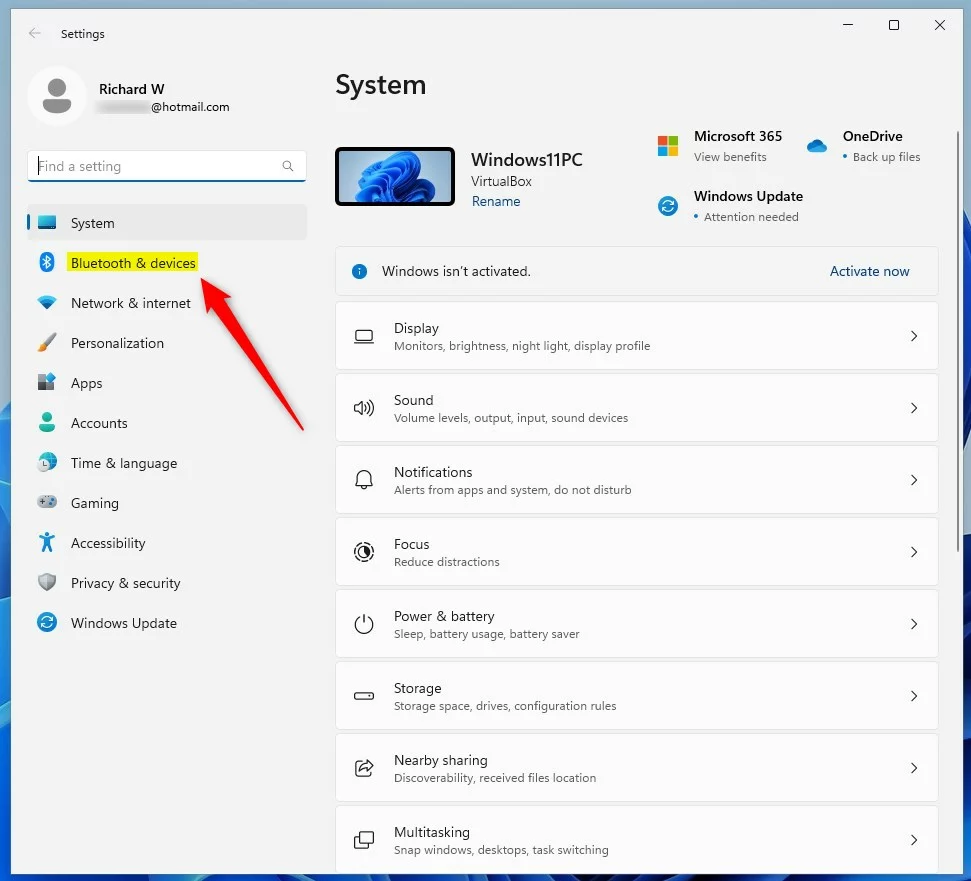
Step 3Look for Your Device’s Battery Level
Now, look on the right side of the window. Your connected Bluetooth devices will appear in a list here. If your device supports battery reporting, you’ll see its battery percentage right below its name.
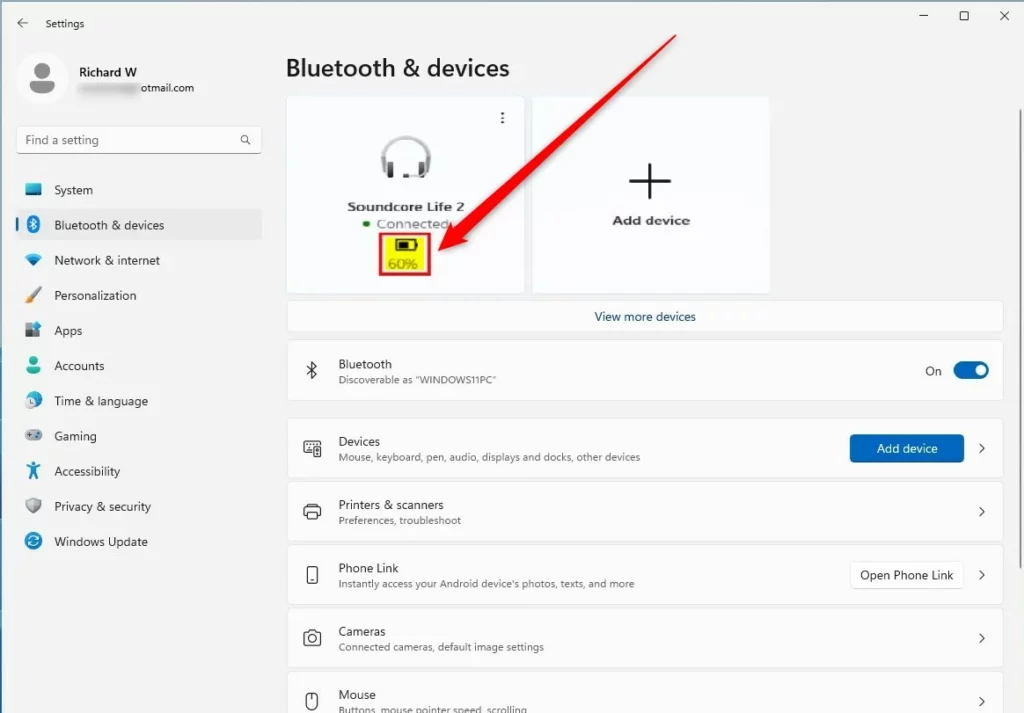
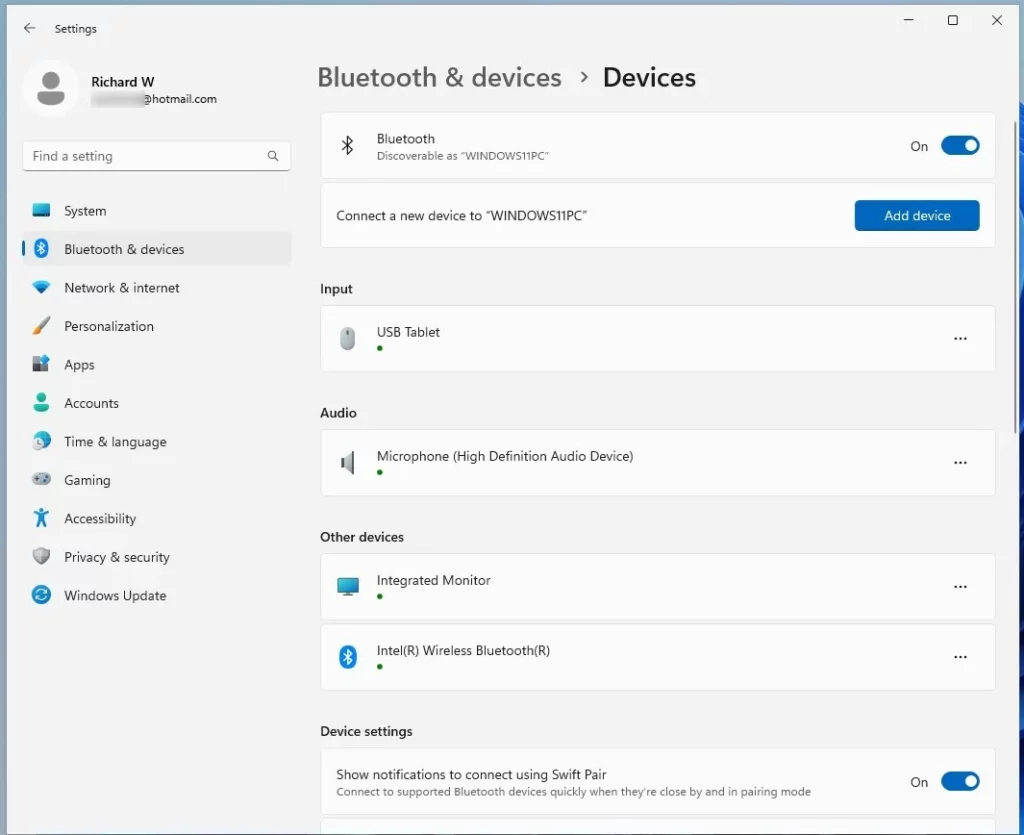
Step 4Find More Devices (If Needed)
If you don’t see your device listed, scroll down and click View more devices to see all paired Bluetooth devices. Then, find your device in the list and check if the battery level is shown.
What If You Don’t See a Battery Level?
If your Bluetooth device is connected but you don’t see a battery level, it means the device does not send battery info to Windows. Not all Bluetooth devices support this feature. Your device may be older or designed without battery reporting.
Summary
- Windows 11 can show the battery level of many Bluetooth devices in the Settings app.
- Access it by going to Settings > Bluetooth & devices.
- If you don’t see your device listed, use the View more devices link to find it.
- If the battery level doesn’t show, your device might not support sending battery info to Windows.
Windows 11 makes it easy to check your bluetooth device battery level right in the Settings app. Just go to Settings, then Bluetooth & devices, and you’ll often see the battery status listed next to your connected devices.
Need more help with Windows 11? Check out the official Microsoft help page here: Windows 11 Support.
Was this guide helpful?

About the Author
Richard
Tech Writer, IT Professional
Richard, a writer for Geek Rewind, is a tech enthusiast who loves breaking down complex IT topics into simple, easy-to-understand ideas. With years of hands-on experience in system administration and enterprise IT operations, he’s developed a knack for offering practical tips and solutions. Richard aims to make technology more accessible and actionable. He's deeply committed to the Geek Rewind community, always ready to answer questions and engage in discussions.



No comments yet — be the first to share your thoughts!