
Is your computer not showing all the Wi-Fi networks around you? Don’t worry! This guide will show you simple ways to refresh (or rescan) the list of Wi-Fi networks on your Windows 11 PC.
What is Wi-Fi?
Wi-Fi lets your computer connect to the internet wirelessly — no cables needed! You can see a list of Wi-Fi networks nearby and connect to any you have the password for.
Why Refresh Your Wi-Fi List?
Sometimes, your computer might not show all Wi-Fi networks right away. Instead of waiting, you can refresh the list to see if new networks appear. This is helpful if you just turned on a Wi-Fi hotspot or moved to a new location.
How to Refresh Wi-Fi Networks Using Quick Settings
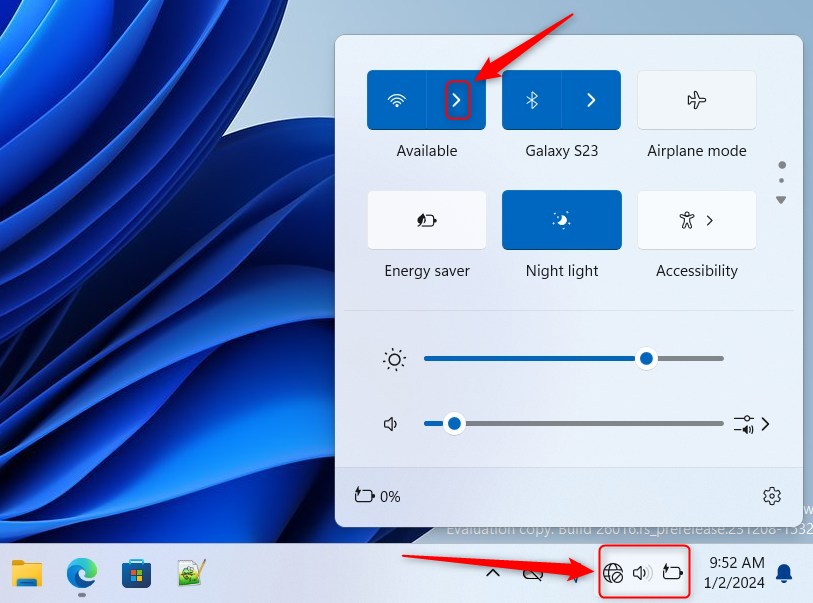
- Open Quick Settings: Press
Win + Aon your keyboard. This opens a small panel with quick access buttons. - Find the Wi-Fi Section: Look for the Wi-Fi icon in Quick Settings. Click the arrow next to it labeled Manage Wi-Fi connections.
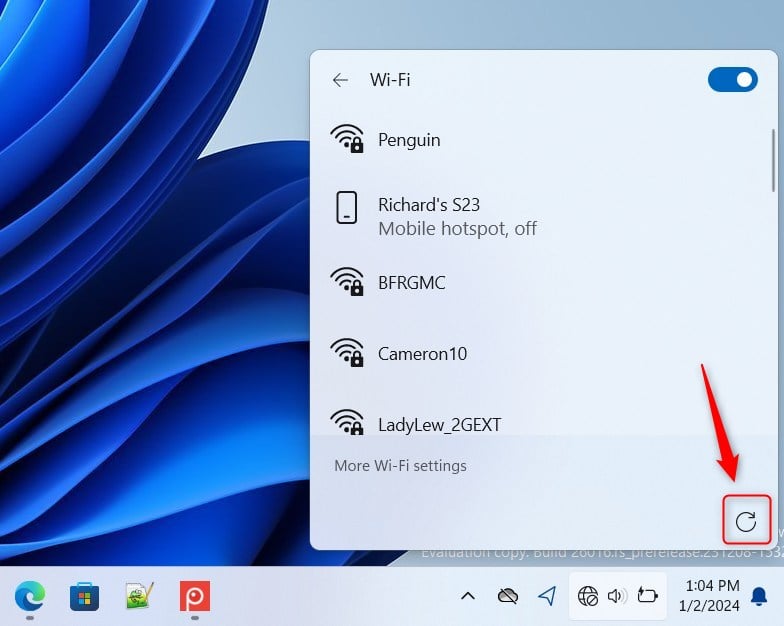
- Click the Refresh Button: In the Wi-Fi list that opens, click the Refresh button to rescan for available networks.
How to Refresh Wi-Fi Networks Using Windows Terminal
If you like using commands, here’s another way to refresh your Wi-Fi list:
- Open Open Windows Terminal by searching for it in the Start menu.
- Choose the PowerShell tab (usually the default).
- Type or copy-paste one of these commands and press
Enter:
Get-Service wlansvc | Restart-ServiceOR
Restart-Service -Force -Name "wlansvc"If you want to use the Command Prompt tab inside Windows Terminal, try this:
PowerShell "Get-Service wlansvc | Restart-Service"OR
PowerShell Restart-Service -Force -Name "wlansvc"This will restart the Wi-Fi service and refresh the list of available networks.
Summary
- Refreshing the Wi-Fi list helps you find networks that might not show up right away.
- Windows 11’s Quick Settings now has a simple refresh button to scan for networks again.
- You can also refresh Wi-Fi networks by restarting the Wi-Fi service using Windows Terminal commands.
- Try these steps whenever you want to see the latest Wi-Fi networks around you!
If this guide helped you, or if you have other tips, please share your thoughts in the comments below!


Leave a Reply