
Want to connect your digital pen (like a Surface Pen) to Windows 11? This guide shows you easy steps to pair your pen using Bluetooth. You’ll be able to write, draw, and navigate your computer smoothly once it’s connected.
What is Bluetooth?
Bluetooth is wireless technology. It lets devices like pens, keyboards, mice, and speakers connect to your computer without cables.
Want to learn more about Bluetooth? Check out this simple guide: How to Turn Bluetooth On or Off in Windows 11
Step 1: Turn On Bluetooth
Why? Your pen needs Bluetooth to connect to your computer.
What happens? Once Bluetooth is on, your pen can find your computer and pair with it.
Most laptops and tablets have Bluetooth built-in. If your computer doesn’t have it, you can buy a small USB Bluetooth adapter. Just plug it into a USB port.
Here’s how to turn on Bluetooth:
- Click the Start button (Windows icon) at the bottom-left corner.
- Select Settings (gear icon).
- Click Bluetooth & devices on the left menu.
- Turn on the switch next to Bluetooth.
Step 2: Put Your Pen in Pairing Mode
Why? Your pen needs to be in pairing mode so Windows 11 can find it.
What happens? A light on your pen will blink. This tells you the pen is ready to connect.
Press and hold the top button on your pen for about 5-7 seconds. Watch for a blinking white light on the pen. This means it’s ready to pair.
Step 3: Pair Your Pen with Windows 11
Why? This step connects your pen to your computer permanently.
What happens? Your pen appears in your Bluetooth settings. You click it to finish the connection.
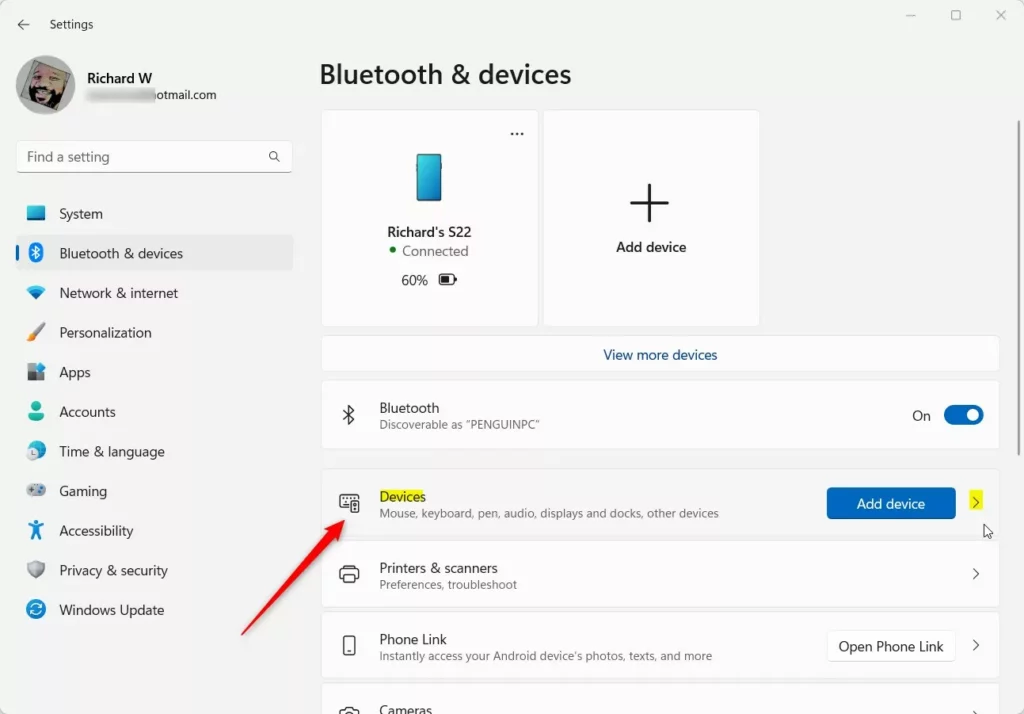
- Go back to Settings > Bluetooth & devices.
- Click Add device.
- Choose Bluetooth from the options.
- Wait a moment. Your pen should appear in the list of available devices.
- Click your pen’s name to connect it.
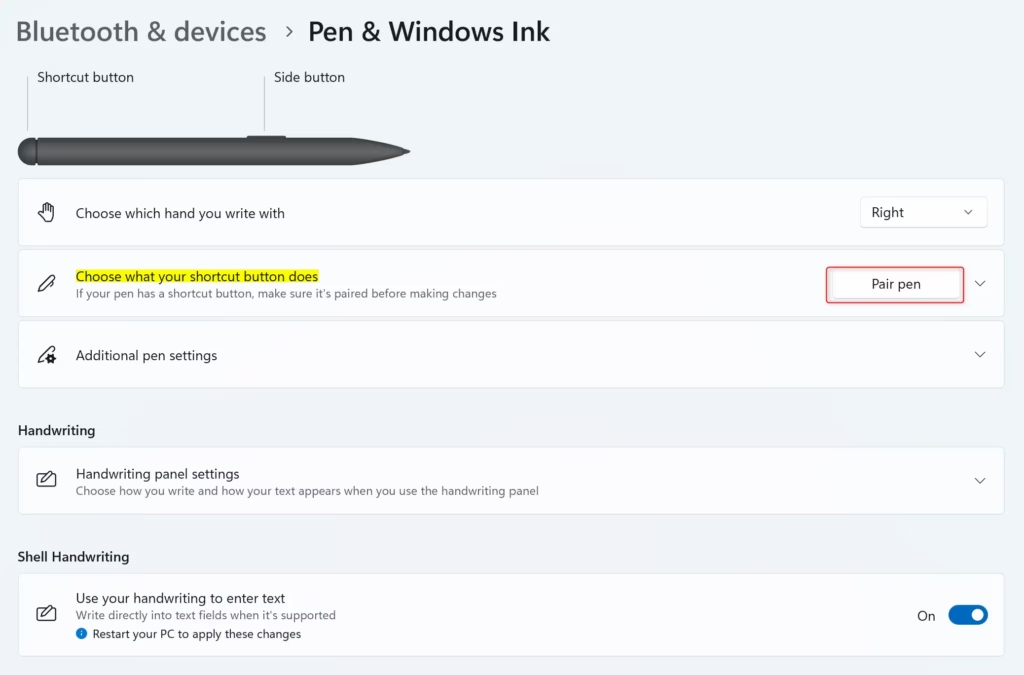
Once connected, your pen is ready to use!
Need More Help?
Check out these official resources for extra tips:
Summary
- Turn on Bluetooth in Windows 11 Settings.
- Put your pen into pairing mode. Hold the top button until you see a blinking light.
- Add your pen in the Bluetooth settings on your computer.
- Once paired, start using your pen with your device.
Have questions? Want to share your experience? Leave a comment below!



Leave a Reply