

This article explains how to mute all notifications except for calls and meetings in Microsoft Teams.
Microsoft Teams is a collaboration platform developed by Microsoft that integrates chat, video meetings, file storage, and application integration.
The free version is installed on Windows with its icon on the Taskbar.
There are many settings one can enable in the Microsoft Teams app. You can connect your Google calendar, turn the camera and mic on or off on the lock screen, turn read receipts on or off, auto start Teams, disable Teams chat, sync contacts with Teams, connect to Google Calendar, link your mobile device, turning message preview on or off, turn spell check on or off, turn on or off phone number in search results, manage notifications, turn on or off suggested replies in chat, and more.
The new Microsoft Teams app has a new feature that lets you mute all notifications except calls and meetings with a single toggle button.
The steps below walk you through how to mute all notifications except for calls or meetings in Microsoft Teams.
Mute all notifications in Teams except for calls or meetings
As mentioned, users have a new toggle button in the Microsoft Teams app to mute all notifications except calls and meetings.
Here’s how to do it.
First, launch the app by clicking the Start menu and selecting it on the All apps list.
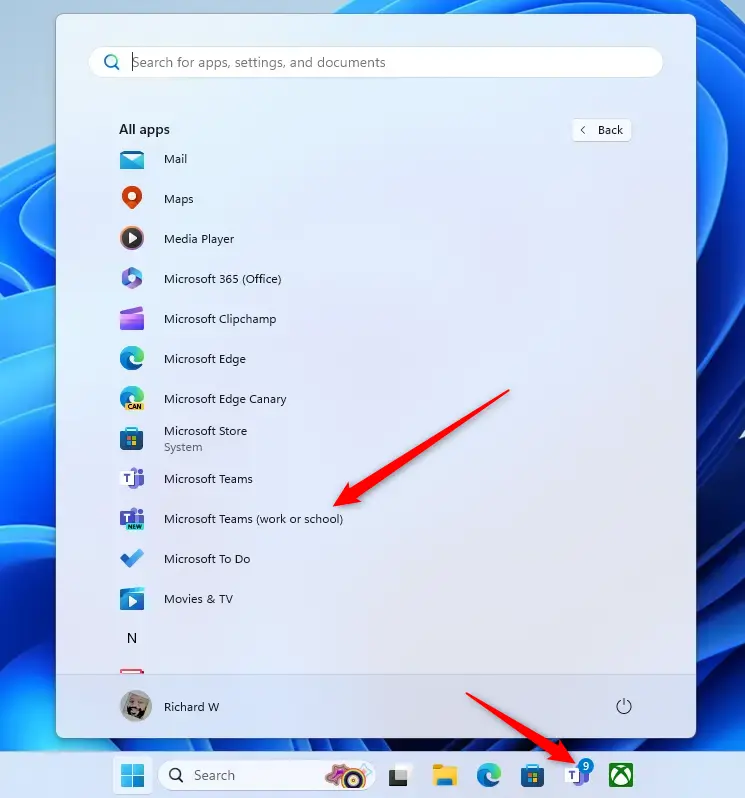
You can also launch the app from the Taskbar or Taskbar overflow.

When you first launch the Teams app, the mini window will open.
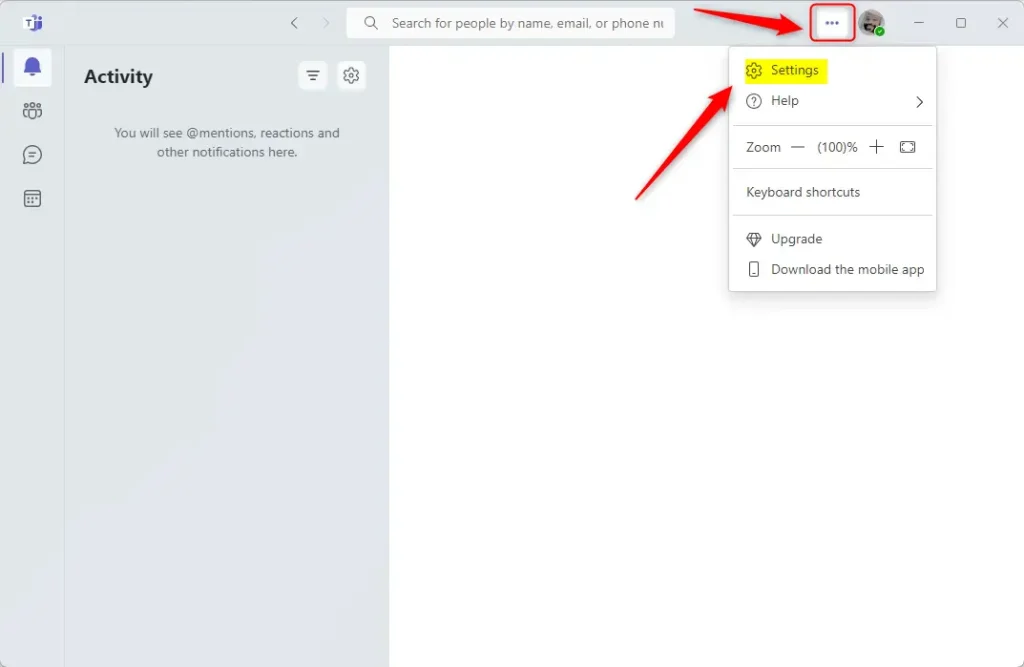
In the full Teams window, click the Settings and more ( …) button next to your profile picture and select Settings from the menu.
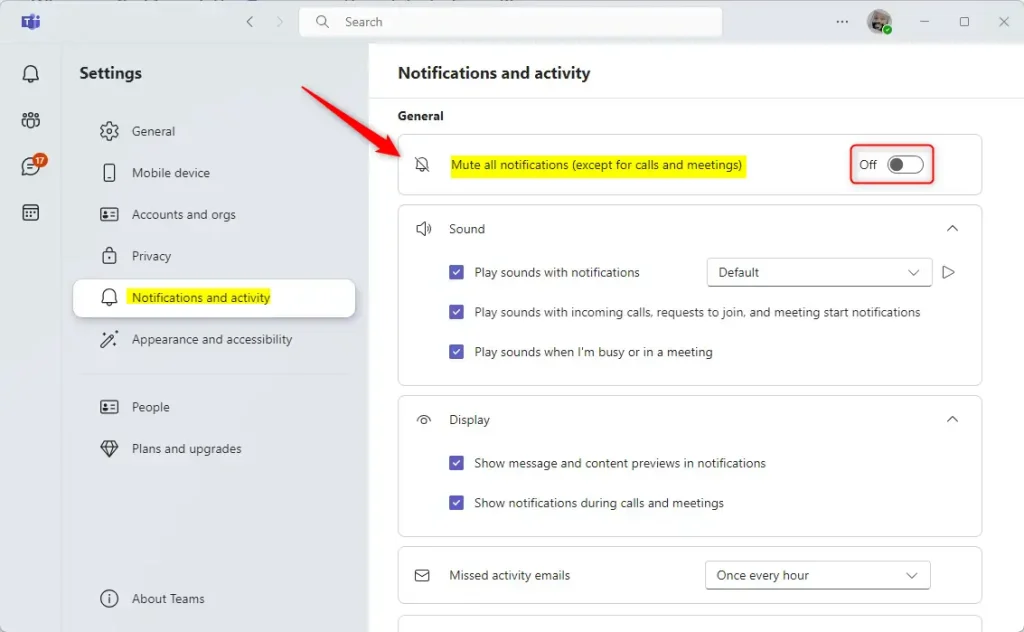
Next, select the Notifications and activity tab on the left of the Settings page. Then, under “General” on the right, toggle the switch button next to “Mute all notifications (except for calls and meetings)” to the On or Off position to turn it on or off.
That should do it!:
Conclusion:
- Muting all notifications except for calls and meetings in Microsoft Teams is a convenient feature to decrease distractions during work.
- Users can easily toggle the Mute All notifications option on or off by accessing the Notifications and activity tab in Settings.
- Users can quickly customize their notification preferences to streamline their Teams experience by utilizing the new toggle button.
Leave a Reply Cancel reply