Mount External Storage as Read-Only in Ubuntu


Mounting external storage as read-only in Ubuntu lets you open and copy files from a USB drive or hard disk while blocking any changes or deletes. This setup protects important backups and shared data from accidental edits.
Ubuntu normally gives full read and write access to any plugged-in drive right away. Changing this behavior locks the drive so you can view its contents safely without risking data loss.
Open the Terminal and run `gsettings set org.gnome.desktop.lockdown mount-removable-storage-devices-as-read-only true`. To allow writing again, use `gsettings set org.gnome.desktop.lockdown mount-removable-storage-devices-as-read-only false`.
Enable or disable mounting external storage devices as read-only
You can mount external storage read-only in Ubuntu to block any changes or accidental file deletions on your USB drives and external hard disks. To do this, open the Terminal and run a quick command to lock down the file system so you can only read the data stored on the device.
Open the Terminal by pressing Ctrl+Alt+T.
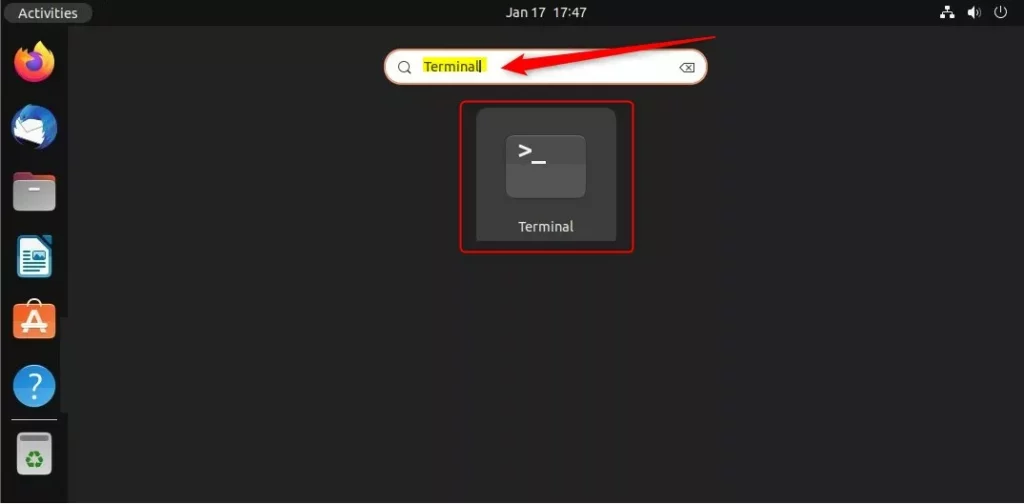
Run the following command in the terminal to make all external drives read-only:
gsettings set org.gnome.desktop.lockdown mount-removable-storage-devices-as-read-only true
Reverting this behavior to permit writing requires running a different command:
gsettings set org.gnome.desktop.lockdown mount-removable-storage-devices-as-read-only false
Enable or Disable mounting storage devices as read-only devices using the Dconf Editor
Dconf Editor (a visual settings manager for changing system configurations without typing commands) lets you mount external storage read-only through a graphical menu instead of the Terminal. Install the tool first by running the setup command, and then you can change your drive settings with a few clicks.
Installing the tool requires running this command in the terminal:
sudo apt update && sudo apt install dconf-editor
Learn more about software management via the guide on How to add or remove software on Ubuntu Linux.
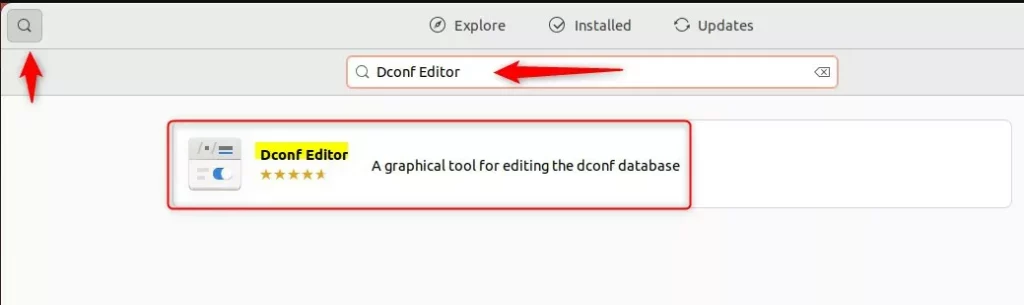
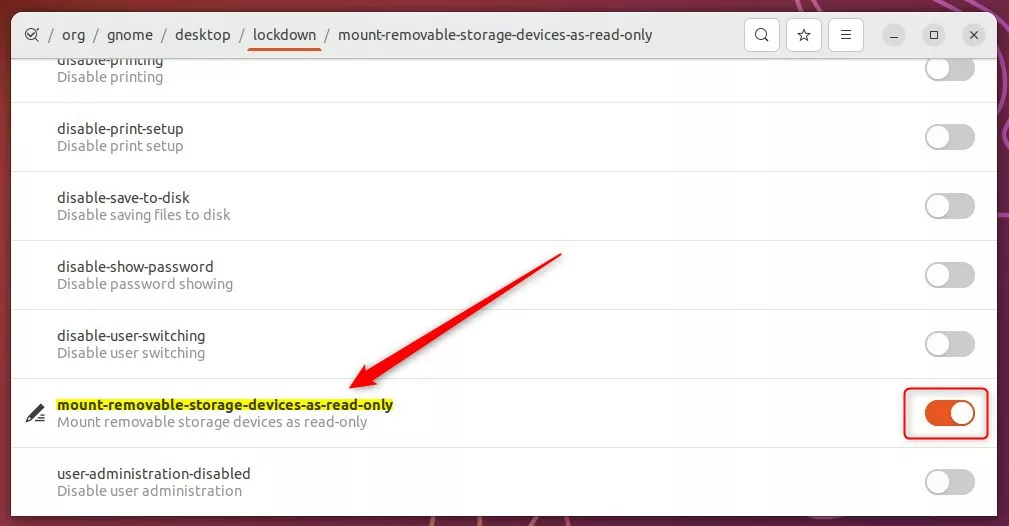
Launch Dconf Editor from the app menu after completing the installation. Navigate through the following schema path: org -> gnome -> desktop -> media-handling
Locate the setting labeled "mount-removable-storage-devices-as-read-only" and toggle the switch to "On."
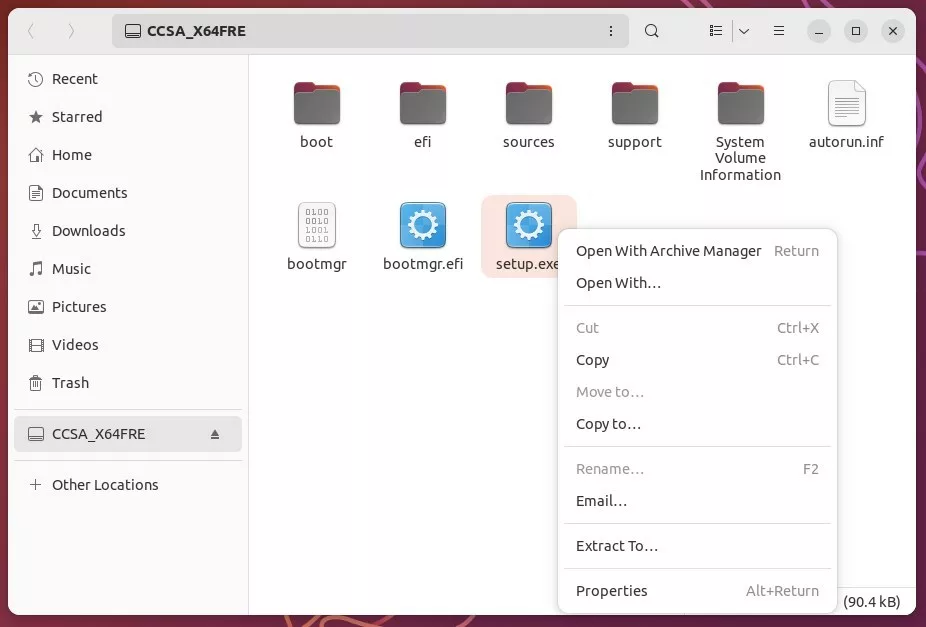
Enforcing read-only status on external storage stops any connected USB drive from accepting new writes. Notifications or lock icons appear to signal that writing to the device remains blocked.
Conclusion
Controlling whether external drives mount as read-only on an Ubuntu computer helps prevent accidental file modifications.
Questions or assistance requests belong in the comment section below.
Was this guide helpful?

About the Author
Richard
Tech Writer, IT Professional
Richard, a writer for Geek Rewind, is a tech enthusiast who loves breaking down complex IT topics into simple, easy-to-understand ideas. With years of hands-on experience in system administration and enterprise IT operations, he’s developed a knack for offering practical tips and solutions. Richard aims to make technology more accessible and actionable. He's deeply committed to the Geek Rewind community, always ready to answer questions and engage in discussions.

No comments yet — be the first to share your thoughts!